
Build a seamless smart home in 2026 with this step-by-step setup guide covering ecosystems, starter kits, protocols, and easy troubleshooting tips.
You’ve bought a smart bulb, a voice speaker, and a Wi-Fi plug, only to discover they each need a separate app and refuse to talk to each other. Sound familiar? This frustrating experience is exactly why so many homeowners give up on smart home tech before they ever enjoy it. The good news is that a structured, step-by-step approach completely changes the game. By choosing the right ecosystem, starting with a focused set of devices, and following a clear installation plan, you can build a genuinely responsive, affordable smart home without the headaches. This guide walks you through every stage, from picking your platform to fixing common failures.
Table of Contents
- Choosing the right smart home ecosystem
- Essential devices and affordable starter kits
- Step-by-step: Setting up your smart home
- Device types, automation protocols, and energy efficiency
- Troubleshooting: Common smart home problems and easy fixes
- The truth about smart home automation most guides skip
- Take the next step: Upgrade your home tech
- Frequently asked questions
Key Takeaways
| Point | Details |
|---|---|
| Pick a single ecosystem | Starting with one platform prevents compatibility issues and makes your setup easier to expand. |
| Start with affordable basics | A simple hub, plugs, and bulbs can give you voice control and automations for under $150. |
| Prioritize local protocols | Choose Matter, Zigbee, or Thread devices for better reliability and energy efficiency. |
| Follow a step-by-step setup | Careful sequence from hub setup to first automation minimizes errors and wasted time. |
| Troubleshoot common issues | Most failures involve offline devices—simple reboots fix the majority of problems. |
Choosing the right smart home ecosystem
Once you understand the pains of a fragmented setup, your first key decision is which smart home platform to base your system on. Think of an ecosystem as the operating system of your home. Every device you add should speak the same language as your hub, and that starts with picking one platform and committing to it.
The four major players each have a distinct personality. Amazon Alexa boasts the widest device compatibility, making it the most flexible choice for mixing brands. Google Home shines with its voice AI, handling natural conversational commands better than most. Apple HomeKit prioritizes privacy and works beautifully within the Apple universe, though it supports fewer third-party devices. Home Assistant is the powerhouse option for DIY enthusiasts who want limitless local automations and full data control. As a 2025 ecosystem comparison notes, Alexa leads in compatibility, Google in voice AI, HomeKit in privacy, and Home Assistant in automation depth.
Here is a quick comparison to help you decide:
| Ecosystem | Best for | Privacy | Device range | Cost to start |
|---|---|---|---|---|
| Amazon Alexa | Broad compatibility | Moderate | Very wide | Low |
| Google Home | Voice commands | Moderate | Wide | Low |
| Apple HomeKit | iOS users, privacy | High | Moderate | Medium |
| Home Assistant | Advanced automations | Very high | Widest (local) | Medium/High |
When evaluating your options, keep these factors in mind:
- Device compatibility: Does the platform support the brands you already own?
- Privacy: Does it store data locally or send it to the cloud?
- App experience: Is the companion app intuitive and regularly updated?
- Cost: What is the price of the hub plus ongoing subscription fees?
- Automation depth: Can you build complex routines, or are you limited to simple triggers?
A home automation guide for beginners strongly recommends starting with a single ecosystem to avoid compatibility issues. Mixing platforms early on creates confusion and often means buying duplicate devices. For affordable computing for smart homes, a dedicated hub or mini PC running Home Assistant can also serve as a powerful local controller.
Pro Tip: Resist the urge to mix ecosystems right away. Lock in one platform, build confidence, and only bridge to a second system once you know exactly what you need.
If you want a broader overview before committing, smart home starter advice from experienced installers is a great place to ground your decision.
Essential devices and affordable starter kits
After choosing your main platform, you’ll need the right mix of devices to get actual functionality. The temptation is to buy everything at once. Don’t. Starting small keeps costs manageable, makes troubleshooting straightforward, and lets you learn the system before scaling up.
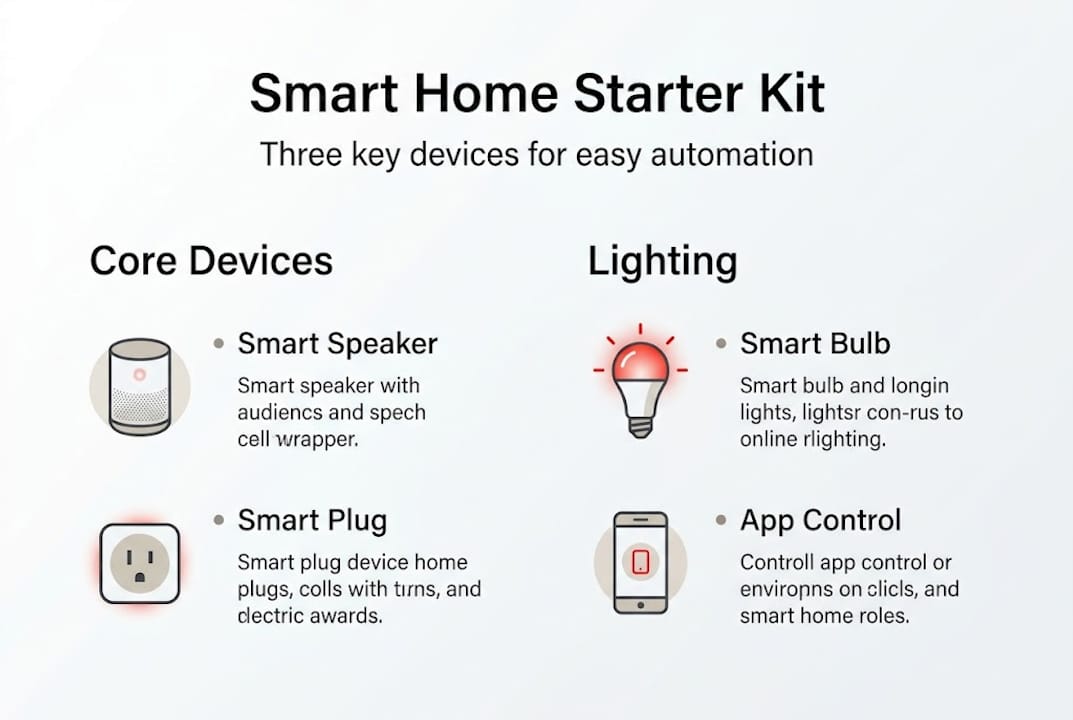
Your core starter kit should cover three categories: a smart speaker or hub, smart plugs, and smart bulbs. Together, these give you voice control, remote power management, and mood lighting. A solid smart home setup guide recommends building your starter kit for under $100 to $150, which is genuinely achievable with today’s pricing.
| Device | Example brands | Typical price | What it does |
|---|---|---|---|
| Smart speaker/hub | Echo Dot, Google Nest Mini | $30–$50 | Voice control center |
| Smart plugs (2-pack) | Kasa, Wyze, TP-Link | $15–$25 | Remote power on/off |
| Smart bulbs (2-pack) | Philips Hue, LIFX, Govee | $20–$40 | Color and schedule lighting |
| Smart thermostat | Ecobee, Nest | $80–$130 | Climate automation |
The benefits of starting small are real and worth emphasizing:
- Lower financial risk: You spend under $150 before knowing if you love it.
- Easier troubleshooting: Fewer devices means fewer variables when something goes wrong.
- Faster wins: You get a working, impressive setup in under an hour.
- Scalable foundation: Every device you add later builds on a stable base.
The momentum behind smart home adoption is undeniable. 84.9 million US households are already using smart devices in 2026, which means the product ecosystem, support communities, and device prices have never been better. You are joining a well-supported movement, not an experiment.
For managing and controlling your devices from a central point, exploring computing hardware for device control can open up options beyond a simple smart speaker. Understanding automation startup costs upfront also helps you plan a budget that grows with your ambitions.
Step-by-step: Setting up your smart home
With your devices ready, it’s time to install and connect everything for that first hands-free command. The process is more straightforward than most people expect, especially if you follow a logical sequence.
Here is a reliable five-step process based on proven smart home setup steps:
- Install your hub app on your smartphone and create a secure account with a unique password.
- Connect your hub to your home Wi-Fi network and confirm it appears online in the app.
- Add your first device (start with a smart plug) by following the in-app pairing wizard.
- Test a voice command or app command to confirm the device responds correctly.
- Create your first automation, such as turning off all plugs at midnight, to experience the real magic.
Each hub typically takes 10 to 40 minutes to fully configure, depending on the platform and the number of devices you are adding. Home Assistant, for example, requires a bit more time for initial Home Assistant setup but rewards you with far greater control.
Security is not optional. Change default device passwords immediately, enable two-factor authentication on your hub account, and review privacy settings so you know what data leaves your home network.
Critical reminder: Never leave your hub or router using factory default passwords. A compromised hub gives an attacker control over every connected device in your home.
Pro Tip: If you are adding Matter-certified devices (a newer universal standard), look for the QR code on the device packaging. Most apps let you scan it directly for instant, error-free pairing, cutting setup time dramatically.
Device types, automation protocols, and energy efficiency
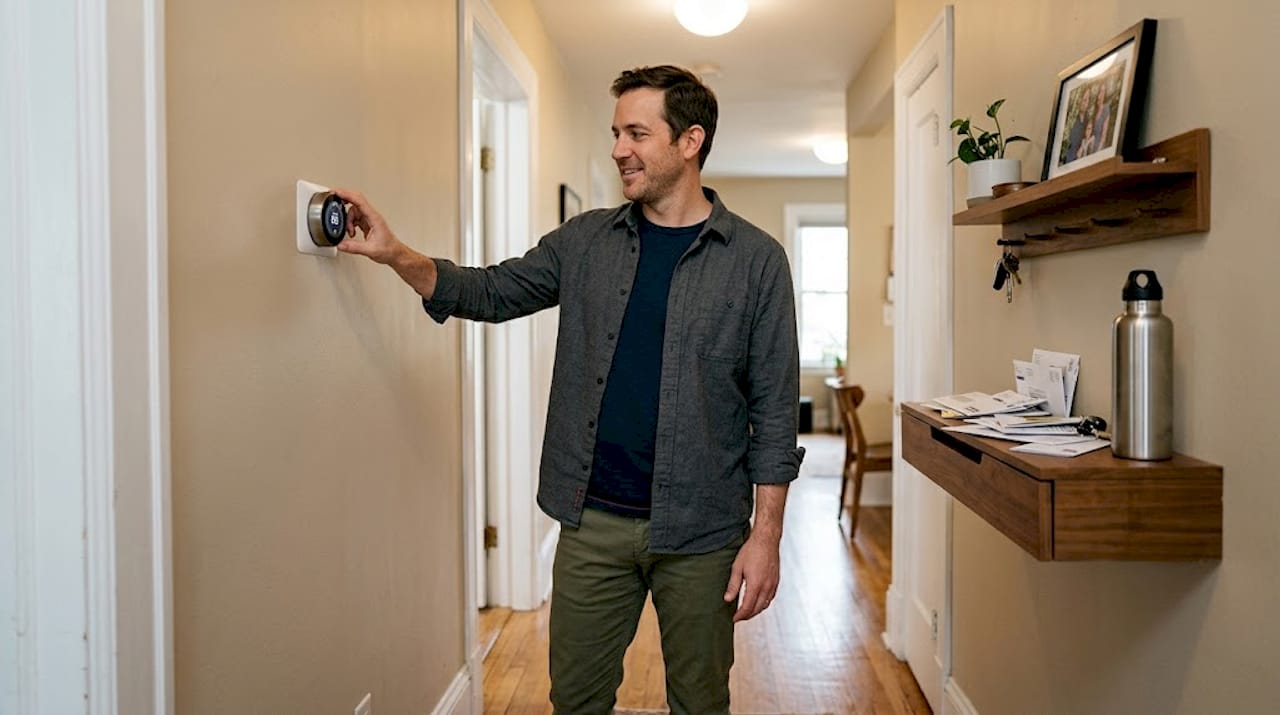
Now that your basic setup works, the next choices unlock speed, energy saving, and reliability. Not all smart devices communicate the same way, and the protocol (the wireless language they use) makes a huge difference in real-world performance.
Here is how the major device categories stack up:
| Device type | Primary use | Best protocol | Avg. energy saving |
|---|---|---|---|
| Smart bulbs | Lighting schedules, scenes | Zigbee, Matter | 15–30% |
| Smart plugs | Appliance control | Zigbee, Wi-Fi | 10–20% |
| Smart thermostat | Climate control | Wi-Fi, Z-Wave | 10–15% |
| Motion sensors | Trigger automations | Zigbee, Thread | Minimal draw |
Choosing the right protocol matters more than most beginners realize. Here is what each one offers:
- Wi-Fi: Easy setup, works with your existing router, but can crowd your network and drain device batteries faster.
- Zigbee: Low power, fast response, forms a mesh network where devices relay signals to each other.
- Thread: Next-generation mesh protocol, ultra-low latency, the backbone of many Matter devices.
- Matter: A universal standard that lets devices work across Alexa, Google, HomeKit, and Home Assistant simultaneously.
A 2026 protocol review confirms that Matter, Thread, and Zigbee deliver lower latency, better reliability, and superior energy efficiency compared to Wi-Fi-only devices. For smart home device integration, choosing Matter-compatible hardware future-proofs your investment.
The energy savings are genuinely exciting. Smart thermostats save 10 to 15% on HVAC costs, while lighting automations can cut your lighting bill by 15 to 30%. Over a year, those numbers add up to real money. You can also explore a detailed protocol comparison to match the right wireless standard to each room’s needs.
Troubleshooting: Common smart home problems and easy fixes
Even the best setups hit snags, but most failures have simple root causes and straightforward remedies. Knowing what to look for saves you hours of frustration.
The most frequent issues, drawn from analysis of 50,000 troubleshooting queries, break down like this: devices going offline account for 21% of failures, pairing problems make up 15%, and automation failures represent 11%. Here is how to tackle each one:
- Device offline (21%): Reboot your hub and router first. If the device stays offline, check for firmware updates in the app, then try a factory reset as a last resort.
- Pairing failure (15%): Move the device closer to the hub during setup. Interference from microwaves or baby monitors on the 2.4GHz band is a common hidden culprit.
- Automation not triggering (11%): Check that all devices involved in the routine are online and that the trigger conditions are correctly configured. Time zone mismatches in hub settings cause more automation failures than you would expect.
Prevention is even better than fixing. Keep your hub firmware and device apps updated regularly, and where possible, use local automation (Home Assistant or Hubitat) rather than cloud-dependent routines. Local automations keep working even when your internet goes down. For complex issues, automation troubleshooting guides can walk you through systematic failure isolation.
Most common setup mistake: Skipping firmware updates after unboxing. Many pairing failures and offline issues are solved by a simple update that manufacturers released weeks before you bought the device.
Pro Tip: Always reboot your router and hub before resetting any individual device. Roughly 60% of offline issues resolve with a simple reboot, saving you the hassle of re-pairing from scratch.
Know when to call a professional. If your smart thermostat has locked out your HVAC system, or if you are dealing with in-wall wiring for smart switches, a licensed electrician or HVAC technician is the right call.
The truth about smart home automation most guides skip
Let’s look at what most how-to guides leave unsaid, especially if you care about privacy, complex routines, and local operations. The mainstream advice almost always steers beginners toward cloud-based systems like Alexa or Google Home because they are genuinely easy to set up. But easy comes with trade-offs that are rarely discussed.
Cloud systems send your usage data to remote servers, limit the complexity of automations you can build, and stop working reliably when your internet connection drops. Homeowners who invest time in local-first platforms like Home Assistant or Hubitat face a steeper learning curve, but they gain something priceless: a smart home that works on their terms, not a corporation’s.
As XDA Developers notes, experts consistently favor local platforms for privacy and limitless automation, even as consumer guides keep pushing cloud-first setups.
The uncomfortable truth is that most ‘easy’ guides ignore local resilience, which matters most during outages.
If you are a DIY enthusiast, measure your automations’ real-world latency and test them during an internet outage. That test will tell you more about your system’s true reliability than any marketing spec sheet ever will.
Take the next step: Upgrade your home tech
You now have a clear, actionable roadmap to build a smart home that genuinely works. Whether you are just getting started with your first smart plug or ready to wire up a full local automation system, the right resources make all the difference.

At Lizard’s Lunch, we are passionate about helping you find the best tech upgrades for your home and lifestyle. From the latest gadgets to in-depth setup guides, there is always something new to discover. Explore more smart tech ideas across our technology section, or browse home computing options to find the hardware that powers your perfect connected home. Your smartest home is just a few clicks away.
Frequently asked questions
What is the easiest smart home system for beginners?
Amazon Alexa leads in compatibility and offers the most straightforward setup experience for most users. Its wide device support means you can mix brands without worrying about compatibility.
How much does it cost to start a basic smart home in 2026?
A functional starter kit costs under $100 to $150 and typically includes a hub, smart plugs, and smart bulbs. That is enough to automate lighting and basic appliances right away.
Which connection protocol is best for smart home reliability?
Matter and Zigbee deliver the most reliable and efficient local connections, with lower latency and better stability than standard Wi-Fi devices. Thread is also an excellent choice for newer Matter-certified hardware.
What should I do if my smart devices go offline?
Reboot your hub and Wi-Fi router first, since most offline issues resolve with a simple restart before any device reset is needed. If the problem persists, check for pending firmware updates in your hub’s app.

















Leave a Comment
Your email address will not be published. Required fields are marked with *