
Master the basic photography workflow with our step-by-step guide for beginners to transform your photos and boost your confidence.
You take the shot, you check the screen, and something feels off. The colors look flat, the image is slightly blurry, or the composition just doesn’t capture what you saw with your own eyes. Sound familiar? This frustration is one of the most common experiences for beginners stepping into photography, and the good news is that it’s almost always fixable. The secret isn’t a more expensive camera. It’s a repeatable, reliable workflow that takes you from setup to finished image with confidence. This guide walks you through every stage, so you can start producing photos you’re genuinely proud of.
Table of Contents
- What you need to start: Tools and preparation
- Shooting with intention: Capturing quality photos every time
- From camera to computer: Organizing and importing photos
- Editing essentials: Basic adjustments for better images
- Saving, exporting, and sharing your finished images
- A seasoned eye: Why workflow matters more than fancy gear
- Next steps: Level up your photography journey
- Frequently asked questions
Key Takeaways
| Point | Details |
|---|---|
| Start simple | A basic camera and easy-to-use editing software are all you need to begin improving your photography skills. |
| Organize for success | Consistent file organization and regular backups will help protect your work and streamline editing. |
| Focus on workflow | Designed steps from shooting to sharing make every image stronger and save you time. |
| Edit with purpose | Use Lightroom’s basic adjustments to enhance images without overdoing it. |
| Gear isn’t everything | Workflow habits and practice have a bigger impact than investing in new equipment. |
What you need to start: Tools and preparation
Once you’re motivated to improve your photography, the first step is preparation. Let’s look at the core tools you’ll need and how to position yourself for success.
Before you shoot a single frame, you need to be honest about what you have and what you need. The great news is that the barrier to entry has never been lower. Most people already carry a powerful camera in their pocket. A modern smartphone can absolutely launch your photography journey, and some photographers shoot professional-quality work entirely on their phones. That said, there are real advantages to a dedicated digital camera, especially when it comes to control and flexibility.
Here’s a quick comparison to help you figure out where you stand:
| Feature | Smartphone | Digital camera (entry-level DSLR or mirrorless) |
|---|---|---|
| Portability | Excellent | Good |
| Manual control | Limited | Full manual control |
| Image quality | Very good | Excellent |
| Cost | Already owned | $400 to $900+ |
| Learning curve | Low | Moderate |
| Editing flexibility | Moderate | High (especially with RAW) |
If you’re using a smartphone, you can explore phone-to-studio photo tips to understand how far a little technique can take your mobile shots. For those with a digital camera, the learning curve is steeper but the rewards are captivating.
Beyond the camera itself, a few accessories make a real difference:
- Memory cards: Get at least two. Cards fail. Having a backup means you never lose a shoot.
- Extra battery: Nothing kills a creative session faster than a dead battery mid-shoot.
- Tripod: Even a lightweight, affordable tripod dramatically improves sharpness and opens the door to long exposure photography.
- Camera bag or case: Protecting your investment from the start is just smart practice.
On the software side, Adobe Lightroom is the most widely recommended starting point for beginners. Lightroom’s editing tools play a key role in modern photography workflows, and it’s available in a free mobile version that makes it accessible to everyone. You’ll also want to set realistic goals. Don’t expect to master everything in a weekend. Instead, focus on one skill at a time.
One often-overlooked step is creating an organized file structure before you shoot. Set up folders on your computer labeled by year, month, and project. When images pour in after a session, you’ll thank yourself for having a system waiting.
Pro Tip: Start with the free version of Lightroom on your phone. It’s surprisingly powerful and lets you build editing habits without spending a cent. Once you’re hooked, you can explore desktop options.
Exploring beginner photography basics is a wonderful way to round out your preparation before your first real shoot.
Shooting with intention: Capturing quality photos every time
With your tools in place, it’s time to head out and shoot. Here’s how beginners can set themselves up for editing success by making key decisions in the field.
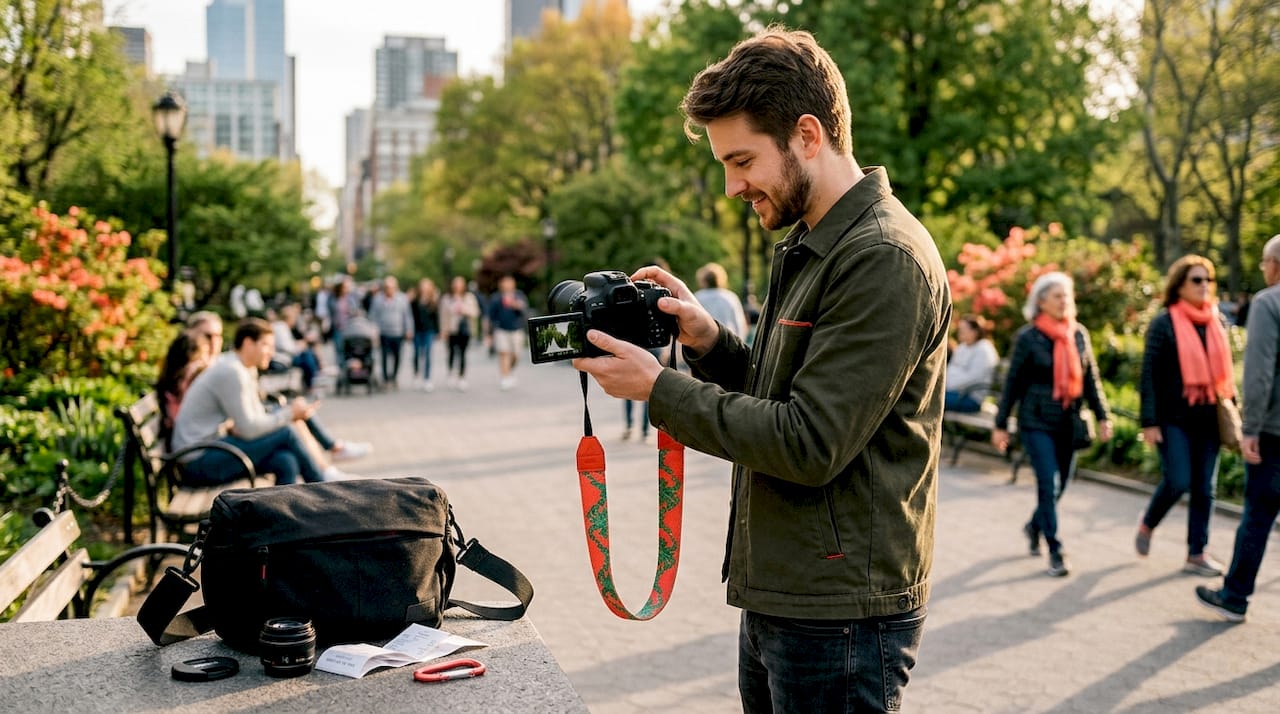
One of the biggest mindset shifts for beginners is realizing that great editing starts before you ever open Lightroom. The decisions you make in the field directly impact how much time you’ll spend correcting problems later. Shooting with intention means thinking about the image you want before you press the shutter.
Here’s a practical checklist to follow on every shoot:
- Check your settings before you start. Review your ISO, aperture, and shutter speed before shooting anything.
- Look at the light first. Where is it coming from? How hard or soft is it? Light direction shapes everything.
- Consider your subject. Is it sharp? Is it placed well in the frame?
- Think about the background. Distracting backgrounds are one of the most common beginner mistakes.
- Take test shots. Shoot a couple of frames, review them, and adjust before committing to a full sequence.
Understanding the exposure triangle is genuinely exciting once it clicks. These three settings work together to control how much light hits your sensor:
- ISO: Controls your camera’s sensitivity to light. Lower ISO means less grain but requires more light. Higher ISO lets you shoot in dim conditions but introduces visible noise.
- Aperture: The opening in your lens. A wider aperture (like f/1.8) lets in more light and blurs the background beautifully. A narrower aperture (like f/11) keeps more of the scene in sharp focus.
- Shutter speed: How long the sensor is exposed. Fast speeds freeze action. Slow speeds create motion blur and let in more light.
The goal of photography composition tips and smart exposure decisions together is to make your job easier in post-processing. Editing starts in-camera with intentional shooting and exposure decisions, so the closer you get it right in the field, the less time you spend fixing issues later.
One of the most impactful decisions you can make early is to shoot in RAW format instead of JPEG. Here’s why this matters so much. A JPEG is a processed, compressed image. Your camera has already made decisions about color, sharpness, and exposure, and a lot of that original data is discarded. A RAW file, on the other hand, keeps everything your sensor captured. It’s like the difference between a photocopy and the original document. RAW files give you far more flexibility in editing, especially when recovering shadows or correcting white balance.
Pro Tip: After every 20 or 30 shots, pause and review your images on the camera’s screen. Check for sharpness, exposure, and composition. Catching a problem early saves you from shooting 200 unusable frames.
From camera to computer: Organizing and importing photos
Once you’ve finished shooting, moving your images into an organized system is crucial for efficiency and peace of mind. Here’s how to do it right.
The import stage is where many beginners stumble. They dump photos into a generic “Downloads” folder, tell themselves they’ll sort it later, and then spend an hour searching for that one great shot three months down the road. Don’t let that be your story.
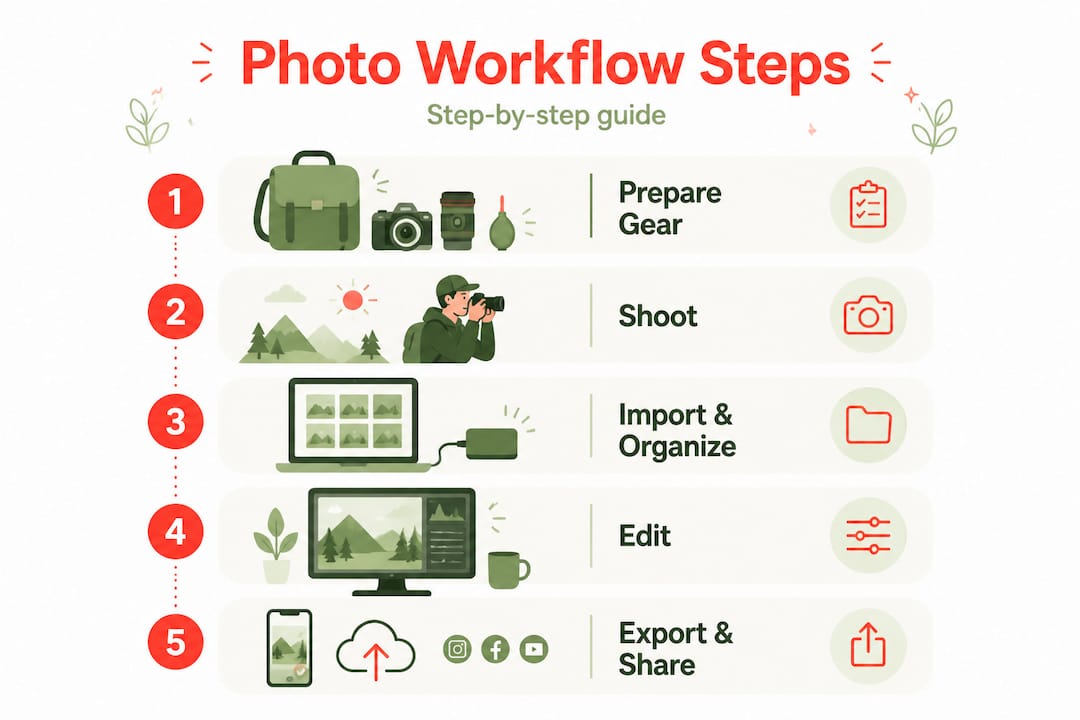
Here’s a simple step-by-step import process:
- Connect your camera or card reader to your computer or open Lightroom mobile and connect via USB or wireless transfer.
- Choose a destination folder that follows your naming system (for example: 2026 > March > Beach Shoot).
- Select “Copy as DNG” if you’re in Lightroom desktop. DNG is Adobe’s open RAW format and is excellent for long-term storage.
- Apply a basic preset on import if you have one. This gives all your new photos a consistent starting point.
- Review the imported files and quickly flag obvious keepers and rejects using star ratings or color labels.
- Back up immediately before you do anything else.
Organized importing and cataloging prevent lost photos and speed up editing enormously. Here’s a helpful reference for the most common file types and storage approaches:
| File type | Best for | Storage size |
|---|---|---|
| RAW / DNG | Editing flexibility, archiving | Large (20 to 50MB per file) |
| JPEG | Quick sharing, web use | Small (2 to 8MB per file) |
| TIFF | Print-quality output | Very large (50 to 100MB+) |
Naming conventions matter more than people think. Using a format like “YYYY-MM-DD_SubjectName_001” makes searching and sorting fast and intuitive. Avoid generic names like “IMG_5432” in your final folders, since those names mean nothing when you’re searching for a specific shoot six months later.
“A professional photo workflow isn’t just about the images themselves. It’s about building a system that lets you find, edit, and deliver any photo at any time without chaos.” This philosophy applies equally to beginners, because good habits formed early make everything that follows much easier.
For cloud backup, Google Photos and iCloud both offer solid free tiers. For serious photographers, an external hard drive combined with a cloud service like Backblaze covers all your bases. You can also explore photo management services if you want a more professional-level approach as your archive grows.
The biggest pitfalls to avoid include importing everything without culling first (you’ll waste editing time on blurry or redundant shots), skipping backups, and mixing different shoots in the same folder without clear labels.
Editing essentials: Basic adjustments for better images
With photos safely stored, it’s time for the magic. Here’s how to approach adjustments simply and confidently, drawing on professional workflows.
Editing can feel intimidating when you first open a tool like Lightroom. There are sliders everywhere, panels with unfamiliar names, and an almost infinite number of ways to adjust an image. But here’s the reassuring truth: you don’t need to use every tool. A handful of core adjustments will transform the majority of your photos.
Follow this beginner editing workflow in order:
- Crop and straighten first. Before you touch exposure or color, make sure your composition is tight and your horizon is level.
- Adjust exposure. Is the image too bright or too dark overall? The Exposure slider is your starting point. Aim for a balanced, natural look.
- Fix highlights and shadows. Pull down Highlights to recover blown-out skies. Lift Shadows to reveal detail in darker areas.
- Set white balance. This affects the warmth or coolness of your image. Skin tones and neutral grays are your guide here. If the image looks too yellow or too blue, white balance is the fix.
- Add contrast and clarity. A small boost in contrast gives images punch. Clarity adds midtone definition, which is especially effective for landscapes and architecture.
- Color grading. Adjust the Hue, Saturation, and Luminance of individual colors for a polished, intentional look.
- Sharpening and noise reduction. Apply a little sharpening and, if you shot at high ISO, reduce noise to keep images clean.
Lightroom’s editing controls include overall tonal range, point color, color grading, and local adjustments, giving you a complete toolkit without needing multiple apps. You can also explore a color correction workflow to understand how professionals approach consistent color across large batches of images.
Presets and profiles are wonderful time-savers. A preset is essentially a saved combination of slider settings you can apply to any photo with one click. Many free presets are available online, and creating your own as you develop a personal style is deeply satisfying.
Local adjustments are where editing gets truly powerful. Instead of changing the whole image, you can paint adjustments onto specific areas. For example, you might brighten only a face in a portrait while leaving the background untouched. Lightroom’s Masking tool handles this beautifully.
Here are the most common beginner editing mistakes to watch out for:
- Over-editing saturation. Colors that are too intense look artificial and garish. Subtle is almost always better.
- Skipping the backup. Editing on your only copy is risky. Always work from a cataloged, backed-up file.
- Ignoring white balance. A slightly off white balance makes the whole image feel wrong, even if the viewer can’t pinpoint why.
- Sharpening too aggressively. Too much sharpening creates ugly halos around edges.
Pro Tip: Before you export, zoom in to 100% on your image. Check for sensor dust spots, soft focus, or distracting elements you missed at smaller sizes. A single pass of spot healing before export makes your final images look genuinely professional.
Explore photo editing tips to keep building your editing vocabulary as you grow.
Saving, exporting, and sharing your finished images
You’ve edited your images. Now it’s time to ensure they look their best wherever you share them. Follow these quick finishing steps to showcase your improved workflow.
Exporting is the final step in your workflow, and it’s surprisingly easy to get wrong. The most common issue is exporting at the wrong size or quality setting for your intended use. A file optimized for Instagram looks terrible when printed on a large canvas, and a print-ready file is unnecessarily large for email or web use.
Here’s what you need to know for each context:
- For web and social media: Export as JPEG, set resolution to 72 PPI (pixels per inch), and keep file size under 2MB. Most platforms recompress images anyway, so there’s no benefit to uploading enormous files.
- For printing: Export as TIFF or high-quality JPEG, set resolution to 300 PPI, and choose the largest dimension your print service requires.
- For archiving: Keep your original RAW or DNG files untouched. Properly exporting saves your images at their highest quality, ready for print or online use, but your originals should always remain intact.
- For email: A JPEG at medium quality and around 1200 pixels on the long edge is perfect for most email sharing purposes.
Understanding file types helps you make confident choices:
- JPEG: The universal choice for sharing. Compressed, small, and compatible everywhere.
- PNG: Great for graphics with transparent backgrounds. Larger than JPEG but lossless.
- TIFF: The gold standard for print. Uncompressed and enormous, but preserves every detail.
- DNG/RAW: Your editing source file. Never share this unless specifically requested by a collaborator.
Pro Tip: Keep your original, unedited RAW files in a separate folder that you never modify. Create a “Exports” subfolder within each project for finished images. This way, your originals are always safe and you can re-edit or export in a different format anytime you want.
A final pre-share checklist is worth building into your habit:
- Confirm the correct export settings for your platform
- Check that the image looks correct on both a phone screen and a desktop monitor
- Rename the file to something meaningful before uploading
- Add metadata like your name and copyright if you’re sharing publicly
- Keep a backup of the exported file in your project folder
Sharing photos online is a skill in itself, and learning platform-specific best practices will help your images look stunning everywhere they appear.
A seasoned eye: Why workflow matters more than fancy gear
Here’s a perspective that might surprise you, especially if you’ve been tempted to browse camera upgrades before you’ve filled your first memory card.
The photography world has a gear problem. Beginners get sucked into forum debates about which full-frame sensor is sharpest or which lens is the sharpest wide open, when the truth is that a disciplined workflow with a basic camera will consistently produce better results than a careless approach with professional equipment. We’ve seen this play out time and again.
Think about it this way: a repeatable workflow vs. equipment debate is really a debate between luck and skill. When you follow a workflow, you build habits. You start checking your settings automatically. You begin to see light differently because you’ve trained yourself to think about how it will translate in editing. You make fewer mistakes in the field because you’ve reviewed your shots and learned from them.
The photographers who improve fastest aren’t the ones who buy the best camera. They’re the ones who shoot constantly, review their work honestly, and iterate. A consistent workflow is what turns a “lucky shot” into something you can reproduce on demand. That’s when photography stops feeling like guesswork and starts feeling like a genuine creative skill.
The uncomfortable truth about gear is that it primarily addresses problems you don’t have yet. A better lens won’t fix poor composition. A higher-resolution sensor won’t save a badly exposed image. But a solid editing habit? That saves images regularly, turning a mediocre capture into something genuinely beautiful.
Invest in learning the basics deeply before you invest in new equipment. Your future self, looking back at thousands of improved images, will be glad you did.
Next steps: Level up your photography journey
Ready to keep improving? Here’s where you can find more tools, tips, and inspiration for your next photographic adventure.
Your workflow is just the beginning of a genuinely exciting creative journey. Once you’re comfortable with the basics covered here, the world of photography opens up in wonderful ways. Dive deeper into any area that excites you, whether that’s portrait lighting, landscape composition, or street photography. The community around photography is warm, encouraging, and full of people who love sharing what they know.
For guides, inspiration, and technique breakdowns across every style of photography, explore photography guides and discover your next area of focus. When you’re ready to sharpen your editing setup, browsing photo editing computers will help you find hardware that keeps up with your growing ambitions. And when you’re ready to go beyond Lightroom, browsing photography software options opens the door to a whole ecosystem of powerful tools. Your next great image is waiting to be captured.
Frequently asked questions
What is the best software for beginner photo editing?
Lightroom is one of the most user-friendly and powerful photo editing tools recommended for beginners, and its editing controls in detail view make the learning curve genuinely manageable. The free mobile version is a great starting point before committing to a subscription.
What basic equipment do I need to start a photography workflow?
A camera (even a smartphone), memory cards, and editing software like Lightroom are enough for getting started. Lightroom’s editing tools play a key role in modern photography workflows, meaning your biggest investment is time, not money.
How should I organize my photos to avoid losing files?
Use folders organized by date and event, and regularly back up your pictures to cloud storage or an external drive. Organized importing and cataloging prevent lost photos and make your editing sessions faster and far less stressful.
How can I fix overexposed or underexposed photos?
Most editing tools, including Lightroom, allow you to adjust exposure, highlights, and shadows to correct these issues with just a few slider movements. Lightroom’s edit controls include overall tonal range and local adjustments, giving you precise control over every part of the image.


















Leave a Comment
Your email address will not be published. Required fields are marked with *