

Why is wifi so slow? Find the common causes, from router placement to crowded networks, and use practical fixes to make your home connection faster now.
A video that buffers at the best part, a work call that freezes, and a smart TV that refuses to load can make anyone ask: why is wifi so slow? The frustrating part is that the internet plan may not be the problem. More often, slow WiFi comes down to where the router sits, how many devices are competing for it, or a connection issue that only shows up at certain times of day.
Before shopping for a new router or calling your provider, it helps to narrow down what is actually slowing things down. A few simple checks can reveal whether the problem is inside the home, with a specific device, or coming from the internet service itself.
Why Is WiFi So Slow in Your House?
WiFi is a radio signal, not a magical pipe delivering the same speed to every room. Walls, floors, appliances, neighboring networks, and distance all affect how well that signal reaches a phone, laptop, streaming stick, or game console.
Your advertised internet speed is also not necessarily the speed each device will receive. A plan might deliver plenty of bandwidth to the modem, while an older router struggles to distribute it throughout a busy household. Think of the internet plan as the highway leading to your house and WiFi as the local streets. A wide highway does not help much if the streets are congested or poorly laid out.
The timing of the slowdown offers useful clues. If everything is slow all day, the issue may be service, equipment, or router placement. If performance drops only at night, neighborhood congestion or a household full of simultaneous streaming and gaming may be the bigger factor. If just one device is slow, start with that device instead of restarting every piece of equipment in the house.
The Most Common Causes of Slow WiFi
Your router is in the wrong spot
A router tucked into a cabinet, placed behind a TV, or hidden in a basement corner has to push its signal through more barriers. Dense materials such as brick, concrete, metal, and even large plumbing fixtures can weaken coverage. Kitchens can be especially troublesome because microwaves and some wireless devices may interfere with the 2.4 GHz WiFi band.
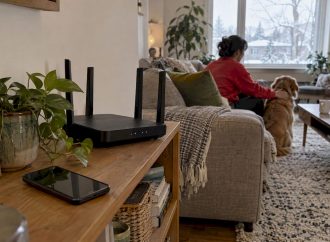
Place the router in an open, elevated location as close to the center of the home as practical. Avoid enclosing it in furniture or placing it on the floor. In a long, narrow home, a central spot may not be possible, so the best location is often the one nearest the rooms where people work, stream, or play online.
Too many devices are sharing the connection
Phones, tablets, laptops, TVs, cameras, smart speakers, doorbells, game consoles, and home appliances can all use WiFi. Most do not need much bandwidth all the time, but several high-demand activities at once can create a noticeable slowdown. Four people streaming high-resolution video, downloading games, and joining video calls will test almost any modest internet plan.
Check the router’s connected-device list and remove anything unfamiliar. Then look for devices doing heavy background work, such as cloud backups, operating system updates, game downloads, or security-camera uploads. Scheduling those jobs overnight can make the connection feel much faster during the day.
You are using the crowded 2.4 GHz band
Many routers offer two main bands: 2.4 GHz and 5 GHz. The 2.4 GHz band travels farther and handles walls better, but it is usually more crowded. It is also shared with many nearby routers and household wireless devices. The 5 GHz band generally offers faster speeds and less interference, although its range is shorter.
For devices close to the router, such as a laptop in the next room or a streaming device in the living room, choose the 5 GHz network when available. Use 2.4 GHz for devices farther away or for smart-home products that only support that band. Newer routers may also offer 6 GHz, which can be excellent for compatible devices nearby but is not a long-range solution.
Your router or modem is outdated
A router that is several years old may still connect devices, but it may not support newer WiFi standards or manage a crowded home well. Older equipment can limit speeds, struggle with multiple streams, and offer weaker coverage than current models.
The modem matters too. If it cannot support the speed tier you pay for, upgrading your internet plan will not produce the expected results. Check your provider’s equipment compatibility list before buying anything, especially if you use cable internet. A modem-router combo is convenient, but separate devices can make it easier to upgrade or position the router where coverage is best.
Your provider is experiencing congestion or an outage
Sometimes the WiFi signal is fine and the internet connection itself is slow. This distinction matters. If a device connected directly to the router with an Ethernet cable is also slow, the issue is likely not wireless coverage.
Run a speed test near the router, then compare it with the speed included in your plan. One result is only a snapshot, so test at different times of day. Consistently low wired speeds are worth discussing with the internet provider. Evening-only dips may point to local network congestion, particularly with some cable services.
8 Fixes for Slow WiFi You Can Try Today
Start with the free fixes before replacing equipment. These steps address the problems that cause a large share of home WiFi complaints:
- Restart the modem and router. Unplug both for about 60 seconds, then reconnect the modem first and wait for it to come fully online before powering up the router.
- Move the router into an open, central location. Keep it away from cabinets, large metal objects, aquariums, and microwave ovens.
- Switch nearby devices to the 5 GHz network. If the router combines network names automatically, check its settings or your device’s WiFi options.
- Disconnect or pause devices that are downloading, backing up files, or streaming when you need better performance for work or school.
- Update the router firmware. Manufacturers release updates that can fix stability issues and improve security.
- Forget and reconnect to WiFi on a device that has persistent trouble. Restarting the device can also clear a temporary network glitch.
- Use Ethernet for stationary, high-demand devices. A wired connection is often the best option for desktop computers, game consoles, and streaming boxes near the router.
- Consider a mesh WiFi system or a wired access point for large homes. A basic range extender can help in a small dead zone, but mesh systems typically provide better roaming and more consistent coverage.
When a WiFi Extender Helps and When It Does Not
A range extender can be a budget-friendly answer for one weak room, but it has limits. It must be placed where it still receives a strong signal from the main router. Put it in the dead zone and it has little useful signal to extend. Because many extenders relay traffic wirelessly, they can also reduce available speed.
For a larger home, multiple floors, or a layout with thick walls, a mesh system is often a better investment. Mesh nodes work together under one network name, so a phone can move through the house without constantly hopping between separate networks. The best mesh setups use a wired connection between nodes, though wireless mesh can still improve coverage when running cable is not realistic.
Know When to Upgrade Your Internet Plan
A faster plan will not fix weak WiFi in the bedroom, but it can help when the household genuinely needs more bandwidth. Consider an upgrade if wired speed tests are consistently close to the plan’s maximum yet the connection slows whenever several people stream, work remotely, or game at once.
Be realistic about the activities in your home. Email, web browsing, and smart speakers use relatively little data. High-resolution streaming, large downloads, cloud backups, and video meetings add up quickly. Fiber service often performs especially well for homes that upload large files or rely on video calls, but availability and pricing vary widely by location.
Slow WiFi is rarely a mystery once you test it room by room and device by device. Start with router placement and network settings, reserve wired connections for the gear that needs them most, and upgrade only when the evidence points to a real equipment or bandwidth limit. A few targeted changes can turn a daily buffering battle into a connection that simply stays out of your way.

















Leave a Comment
Your email address will not be published. Required fields are marked with *