

144Hz or 240Hz? See the real smoothness gap, what your PC needs to use 240Hz, where 165Hz fits, and which one suits your games and budget.
For most players, 144Hz is the sweet spot, and 240Hz is a specialist upgrade for competitive shooters and esports. The jump from 60Hz to 144Hz is huge. The jump from 144Hz to 240Hz is real but much smaller, and you only feel it if your PC can push close to 240 frames per second. This guide walks you through the numbers, the hardware you need, the 165Hz middle ground and a simple way to choose.
TL;DR
- A 144Hz screen refreshes every 6.94 ms and a 240Hz screen every 4.17 ms, a gap of about 2.77 ms, according to a 2026 comparison of both rates.
- 144Hz already delivers the smoothness most gamers need. 240Hz mainly pays off in reflex-heavy competitive play, as PCWorld’s refresh-rate reality check explains.
- A 240Hz monitor only looks smoother if your game actually runs near 240 FPS. Check your real in-game frame rate first.
- 165Hz is about 13% above 144Hz. Pick it over 144Hz if the price is similar, but don’t upgrade a good 144Hz screen just for it.
Table of Contents
- What refresh rate really means
- 144Hz vs 240Hz by the numbers
- Can your eyes actually see the difference?
- What your PC needs to make 240Hz worthwhile
- Where 165Hz fits in
- Which one should you choose?
- Our perspective
- A five-step checklist before you buy
- Looking to reach tech readers or share your own expertise?
- FAQ
- Sources
What refresh rate really means
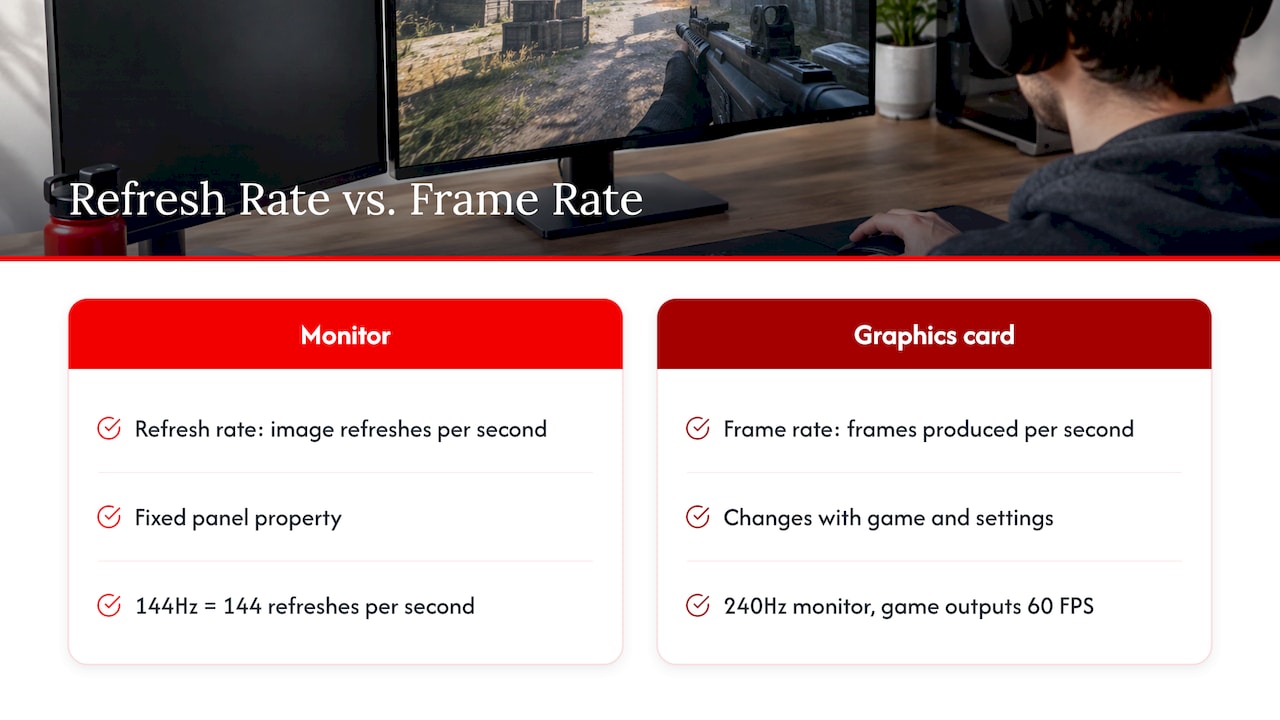
Refresh rate is how many times per second your monitor can draw a new image. It is measured in hertz (Hz), so a 144Hz display can refresh 144 times per second. It is a fixed hardware property of the panel.
Frame rate is something else. It is how many frames your graphics card produces each second, measured in frames per second (FPS). It changes constantly with the game, the scene, your settings, your CPU and your GPU. Think of the monitor as a window that opens a set number of times per second, and your PC as the artist painting new pictures to show in it.
Here is why the difference matters when you shop. A 240Hz monitor running a game that outputs only 60 FPS will not look smoother than a 60Hz monitor showing the same game. The panel has the capacity, but your system does not feed it enough new frames. HP’s gaming display glossary makes the same point: to benefit from a 144Hz display, your PC needs to produce close to 144 FPS in the game you play.
The flip side is also true. Pushing more frames than the screen can show wastes effort, because some of those images are never displayed. That is why matching the two numbers is the whole game.
144Hz vs 240Hz by the numbers
The simplest way to see the gap is to look at how long each refresh takes. Every extra hertz shortens the wait before the screen can show something new.
| Refresh rate | Time between refreshes | Typical role |
|---|---|---|
| 60Hz | 16.67 ms | Office work, video, casual games |
| 144Hz | 6.94 ms | The all-round gaming standard |
| 165Hz | About 6.06 ms | A slightly newer take on 144Hz |
| 240Hz | 4.17 ms | Competitive shooters and esports |
The 60Hz and 240Hz figures come from PCWorld’s comparison, and the 144Hz and 240Hz figures from Display Ninja. The 165Hz interval is simple arithmetic (1,000 ms divided by 165).
Two takeaways stand out.
- The step from 60Hz to 144Hz saves about 9.7 ms per refresh. The step from 144Hz to 240Hz saves about 2.8 ms. That is why people who move from a basic monitor to a 144Hz one often call it life-changing, while people moving from 144Hz to 240Hz often shrug. HP’s glossary says the jump from 60Hz to 120 or 144Hz is the most noticeable upgrade for most players, with gains above that being real but smaller.
- On paper, 240Hz is about 70% faster than 144Hz. The percentage sounds big, but what you feel is the time saved, and that is a few milliseconds.
Those few milliseconds are not meaningless. TechTimes’ January 2026 comparison says the shorter interval can slightly improve target tracking and flick accuracy in fast shooters. A major Canadian electronics retailer’s guide to refresh rates agrees that the 144Hz-to-240Hz jump is less dramatic than 60Hz-to-144Hz, but can still be noticeable if you chase every competitive advantage.
Can your eyes actually see the difference?
Yes, up to a point. The honest answer is that it depends on you and on what you play.
Experts do not name a single upper limit for human perception of refresh rate. Sensitivity varies from person to person, and noticing a difference does not automatically mean a faster reaction time.
Research backs this up. NVIDIA Research’s 2026 study of gamers found that players could reliably tell large refresh-rate differences apart, but not the subtler gap between 144Hz and 360Hz. Performance gains shrank at higher rates, and results in a target-acquisition task did not differ significantly between 144Hz and 360Hz. If 144Hz and 360Hz are hard to separate, the smaller 144Hz-to-240Hz step will be subtle for many people too.
So is 144Hz overkill? Not at all. For everyday gaming it is the point where motion looks fluid and responsive. PCWorld notes that 144Hz monitors are perfectly fine for most gamers and produce mostly clear motion without noticeable blur.
Where you will notice 240Hz most
The difference shows up in fast, twitchy situations: rapidly flicking your crosshair across the screen, tracking a moving enemy, or spinning the camera in a competitive shooter. Slower games, such as strategy titles, story-driven adventures and most role-playing games, rarely benefit because your eyes are not asking the screen for split-second updates.
Movies and TV are even less relevant. Best Buy Canada’s guide calls 240Hz overkill for movies and television, since their source frame rates are much lower. If you watch a lot of video, resolution and panel quality matter more. Curious about that side of the picture? Our friends have a plain-language explainer on FHD versus HD differences as they appear on a TV.
What your PC needs to make 240Hz worthwhile
This is the part many buyers skip, and it decides whether a 240Hz monitor is a smart purchase or an expensive spec sheet. Samsung Canada’s buying guide warns that if your setup cannot consistently produce the FPS to match the monitor’s refresh rate, you may not see meaningful improvement, so evaluate the whole system before you upgrade.
The processor and graphics card
Both parts matter. Intel explains that the CPU supplies game instructions and the GPU renders the frames, so either can be the bottleneck that stops you reaching a high frame rate.
For a sense of scale, TechTimes reports that esports titles at 1080p often need an RTX 4070 or better to sustain 240Hz, while 144Hz is more forgiving and runs smoothly on midrange GPUs at higher resolutions. A Canadian retailer’s guide lists the NVIDIA RTX 4060 or 4070 and the AMD Radeon RX 7700 XT as cards that can drive higher frame rates at 1080p or 1440p.
Resolution changes everything
Higher resolution means more pixels for your GPU to draw, which lowers frame rates. HP’s glossary suggests 1080p is the easiest resolution for high frame rates, 1440p suits most mid-range and high-end GPUs, and 4K is best paired with a powerful GPU.
That is why a common forum dilemma, 4K at 144Hz or 1440p at 240Hz, has no universal answer. If you play competitive shooters and want maximum motion speed, lean to the faster refresh rate at a lower resolution. If you play cinematic single-player games and love detail, lean to the sharper image at 144Hz.
Cables, ports and drivers
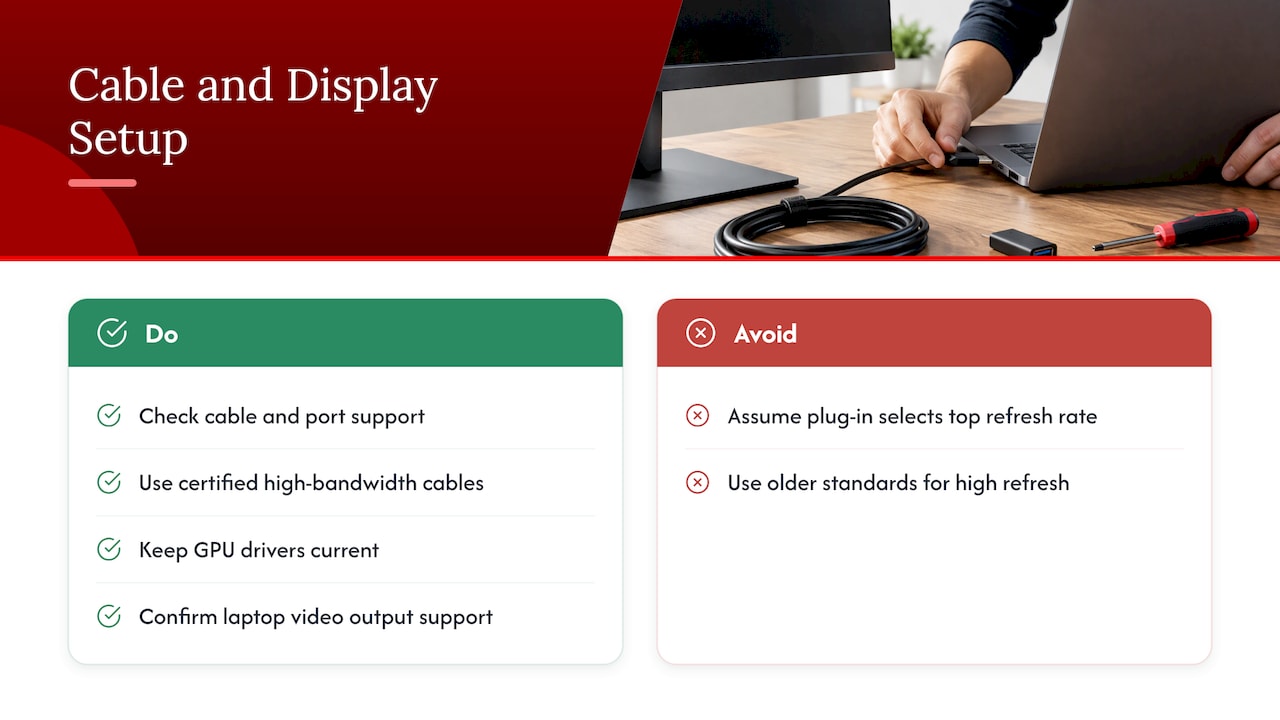
The best monitor does nothing if the cable limits it. The same Canadian retailer recommends checking that cables and ports support your desired resolution and refresh rate, using certified high-bandwidth cables, and keeping GPU drivers current. It names DisplayPort 1.4 or 2.0 and HDMI 2.1 as relevant high-bandwidth connections, while older standards may cap resolution or refresh rate. On laptops, confirm the video output supports the connection too.
One manufacturer of esports monitors states that its 240Hz models need a compatible HDMI 2.0 or DisplayPort 1.2a connection, current graphics drivers and a graphics card that supports 240Hz. Its support pages also cover the Windows steps for selecting the refresh rate.
That last point catches many new owners. Plugging in a high-refresh monitor does not always switch it to its top speed. Open your Windows display settings and confirm the refresh rate is set to the highest option.
Frame pacing, response time and adaptive sync
Refresh rate alone is not the whole story. An upgrade cannot make up for unstable FPS, slow pixel response, poor frame pacing or high CPU, GPU and peripheral latency. All of these shape how clear and responsive motion feels.
Adaptive sync helps here. G-Sync and FreeSync adjust the monitor’s refresh rate to match the FPS your GPU delivers, which reduces tearing and stuttering. HP advises choosing adaptive sync that matches your graphics card.
Where 165Hz fits in
Many shoppers find themselves comparing 144Hz and 165Hz rather than 144Hz and 240Hz, and the answer is relaxing: it hardly matters.
165Hz is 21 frames per second above 144Hz, roughly a 13% increase that most people are unlikely to notice. The same source says it is a sensible new purchase, but there is no need to upgrade a good 144Hz monitor that meets your needs.
There is one reason to lean towards 165Hz when buying new. A European knowledge center explains that 165Hz is essentially the newer 144Hz, so those monitors are more likely to come with improved panels, better color accuracy, better HDR and faster response. Given a choice between 144Hz and 165Hz at a similar price, go with 165Hz. Corsair also calls 144Hz or 165Hz the sweet spot for most gamers.
Which one should you choose?
Start from your games and your hardware, not from the spec sheet. Intel recommends checking real in-game performance with a frame-rate monitor or benchmark instead of choosing a refresh rate from specifications alone.
| Your situation | Best fit |
|---|---|
| Upgrading from a 60Hz monitor | 144Hz or 165Hz. This is the biggest improvement you can make. |
| Mid-range GPU, mixed games, 1440p | 144Hz or 165Hz |
| Cinematic single-player games at 4K | 144Hz, with resolution as the priority |
| Competitive shooter, 1080p, powerful GPU holding close to 240 FPS | 240Hz |
| Mostly movies, TV, office work | Neither is needed. Prioritize panel quality. |
| Already own a good 144Hz monitor | Stay put unless you play at an elite competitive level |
There is a handy rule of thumb from gaming communities: choose 144Hz if your games run at roughly 180 to 230 FPS or below, and 240Hz if you can truly sit above that. It is not an official standard, but it matches the logic of the research. A 240Hz monitor is most defensible for a player who focuses on competitive shooters and can sustain close to 240 FPS, with frame pacing and latency already handled.
Manufacturers’ guidance lines up. Samsung Canada says 144Hz to 200Hz is the sweet spot for most gamers, while 240Hz and above is for peak performance in high-speed shooters and esports. LG Canada’s gaming monitor page makes the same split: 144Hz for most, faster rates for competitive players who want an extra edge.
Watch out for ray tracing
Turning on demanding graphics features can undo the benefit of a fast monitor. Corsair notes that ray tracing can substantially reduce FPS. If you like maxed-out visuals, a 144Hz or 165Hz screen that your GPU can fill is usually the happier match. The same source treats 240Hz as a forward-looking choice when budget allows, as long as your hardware can match it.
Our perspective
We love gear that makes everyday play feel better, and refresh rate is a perfect example. It is one of those upgrades you notice the first night you plug in, as long as the rest of your setup is ready for it.
Our team’s view is simple. Treat the monitor as one part of a chain: GPU, CPU, cable, settings, and the room it sits in. A 144Hz or 165Hz display that your PC fills with frames feels wonderful. A 240Hz display earns its place when you play fast shooters, hold high frame rates and want every last millisecond.
We also think the physical setup deserves as much attention as the spec. A fast panel that is too big for your desk can strain your neck and eyes. Our guide on matching monitor size to desk depth shows how to measure so your new screen feels comfortable. And if your online games stutter even with a great monitor, the culprit may be your connection, so see our walkthrough on reducing ping in any game.
Whatever you pick, we hope you enjoy the glow of a perfectly smooth screen.
Alexander
A five-step checklist before you buy
- Measure your current frame rate. Run your favorite games with an FPS counter or benchmark and note the average, not just the peaks.
- Match refresh rate to that number. If you average well below 144 FPS, a 144Hz or 165Hz monitor will already be more than your PC can fill.
- Choose the resolution your GPU can handle. Use 1080p for maximum speed, 1440p for balance and 4K only with a powerful GPU.
- Check connections. Make sure your GPU outputs and cables support the resolution and refresh rate together, and update your drivers.
- Set it up properly. Select the top refresh rate in your display settings, turn on adaptive sync that suits your graphics card, and place the screen at a comfortable distance.
Looking to reach tech readers or share your own expertise?
We publish guides on gaming gear, home setups and everyday technology. If you run a brand or service that fits readers like you, our advertising and guest post options are the place to start, and our team will help you find the right format.
FAQ
Is 240Hz worth it over 144Hz?
It is worth it if you play competitive shooters or esports titles, your PC holds close to 240 FPS and you want the smallest possible delay. For most other players, 144Hz or 165Hz already looks smooth and costs less. The gain is real, but it is much smaller than moving up from 60Hz.
Can the human eye see 144Hz?
Yes. Many people clearly see the difference between 60Hz and 144Hz. Individual sensitivity varies, and there is no single agreed upper limit, as PC Gamer reports. Differences get harder to spot as refresh rates climb.
Is 144Hz overkill?
No. It is widely treated as the standard for gaming and the point where smoothness and cost balance well. LG Canada describes it as the sweet spot for fluid, responsive gameplay for most gamers.
Is 165Hz better than 144Hz?
Technically yes, by about 13%, but most people will not feel it. If both cost the same, choose 165Hz because newer models may have better panels. If you already own a good 144Hz monitor, there is little reason to switch.
Do I need a new graphics card for a 240Hz monitor?
Not always, but you do need a PC that can produce close to 240 FPS in your games. Competitive titles at 1080p are easiest. Check your current frame rate first, then compare it with the card guidance above.
Sources
- Intel: What Is Refresh Rate and Why Is It Important?
- Display Ninja: 144Hz vs 240Hz
- PCWorld: Refresh-rate reality check
- HP: Gaming Display Features
- ToolCenterHub: Refresh Rate Test
- ASUS Canada: 120Hz screen guide
- TechTimes: 144Hz vs 240Hz Monitors
- Best Buy Canada: Why refresh rate matters
- PC Gamer: How many frames per second can the human eye see?
- NVIDIA Research: Monitor refresh rate and gamers’ perceptions
- Samsung Canada: What is monitor refresh rate
- Samsung Canada: Choosing a gaming monitor
- ZOWIE Canada: XL2540 FAQ
- BenQ Canada: 165Hz vs 144Hz
- BenQ Europe: 165Hz vs 144Hz
- Corsair: Refresh rates compared
- LG Canada: UltraGear Gaming Monitors
- Screen Size Checker: 144Hz vs 240Hz Gaming decision guide
- FHD vs HD explainer
















Leave a Comment
Your email address will not be published. Required fields are marked with *