
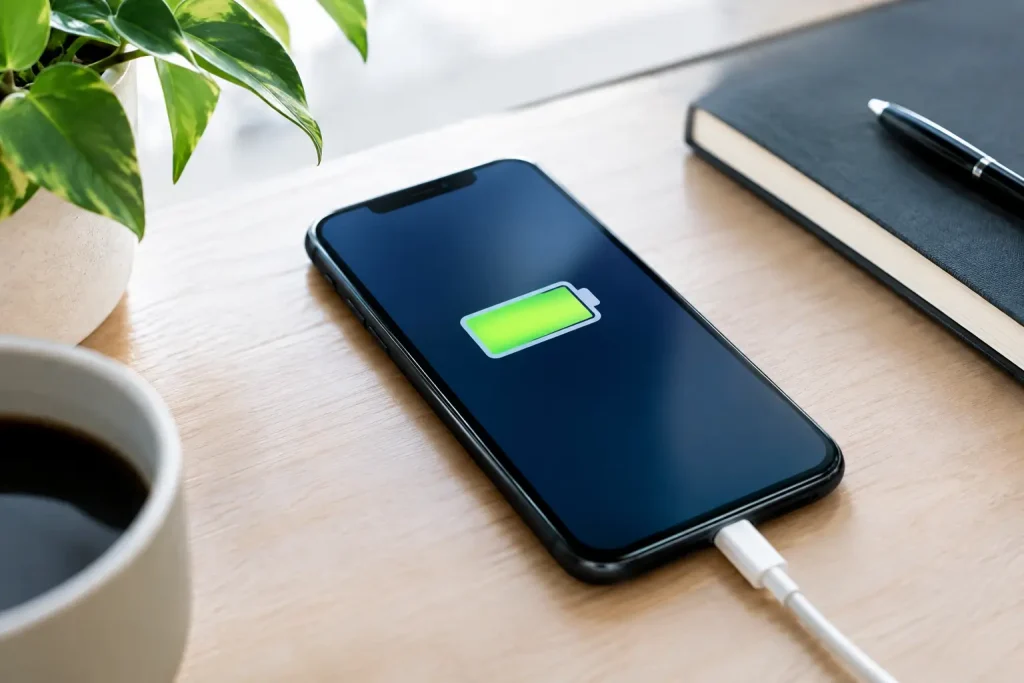
Learn practical ways to improve smartphone battery life with screen, app, and charging changes that help your phone last longer every day with less fuss.
A phone that drops from 40% to 10% before dinner is more than annoying – it can derail navigation, tickets, calls, and mobile payments when you need them most. The good news is that you can improve smartphone battery life without turning your device into a stripped-down emergency-only gadget. A few setting changes, smarter charging habits, and a closer look at power-hungry apps usually make a noticeable difference.
Start With the Screen, Your Phone’s Biggest Power User
For most people, the display is the largest everyday drain. Brightness matters more than many background settings because a bright, high-resolution screen is working every second you are scrolling, streaming, reading, or taking photos.
Turn on adaptive brightness first. It lets the phone lower brightness indoors while still boosting visibility in sunlight. If your screen still looks brighter than necessary, bring the slider down manually. Even a modest reduction can stretch a charge over a long afternoon.
Also consider shortening screen timeout to 30 seconds or one minute. A phone left glowing on a desk for several minutes at a time burns power for no benefit. Dark mode can help on phones with OLED displays, where black pixels use little or no power. The benefit is smaller on LCD screens, so treat dark mode as a comfort preference there rather than a miracle fix.
High refresh-rate displays are another trade-off. A 90Hz or 120Hz screen makes menus and games feel exceptionally smooth, but it can use more energy than a standard 60Hz setting. Many current phones offer an adaptive option that raises the refresh rate only when it helps. Choose that if available, or switch to 60Hz on travel days when battery endurance matters more than visual polish.
Improve Smartphone Battery Life by Managing Apps
A battery problem often begins with an app, not the battery itself. Social media, navigation, video, shopping, fitness, and messaging apps may refresh content, request location data, send notifications, or keep processes active after you close them.
Open your phone’s battery settings and review usage by app. Look for obvious outliers, especially an app consuming a large percentage of power when you barely used it. Update that app first. Developers regularly fix bugs that cause excessive battery drain. If the problem started after an update, check for another update within a few days, or consider removing the app until it is stabilized.
Background activity deserves a measured approach. Restricting background refresh for every app can delay messages, prevent timely delivery alerts, and make useful widgets less current. Instead, limit background activity for apps that do not need to be active between uses, such as games, retail apps, photo editors, and rarely opened services. Keep it enabled for the apps that genuinely matter, including messaging, calendar, security, and delivery tools.
Notifications can add up, too. Every alert wakes the screen, activates the processor, and invites another few minutes of use. Disable promotional notifications from stores, games, and services that do not need immediate attention. Your battery may improve, and your day may get quieter in the process.
Use Location, Wireless Features, and Data More Carefully
GPS is useful, but constant location tracking is demanding. Set location permission to “While Using the App” for apps that do not need access at all times. A weather app may need occasional location access; a flashlight app almost certainly does not. Review permissions periodically because app updates can introduce new requests.
When you are in an area with weak cellular coverage, your phone works harder to maintain a connection. That can drain a battery surprisingly fast in rural areas, elevators, crowded venues, and certain parts of a commute. If you do not need to be reachable for a while, airplane mode is the most effective solution. Otherwise, connect to stable Wi-Fi when it is available.
Bluetooth, hotspot, and 5G are not automatic battery villains. Turning off Bluetooth all day may save very little if you use wireless earbuds, a car connection, or a smartwatch. The better move is to disable features you are not using. Hotspot use can drain a phone quickly, especially with multiple connected devices. Likewise, switching from 5G to LTE can improve endurance in places where 5G coverage is inconsistent, though the exact payoff depends on your carrier and local signal.
Choose Battery Saver at the Right Times
Battery Saver on Android and Low Power Mode on iPhone are useful tools, not signs that something is wrong. These modes generally reduce background activity, visual effects, syncing, and sometimes performance. They are ideal before a flight, on a long day away from an outlet, or when your battery reaches a level that makes you nervous.
The trade-off is convenience. Email may refresh less often, apps may load a little more slowly, and some automatic backups may wait until later. For many people, scheduling battery-saving mode to turn on around 20% or 30% is a sensible middle ground. You get normal performance most of the day and extra insurance when the charge gets low.
Charge for Convenience, Not Perfection
Modern smartphones are designed with battery management systems that prevent most common charging mistakes. You do not need to drain the battery to zero before charging, and leaving a phone plugged in overnight is generally safe. Still, heat and long periods at a very high charge can contribute to gradual battery wear over months and years.
If your phone offers optimized charging or adaptive charging, turn it on. These features learn your routine and may hold the battery below 100% for part of the night, finishing shortly before you usually wake up. That is a practical way to reduce stress on the battery without changing your habits.
For people who want to preserve long-term battery health, charging between roughly 20% and 80% when convenient is a reasonable target, not a rule to obsess over. A full charge is still worthwhile before a road trip, a day at an event, or any situation where you will not have easy access to power. Battery health should support your life, not create another daily chore.
Use a quality cable and charger that meets your phone’s requirements. Fast charging is convenient and safe with reputable equipment, but it creates more heat than slower charging. If your phone is already warm from gaming, video recording, or sitting in the sun, let it cool down before plugging it in. Avoid charging under pillows, blankets, or in a hot car.
Watch Heat and Heavy Tasks
Heat is one of the fastest ways to reduce both daily battery life and long-term battery capacity. Direct sunlight, dashboard mounts, intense gaming, 4K video recording, and extended video calls can all warm a device. If the phone feels hot, remove a thick case temporarily, stop demanding apps, and move it to a cooler spot.
Some battery drain is normal during demanding tasks. Navigation with a bright screen, live traffic data, and a weak signal will use far more power than reading an article over Wi-Fi. The goal is not to eliminate power use. It is to recognize high-drain moments and plan for them with a car charger, power bank, downloaded maps, or a lower screen brightness.
Know When the Battery Needs Service
Settings cannot solve every issue. If your phone shuts down unexpectedly, loses a large percentage of charge in minutes, becomes hot while idle, or needs multiple charges every day despite light use, check battery health in the device settings. Many phones report maximum capacity or provide a service recommendation.
A degraded battery can make a perfectly good phone feel unreliable, but replacement may be more cost-effective than buying a new device. Before booking service, update the operating system, restart the phone, and review recent apps. If the issue appeared suddenly, an app or software bug may be the real cause.
The best battery strategy is the one you will actually maintain: dim the screen a little, cut wasteful background activity, use power-saving mode when it counts, and keep heat in check. Those small choices leave more charge for the moments your phone needs to show up.
















Leave a Comment
Your email address will not be published. Required fields are marked with *