
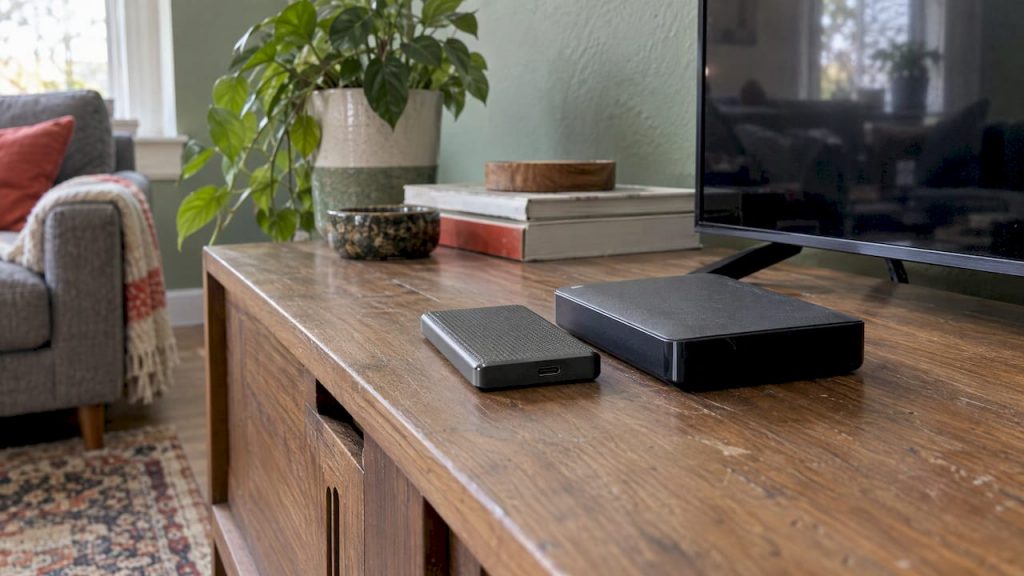
External SSD or HDD? Compare speed, durability, capacity and price per gigabyte, then pick the right drive for travel, backups or a big media library.
An external SSD is the better pick for most people who carry a drive around, edit photos or video straight from it, or simply hate waiting on file copies. An external HDD is the better pick when you need a lot of space for a modest price and the drive mostly sits on a shelf. Many careful buyers end up with one of each, and we explain below how to decide, what to check before you pay, and how to keep your backups safe.
TL;DR
- Choose an external SSD for travel, active projects, quick transfers and anything that gets bumped in a bag. It has no moving parts, so it is faster, silent and tougher.
- Choose an external HDD for big archives, media libraries and bulk backups, where cost per terabyte matters more than speed.
- Speed gap: typical HDDs top out around 80 to 160 MB/s, while SSDs run from about 200 MB/s to over 5,000 MB/s.
- Best of both: a 1 to 2TB SSD for what you use now, plus a larger HDD for what you keep, and a third copy somewhere else.
- Before buying: check capacity, the port and cable, real sustained speed, durability rating and warranty.
Table of Contents
- What actually differs between the two
- Speed: what it feels like in real life
- Durability: why portable means SSD
- Capacity and cost per gigabyte
- Noise, weight and power
- Which one for which job
- Should you buy a 1TB HDD or a 256GB SSD?
- SSD or HDD for backup
- How long does data last on an SSD?
- A portable SSD buying guide
- The hybrid setup many people end up with
- Quick decision guide
- Reach readers who care about tech and travel
- FAQ
- Sources
What actually differs between the two
Both drives hold your files and plug into a USB port. What happens inside them is very different, and that explains every difference you will notice in daily use.
An HDD (hard disk drive) stores data on spinning magnetic platters read by a moving arm. An SSD (solid-state drive) stores data on flash memory chips, the same family of technology as a USB stick, with nothing mechanical inside. Dell’s comparison chart summarizes the result: HDDs offer higher capacities at a lower cost per gigabyte but are noisier and less durable because of their moving parts, while SSDs are silent, more shock-resistant and more power-efficient.
Here is the practical side-by-side.
| External SSD | External HDD | |
|---|---|---|
| Typical speed | 200 MB/s to over 5,000 MB/s | 80 to 160 MB/s |
| Moving parts | None | Spinning platters and a read arm |
| Noise | Silent | Audible spin and clicks |
| Size and weight | Often pocket-sized and very light | Thicker and heavier |
| Capacity at a sensible price | 500GB to 4TB is common | 2TB to 8TB and beyond |
| Cost per terabyte | Higher | Lower |
| Best for | Travel, editing, daily transfers | Archives, bulk backups, media libraries |
Speed figures in the table come from Dell’s chart. The rest of this guide turns those lines into decisions.
Speed: what it feels like in real life
MB/s means megabytes per second, how much data moves each second. How-To Geek notes that the best consumer HDDs rarely exceed 150 MB/s for reading or writing, while SATA SSDs reach around 500 MB/s and NVMe drives (a faster type of flash storage) can go up to about 8,000 MB/s on PCIe 4.0.
A worked example makes that concrete. Say you return from a trip with 100GB of photos and video, which is roughly 100,000 MB. At 120 MB/s, a typical HDD figure, that copy takes about 14 minutes. At 1,000 MB/s, a figure common for a good portable SSD on a fast port, it takes under two minutes. Do that after every trip, every wedding shoot or every weekend of 4K clips, and the SSD gives you back real time.

There is one honest caveat on the numbers. A drive’s headline figure is a peak. Flash drives usually write quickly into a fast buffer and may slow down on very long transfers once it fills, as Lenovo’s storage guide explains, so if you move hundreds of gigabytes in one go, look at sustained write speed in reviews rather than the box number. Even a slowed SSD generally stays well ahead of a hard drive for everyday work.
Your port and cable decide the rest. A drive rated for 1,000 MB/s plugged into an older USB port, or run through a basic cable, will not reach it. The drive, the cable and the port on your laptop or phone all need to support the speed you are paying for.
Durability: why portable means SSD
An external drive lives a rougher life than the one inside your computer. It rides in backpacks, slides off desks and gets plugged and unplugged all week. A spinning platter with a read arm hovering a hair above it does not enjoy that. Dell’s chart lists HDDs as less durable because of those moving parts, and SanDisk’s comparison page points out that portable SSDs are more shock-resistant with no moving parts.
For travelers, outdoor photographers and anyone who works from cafés, trains and airports, that is the strongest argument for an SSD. If you shoot on the road, our guides on photography and videography equipment for traveling and travel cameras for adventurous photographers cover the gear that creates those files in the first place, and a rugged SSD is the natural place to keep them while you move.
Some SSDs also carry an IP rating, a standard that describes protection against dust and water. IP65, for example, means dust-tight and protected against water jets. If your drive will see rain, sand or a sweaty gym bag, that rating is worth looking for.
HDDs are not fragile in a desk drawer or on a shelf. Used as a stationary home drive, left plugged in beside a TV or a router, a hard drive is perfectly at home. The rule of thumb: the more the drive moves, the more an SSD makes sense.
Capacity and cost per gigabyte
This is where the HDD still wins clearly. PCWorld’s 2025 comparison reports that 3.5-inch external desktop hard drives reach 24 to 28TB, and gives an example of an 8TB desktop drive for roughly US$150, about 2 cents per gigabyte. Portable 2.5-inch HDDs top out near 5TB, with a 4TB model under US$110, about 3 cents per gigabyte. Those are US prices from 2025, so use them to understand the ratio, then check current Canadian listings, since prices move with sales and stock.
Two details matter here:
- Desktop-size drives need wall power. PCWorld notes that 3.5-inch drives need external power, so they are not meant for mobile use. A portable HDD draws power from the USB port.
- SSD prices have fallen. How-To Geek found a 1TB SSD on sale for around US$60 at the time of writing, roughly what buys 4TB of hard drive. Sales change the gap constantly, so compare per-terabyte prices on the day you buy.
A simple way to compare is to divide the price by the number of terabytes. A 2TB drive at $90 is $45 per terabyte. A 1TB drive at $110 is $110 per terabyte. Do the same sum for each option you are considering, and the right choice for your budget usually becomes obvious.
Noise, weight and power
These are small things that add up. An HDD spins, hums and sometimes clicks. In a quiet room, or if you record audio, that can be annoying. An SSD makes no sound at all. Kingston’s engineering blog notes that silence matters for people doing voiceover, audio mixing or video calls, and it also states that external HDDs can weigh over 1.5 lb (680 g) while a compact external SSD can weigh about 29 g.
Power draw matters when you plug into a laptop on battery or a phone. SSDs are more power-efficient, per Dell’s chart, so they are kinder to a battery on a long travel day.
Which one for which job
Match the drive to what you do with it, not to a spec sheet.
Travel and on-the-go work
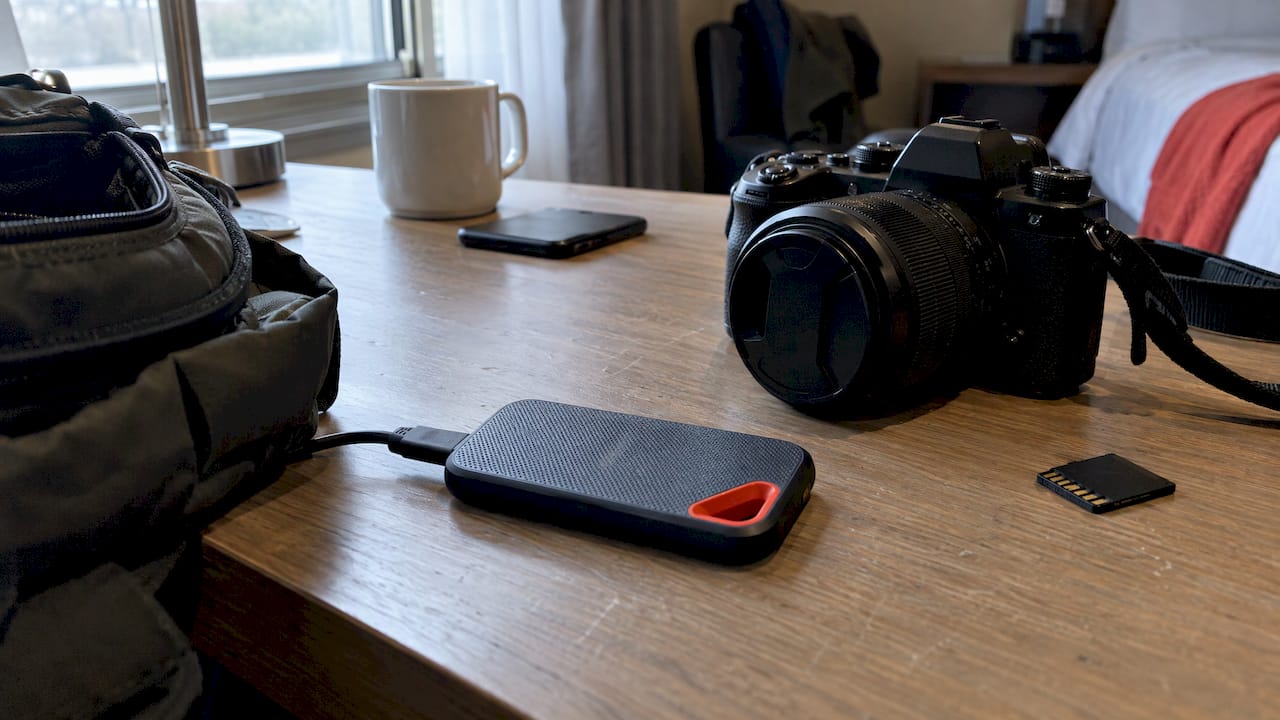
Choose an SSD. It is lighter, silent, tougher and quick enough to offload a memory card in a hotel room before dinner. SanDisk describes portable SSDs as ideal for quick transfers and travel.
Editing photos and video directly from the drive
Choose an SSD. Opening many small files, scrubbing through footage and exporting projects all depend on fast reads and writes. If you are weighing camera bodies for that footage, our comparison of mirrorless cameras and DSLRs shows how much data each kind tends to produce, and the photography section has more on building a creative workflow.
A big media library or long-term archive
Choose an HDD. SanDisk says portable HDDs suit cold data, meaning files you rarely open, and they come in larger capacities. Film collections, years of family photos and music libraries fit that description. Capacity is the main constraint, and an HDD delivers it at a lower cost.
Console and TV storage
For extra game storage, a faster drive means shorter load times, so an SSD is the more comfortable pick. For a game library you simply want to park, a large HDD holds more for the money.
Phone and tablet storage
If your phone is constantly full of photos and videos, an SSD with a compatible port is small enough to sit on the back of the phone or in a pocket. Before you buy, see our quick guide to freeing up iPhone storage, which also covers moving files off the device.
Should you buy a 1TB HDD or a 256GB SSD?
People often ask this because the two sit at a similar price. The answer depends on how much you really store. If everything you carry fits in 256GB (documents, a few thousand photos, work projects), the SSD gives you a better daily experience. If you already have 400GB of files and growing, the 256GB drive will fill in no time, and the HDD, or a larger SSD, is the sensible choice. Leave room to grow: a drive that is nearly full is slower and harder to manage, so buy for the data you will have in two years, not the data you have today.
As a rough guide, for everyday storage under 2TB an SSD is the nicer drive for a small premium. Beyond 4TB, an HDD makes more financial sense. Is a 2TB SSD overkill? Not if you shoot video or keep a large photo library, because it gives you headroom without needing a second drive.
SSD or HDD for backup
Backup is where the two drives work best together. The rule that holds up for everyone from home users to professionals is the 3-2-1 approach described by CISA’s data backup guide: keep three copies of an important file (the original and two backups), on two different types of media, with one copy stored in a different place.
Here is how that looks with drives:
- Copy one: the files on your laptop or phone.
- Copy two: an external drive at home. An HDD is a very economical choice for a full-system backup because of its capacity. An SSD makes scheduled backups finish faster.
- Copy three: a second copy kept elsewhere, such as at a relative’s house, in an office drawer or in the cloud.
A drive that sits in the same bag as your laptop is not a separate place. If the bag is stolen or the house floods, both copies go together.
Two habits keep backups trustworthy. First, set backups to run automatically so they happen without you remembering. Second, open a few files from the backup now and then to confirm they are intact. A backup you have never opened is a hope, not a plan.
How long does data last on an SSD?
An SSD does not lose your files after ten years of normal use. The question mostly concerns drives left unplugged. Flash memory keeps charge in its cells, and that charge can fade over time. According to the way JEDEC, the industry standards body, defines it, which Crucial’s support page explains, the retention requirement for consumer SSDs is one year without power at 30 °C (86 °F). Real drives often do better, but the practical lesson is clear: do not treat a single unplugged SSD in a drawer as a permanent archive.
If you keep a drive for long-term storage, plug it in every few months, keep another copy elsewhere, and replace drives every several years. That habit applies to hard drives too, because their mechanical parts also age.
A portable SSD buying guide
Once you have decided an SSD fits, run through this list before you pay.
- Capacity. Choose for the files you will have in two years. For most people that means 1TB or 2TB. Video shooters should lean larger.
- Interface and cable. Look for USB-C with a high-speed standard, such as USB 3.2 Gen 2 (10 Gbps) or faster. Make sure the box includes the cable you need, USB-C to USB-C or USB-C to USB-A, for your laptop, phone or console.
- Compatibility. Check that the drive works with your operating system and device. Most modern drives work with Windows, macOS, Android and iPhone models with USB-C, but confirm before buying.
- Real speed. Read reviews for sustained write speeds, not just the peak figure. As Lenovo’s guide notes, controller quality, flash type and sustained-write management all affect how a drive behaves on long transfers.
- Durability. If the drive travels or goes outdoors, look for an IP rating such as IP65 and a stated drop rating.
- Security. Hardware encryption with a password is useful if you carry client files, work documents or personal photos.
- Warranty. Warranty length varies by model, often several years on well-known portable SSDs. Read it on the retailer’s page, and keep your receipt.
If you are searching for the best external SSD of the year, apply these seven checks to the shortlist. Current Canadian prices change often with sales, so compare a few listings from Canadian retailers on the day you buy, in Canadian dollars with taxes included.
The hybrid setup many people end up with
Putting this all together, a common and sensible arrangement is two drives. A 1 to 2TB external SSD holds the projects you are working on and travels with you. A 4TB or larger external HDD stays at home as the archive and bulk backup. It puts speed where you feel it and capacity where it counts, and the combined price is often lower than people expect. Add an off-site copy, and you have the 3-2-1 approach covered.
Quick decision guide
| Your situation | Pick |
|---|---|
| Travel a lot, work from different places | External SSD |
| Edit photos or video straight from the drive | External SSD |
| Need 4TB or more on a tight budget | External HDD |
| Store a movie, music or photo archive that rarely changes | External HDD |
| Want fast, automatic backups of one laptop | External SSD (or HDD if capacity is large) |
| Want it all covered | One SSD plus one HDD, plus an off-site copy |
Our perspective
We write about technology, travel and hobbies, and storage is the quiet problem that connects them all. A trip produces hundreds of photos, a new camera produces larger files, and a phone nearly full of memories slows everything else down.
Our view is simple. Treat your drives like gear, not afterthoughts. Pick a rugged SSD for the files that move with you, a roomy HDD for the files you keep, and make sure no important file lives in only one place. Spending a little more time on that choice costs far less than losing a trip’s worth of photos.
We keep our guides on cameras, travel equipment and phone storage up to date so you can build a workflow that fits how you really live, shoot and work.
Alexander
Reach readers who care about tech and travel
If you make storage, accessories or travel gear and want to reach the people who read guides like this one, we offer banner ads and guest posts on Lizard’s Lunch. Pricing is not published, so the advertising page is the place to start.
FAQ
Is an SSD better than an external hard drive?
For speed, silence, size and resistance to knocks, yes. For the lowest price per terabyte and very large capacities, an external HDD still leads. The better drive is the one that suits how you use it: SSD for carrying and working, HDD for archiving.
Is a 2TB SSD overkill?
Not for most photo and video users. A 2TB drive holds a large library and leaves room to grow, which keeps the drive running comfortably. If you mainly carry documents and a few projects, 1TB is plenty.
What happens to an SSD after 10 years?
Used regularly, an SSD can serve for many years. Left unpowered, flash cells can lose charge over time, and the standard consumer retention requirement is one year at 30 °C without power. For anything important, plug the drive in periodically and keep a second copy on a different type of storage.
Should I use an SSD or HDD for backup?
Both work. An HDD is economical for large, full-system backups, and an SSD finishes backups faster and survives bumps better. Whichever you choose, follow the 3-2-1 approach: three copies, two media types, one copy off-site.
Sources
- SSD vs. HDD: Key Differences Between Solid State Drives and Hard Disk Drives (Dell)
- Compare Portable and External SSDs (SanDisk)
- Hard drive, SSD, or USB flash drive: Which portable storage is right for you? (PCWorld)
- External Storage: Should I Buy an HDD or an SSD? (How-To Geek)
- HDD vs External SSD (Kingston)
- Understanding the Best External Hard Drives Across Various Workflows (Lenovo)
- Data Backup Options (CISA)
- SSDs and SMART data: data retention (Crucial)















Leave a Comment
Your email address will not be published. Required fields are marked with *