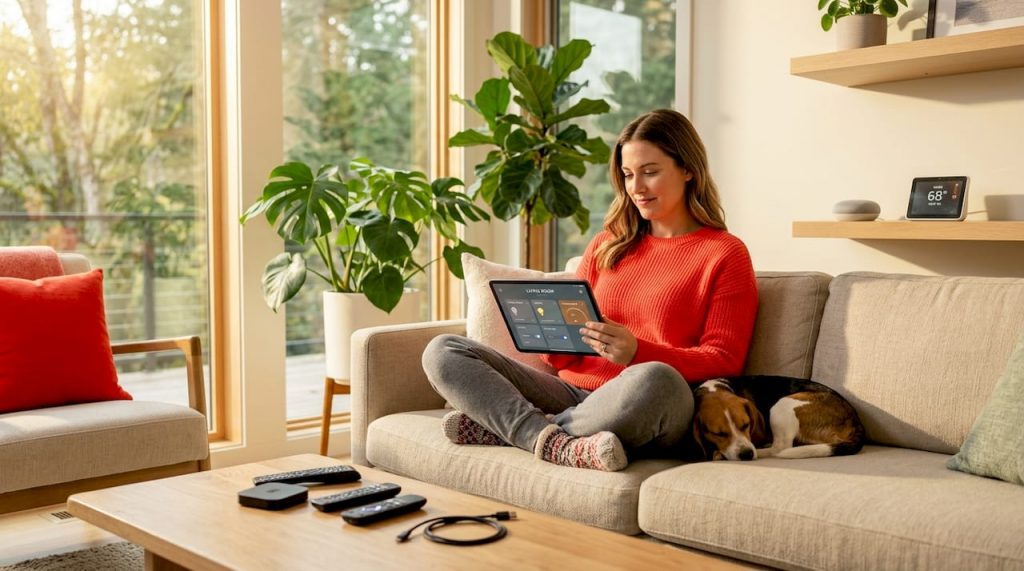
Transform your daily routine with an efficient home automation workflow! Discover tools and tips to streamline your home life effortlessly.
Picture this: you’re already ten minutes late, halfway down the street, and a nagging thought hits you. Did you turn off the kitchen lights? Did you lock the back door? That split-second doubt sends your brain into overdrive. It’s a small thing, but it happens almost every day, and those tiny disruptions add up to a surprising amount of stress and lost time. A well-designed home automation workflow eliminates exactly these moments, replacing daily friction with seamless, reliable routines that run quietly in the background. This guide walks you through everything, from picking the right tools to building, optimizing, and troubleshooting a workflow that genuinely fits your life.
Table of Contents
- What you need: Tools, tech, and planning for success
- Step-by-step: Building your home automation workflow
- Optimizing and future-proofing: Smart, efficient, and adaptable workflows
- Troubleshooting and common pitfalls in home automation workflows
- What most guides miss: The human side of home automation
- Ready to take your smart home further?
- Frequently asked questions
Key Takeaways
| Point | Details |
|---|---|
| Plan before you automate | A clear plan and checklist avoid wasted effort and compatibility headaches. |
| Critical workflows need fail-safes | Separate essential actions from extras to keep your home safe even if one automation fails. |
| Optimize for long-term efficiency | Using smart scheduling and pattern learning can cut energy use and keep automations relevant. |
| Expect and solve common issues | Anticipating glitches and setting up security measures ensures workflows remain reliable. |
What you need: Tools, tech, and planning for success
With the problem clear, let’s break down what you’ll need to get started on the right foot. Building a home automation workflow isn’t just about buying a smart bulb or two. It’s about creating a connected system where devices talk to each other, respond to real-world events, and carry out sequences of actions without you lifting a finger.
Essential hardware and platforms
Before you touch a single app, you need a solid hardware foundation. Here are the core components that almost every successful setup shares:
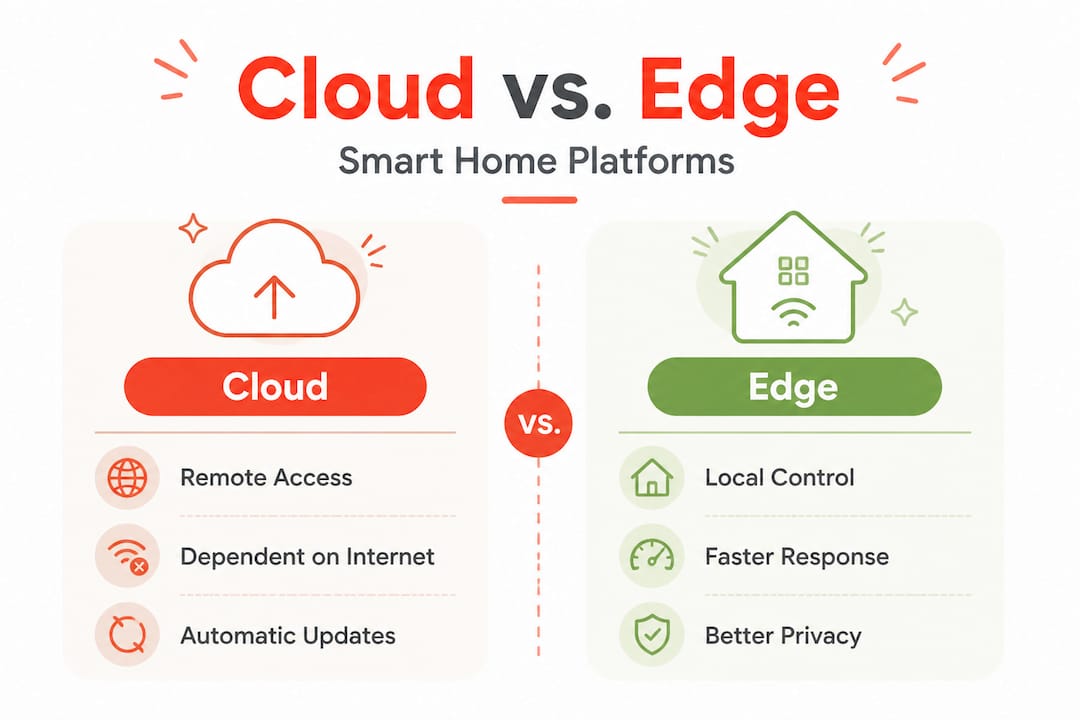
- Smart hub or controller: This is the brain of your operation. Popular choices include Home Assistant (open source, local-first), Apple HomeKit, Google Home, and Amazon Alexa. Home Assistant is especially loved by enthusiasts because it keeps data local and supports thousands of devices.
- Reliable Wi-Fi or mesh network: Weak signal equals flaky automations. A mesh system like Eero or TP-Link Deco eliminates dead zones that cause devices to drop offline.
- Sensors: Motion sensors, door and window contact sensors, temperature sensors, and occupancy sensors are the triggers that make automations feel intelligent.
- Smart switches and outlets: These are often more practical than smart bulbs because they work with any lamp and keep physical switch control intact.
- Voice assistants: Optional but useful for quick manual overrides and status checks without opening an app.
One thing worth understanding upfront: interoperability challenges persist despite the arrival of Matter, the new universal smart home standard. Matter was designed to make devices from different brands work together effortlessly, and it has made real progress. But not every device supports it yet, and some integrations still require manufacturer-specific bridges or hubs. Open standards like Zigbee and Z-Wave remain rock-solid choices for reliability, especially for sensors and switches. Always check compatibility lists before you buy. You can explore a wider range of best home improvement tech ideas to find devices that fit your vision and budget before committing.
Tools and platforms at a glance
| Tool or platform | Best for | Main benefit | Key tradeoff |
|---|---|---|---|
| Home Assistant | Advanced users, local control | Fully open source, highly customizable | Steeper learning curve |
| Apple HomeKit | iPhone users, simplicity | Excellent privacy, tight Apple integration | Limited device ecosystem |
| Google Home | Android users, voice control | Easy setup, wide device support | Cloud-dependent, less granular control |
| Amazon Alexa | Voice-first workflows | Huge third-party skill library | Privacy concerns for some users |
| Zigbee2MQTT | Device-level control | Local, no cloud, fast | Requires technical setup |
| SmartThings | Balanced hybrid users | Good ecosystem breadth | Occasional cloud reliability issues |
Planning your automation map
Jumping into automation without a plan leads to a tangled mess of overlapping rules and confusing behaviors. Spend an hour sketching out your desired routines on paper before touching any app. Group your ideas into two buckets: critical tasks (locking doors, turning off appliances, arming the alarm) and comfort enhancers (mood lighting, temperature adjustments, welcome scenes). Start by also referencing a solid smart home setup guide to frame your planning session with proven structure.
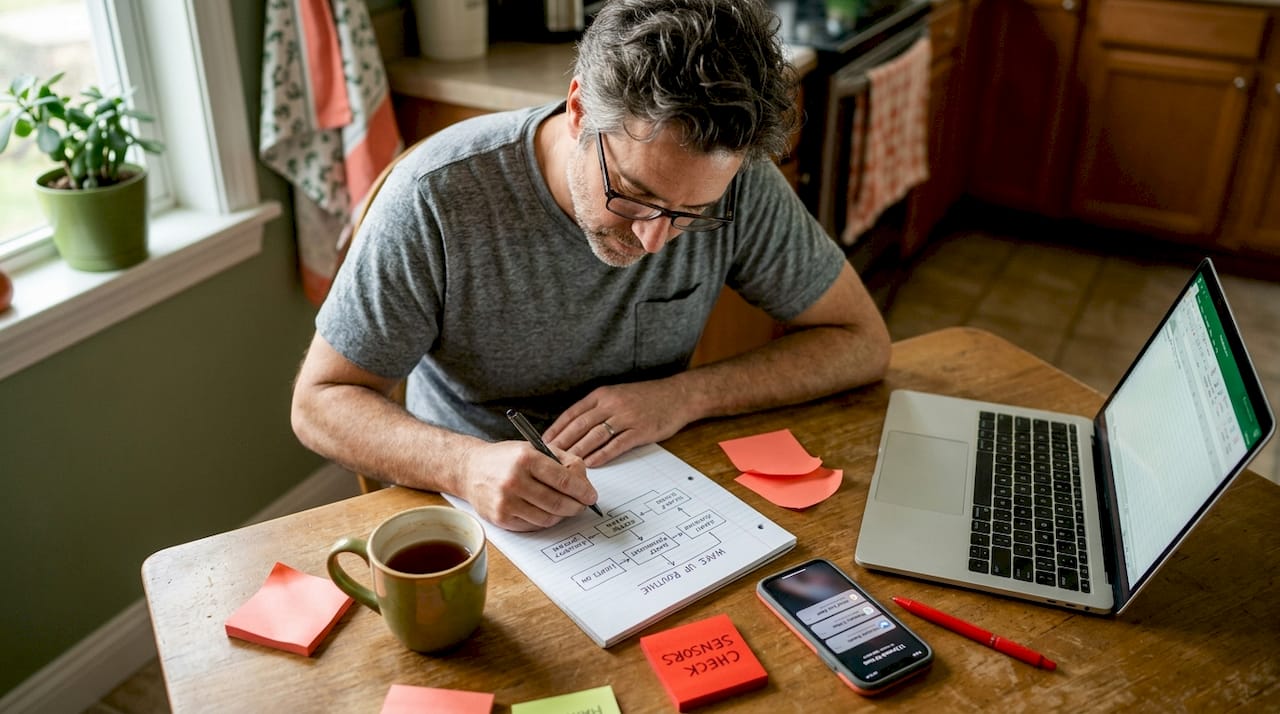
Pro Tip: Always map your “must-have” versus “nice-to-have” features up front to avoid workflow bloat. Automations that feel exciting to build but never actually trigger in real life create clutter and make debugging much harder later.
Step-by-step: Building your home automation workflow
Once you’ve gathered your hardware and mapped priorities, it’s time to bring your automation to life, step by step. The difference between a frustrating smart home and a genuinely helpful one often comes down to how carefully you structure each automation rule.
Building your first workflow
- Choose your trigger. Every automation starts with an event. Common triggers include time of day, sunrise or sunset, sensor activation (motion detected, door opened), device state change (lock engaged, TV turned on), or a manual button press. Choose triggers that reflect natural moments in your real daily routine.
- Define your conditions. Conditions filter when the automation actually runs. For example, you might want your living room lights to turn on when motion is detected, but only if it’s after sunset and no one is already home. Conditions prevent false triggers and make automations feel smarter.
- Sequence your actions. Actions are what the automation does. Ordering matters. Put critical safety actions first, then comfort or notification actions afterward. If a notification fails, you don’t want it to prevent your door lock from engaging.
- Set up automation modes. This is where many beginners stumble. Most platforms offer four modes: single (only one instance runs at a time), restart (starts fresh each time the trigger fires), queued (lines up multiple runs in order), and parallel (multiple instances run at the same time). For most home routines, single or restart modes work best. Parallel mode is useful for multi-room lighting scenes where each room needs to respond simultaneously.
- Add timeouts and delays. Delays give devices time to respond. Timeouts prevent an automation from hanging indefinitely if a device is unresponsive. Both are essential for a reliable workflow.
- Test in isolation. Before linking automations together, test each rule individually. Trigger it manually and watch every action complete correctly. This makes troubleshooting much simpler later.
- Connect and chain automations. Once individual rules work reliably, chain them together. For example, your “arriving home” automation can trigger a “welcome home” scene, which then triggers a “check appliances” routine.
Automation modes compared
| Mode | How it works | Best use case | Risk |
|---|---|---|---|
| Single | Only one instance at a time | Door lock, alarm arm | May miss rapid repeat triggers |
| Restart | Cancels and restarts on new trigger | Motion-activated lights | Can loop if not careful |
| Queued | Lines up triggers in order | Multi-step morning routine | Delays if queue builds up |
| Parallel | All instances run simultaneously | Multi-room scenes | Resource-heavy, can cause conflicts |
Separating critical actions from enrichment tasks, such as locking doors versus sending notifications, using tools like “continue_on_error: true` and timeouts to isolate failures is one of the most important practices you can adopt. If a notification to your phone fails because you’re in airplane mode, that failure should never cascade into your front door staying unlocked. Always structure your action sequences so that safety-critical steps run first and independently.
For those interested in expanding their device library as they build, browsing top smart home devices can spark great ideas for filling gaps in your automation chain.
Pro Tip: Use continue_on_error: true for notification steps, but never for door locks or security-related actions. Fail-safe order is everything when building reliable workflows.
Optimizing and future-proofing: Smart, efficient, and adaptable workflows
With your foundation set, it’s time to maximize results by sharpening efficiency and planning for tomorrow’s upgrades. A working automation is just the beginning. A truly optimized workflow learns from your habits, minimizes wasted energy, and stays flexible as your household evolves.
The power of edge automation
Most home automation runs in the cloud or on a central hub. Edge automation takes this a step further by processing decisions locally on a small dedicated device, like a Raspberry Pi. Instead of sending sensor data to a cloud server and waiting for a response, edge devices analyze patterns and make decisions in milliseconds, right inside your home.
Research into machine learning for home automation shows that ML models on edge devices like the Raspberry Pi 5 can achieve sub-100ms activity predictions and deliver energy savings of 15 to 25 percent by learning your usage patterns. Systems like EL-HARP use lightweight models such as XGBoost and CatBoost to predict when you’re likely to need heating, lighting, or appliances running, then pre-schedule those actions rather than waiting for a manual command or even a sensor trigger. The result feels almost prescient: your home is ready before you even realize you need it.
This isn’t just for tech wizards. Platforms like Home Assistant increasingly offer local AI features that don’t require you to write a single line of code. It’s worth exploring, especially if energy savings are a priority.
Optimization tactics for everyday users
You don’t need machine learning to see major improvements. These practical tactics work for everyone:
- Group related routines: Instead of ten separate automations that all fire at 7:00 AM, create one master “morning mode” that triggers everything in the right sequence. This reduces conflicts and makes editing much easier.
- Use scheduled versus triggered actions wisely: Scheduled actions (time-based) are predictable and reliable. Triggered actions (sensor-based) are responsive but can misfires. Use a blend of both, letting schedules handle routine moments and sensors handle variable ones.
- Audit inactive automations regularly: Unused automations are silent bugs waiting to surface. An old rule that no one has noticed in months can suddenly cause weird behavior when a device firmware updates.
- Leverage presence detection: Knowing whether anyone is home is one of the most powerful inputs for efficient automation. Combine phone GPS, Wi-Fi detection, and door sensors for more reliable presence signals than any single method offers alone.
- Reduce polling, favor push events: Devices that check in constantly (polling) drain your network and battery-powered sensors. Use platforms that support push-based event reporting for faster response and better battery life.
Pairing smart workflows with energy efficient home upgrades creates a compounding effect. A smart thermostat that learns your schedule combined with proper insulation and efficient appliances can dramatically reduce your monthly bills.
Pro Tip: Schedule quarterly reviews of your automation logs. Life changes, and so do routines. A log review helps you catch automations that fire too often, too rarely, or at the wrong time, keeping your system tuned to how you actually live.
Troubleshooting and common pitfalls in home automation workflows
Even with a well-planned workflow, bumps can happen. Here’s how to keep your system robust and safe when things don’t go as expected.
Common problems and how to fix them
Home automation troubleshooting is mostly pattern recognition. The same handful of issues cause the vast majority of problems:
- Flaky integrations: A device that randomly drops offline or fails to respond is usually a network issue, not a hardware failure. Check Wi-Fi signal strength, router congestion, and whether the device supports 2.4 GHz versus 5 GHz (many smart home devices only support 2.4 GHz).
- Conflicting triggers: Two automations that both react to the same event can create unpredictable behavior. For example, a sunset automation and a motion sensor automation that both control the same lights can fight each other. Audit for overlaps and use conditions to prevent conflicts.
- Manual override conflicts: Someone physically turns off a light that an automation expects to be on. This breaks the assumed state of the system. Use state tracking and add checks so automations verify current device status before acting.
- Delayed actions: If an action takes longer than expected, downstream automations that depend on it can fail. Add appropriate delays and timeouts so each step has enough time to complete reliably.
- Ghost triggers: Sensors that fire without an obvious cause. This often happens with motion sensors that are too sensitive or placed near HVAC vents. Adjust sensitivity settings or reposition the device.
Flaky integrations, overlapping automations, manual overrides, and network security are consistently the most cited causes of automation failure in real-world deployments. Knowing the usual suspects saves you hours of frustrating guesswork.
Distinguishing a software glitch from a hardware failure
This distinction matters because the fix is completely different. A software glitch usually affects multiple devices or automations at once and often resolves after restarting your hub or clearing the integration cache. A hardware failure typically affects only one specific device and persists even after rebooting everything. Swap the suspected device with a known working one to confirm. If the issue follows the device, it’s hardware. If the issue stays with the integration, it’s software.
Security warning: Always put your smart home devices on an isolated VLAN (virtual local area network) on your router. This means your smart plugs, sensors, and cameras are on a separate network segment from your computers, phones, and sensitive data. If a device is ever compromised, the damage is contained and cannot spread to your main network. Most modern routers support VLAN or “IoT network” configurations, often with a few clicks in the admin panel.
For broader guidance on protecting and improving your home tech environment, the home improvement tips section covers a wide range of practical upgrades worth exploring alongside your automation journey.
What most guides miss: The human side of home automation
Here’s something that took us a while to fully appreciate: the best home automation setups are the ones you stop noticing. Not because they stopped working, but because they fit so seamlessly into your life that they fade into the background. They don’t demand your attention. They don’t require celebration. They just quietly make things better.
Most technical guides focus entirely on the “how” of setting up automations. Far fewer talk about the “why” behind a specific automation feeling frustrating or annoying after a few weeks. And that friction, when it surfaces, is almost never a technical problem. It’s a design problem.
When a family member keeps manually overriding your automations, that’s not stubbornness. That’s feedback. It means the automation isn’t matching how they actually move through the day. A morning routine that dims lights to a “relaxing” level while someone is trying to get three kids ready for school at 7:00 AM is not relaxing. It’s infuriating. The automation logic was perfectly built, but the human logic was missing entirely.
This is where physical overrides become genuinely important. Every automation you build should have a simple, obvious way to pause or override it. Physical switches should still work. App controls should be easy to reach. If someone has to dig through menus or open a specific app just to turn a light on or off, the system has failed the household, even if it runs flawlessly on paper.
There’s also a real case for restraint in automation design. Not every task needs to be automated. Some things are personal, bespoke, or variable enough that automation adds more confusion than convenience. The ritual of making your morning coffee, for example, might feel good to do yourself. Automating the grinder and the kettle might save you two minutes but rob you of a quiet, intentional moment in your morning. Automating your everyday life routines should amplify the good parts of your day, not replace them.
The most successful smart home users we’ve seen share one common trait: they treat their workflow as a living thing. They test, reflect, and adjust. They retire automations that stopped serving them. They add new ones when a life change, a new job, a new baby, a new season, creates a new need. That flexibility is what separates a home that feels genuinely smart from one that just has a lot of blinking lights.
Resist the urge to automate everything at once. Start with two or three routines that address real daily pain points. Get those working smoothly. Then expand. The incremental approach builds confidence, avoids overwhelm, and creates a system you actually understand well enough to troubleshoot when something goes sideways.
Ready to take your smart home further?
Now that you’re equipped with strategies and perspective, here’s how you can push your home automation workflow to the next level. The learning curve flattens quickly once you have your first few automations running reliably, and the rewards only grow from there: time saved, energy conserved, and a home that feels genuinely responsive to your needs.
If you’re ready to go deeper, the complete home automation setup guide on Lizard’s Lunch walks through every configuration step in detail, making it ideal whether you’re starting fresh or refining an existing system. Looking for devices and gadgets to expand your setup? The curated tech ideas for your home collection highlights the most exciting and practical options available right now. And don’t overlook the atmosphere your home creates after dark. Thoughtful outdoor lighting automation can transform your yard into a welcoming, energy-efficient extension of your living space, all managed automatically from your existing workflow.
Frequently asked questions
What is the difference between a smart home workflow and simple automation?
A workflow coordinates multiple devices and actions in a deliberate sequence, while simple automation typically handles just one trigger connected to one action. Workflows allow conditions, branching logic, and chained routines that respond intelligently to complex real-world situations.
How can I ensure my home automation workflow is secure?
Put smart devices on a separate VLAN and update device firmware regularly, as outdated firmware is one of the most common entry points for attackers targeting home networks.
Do all smart devices work together with Matter?
Interoperability challenges persist even with Matter, so you should check whether specific devices support the standard and consider proven open protocols like Zigbee or Z-Wave for guaranteed reliability.
What are the main causes of failed automations?
The most common culprits are flaky integrations and overlapping automations, along with devices going offline unexpectedly, which breaks trigger chains and can cause entire routines to silently fail.
Can automation really reduce my energy bills?
Yes, research shows that ML-based optimizations running on edge devices can deliver energy savings of 15 to 25 percent by predicting usage patterns and pre-scheduling appliances, making smarter use of your energy consumption throughout the day.

















Leave a Comment
Your email address will not be published. Required fields are marked with *