
Discover the crucial role of Wi-Fi on travel! Learn how to stay connected and safe, avoiding pitfalls and maximizing your online security.
Somewhere between your hotel lobby and the airport departure gate, you’ve probably pulled out your phone and connected to a free Wi-Fi network without a second thought. It feels like a natural part of traveling now. But what most travelers don’t realize is that Wi-Fi reliability and safety vary enormously from one venue to the next, and the habit of jumping onto any available network can leave your personal data exposed or your connection dead at the worst possible moment. This guide gives you a clear, honest look at how Wi-Fi actually works in travel settings, where it shines, where it fails, and the practical strategies that keep you both connected and protected.
Table of Contents
- Wi-Fi’s role in modern travel: Essential uses and hidden pitfalls
- Public Wi-Fi security: How to protect your data while traveling
- Redundancy and failover: Why Wi-Fi alone isn’t enough for travel
- Bandwidth, latency, and real-world performance: What travelers need to know
- A traveler’s lesson: Why the best Wi-Fi strategy is redundancy, not risk
- Explore more travel tips and tech with Lizard’s Lunch
- Frequently asked questions
Key Takeaways
| Point | Details |
|---|---|
| Wi-Fi is convenient, not universal | Travelers should treat Wi-Fi as a useful tool, but expect gaps and build redundancy for essential connectivity. |
| Public Wi-Fi requires strong security | Always use a VPN and avoid sensitive logins on public networks to keep your data safe while on the move. |
| Offline-first is smart | Download maps, tickets, and confirmations while connected so you can manage travel even without internet access. |
| Mobile data and hotspots are vital | Keep cellular or hotspot options ready for emergencies, banking, and times when Wi-Fi fails. |
| Check performance before tasks | Test Wi-Fi speed and latency before starting video calls or large uploads to avoid frustration. |
Wi-Fi’s role in modern travel: Essential uses and hidden pitfalls
Wi-Fi has become one of the most relied-upon travel essentials any modern explorer carries. From the moment you land in a new city to the second you check out of your hotel, wireless internet shapes nearly every part of your journey. You use it to check flight updates, book last-minute restaurant reservations, navigate unfamiliar streets, upload photos, and stay in touch with family back home. It is, without question, a powerful tool.
But here’s the reality: Wi-Fi enables key travel tasks but varies widely and can be unreliable precisely when you need it most. That airport lounge connection that felt fast during a quiet morning might slow to a crawl two hours later when hundreds of passengers are streaming videos. A hotel’s advertised “high-speed internet” might actually mean shared bandwidth across 200 rooms, leaving you with painfully slow speeds during peak evening hours.
Understanding the types of travel connectivity available to you is the first step toward avoiding frustration. Here are the core day-to-day travel tasks that most travelers rely on Wi-Fi for:
- Checking in for flights and downloading boarding passes
- Booking accommodations, tours, and transport in real time
- Using navigation apps for walking and driving directions
- Staying connected through messaging apps and social media
- Uploading travel photos and videos to share with friends
- Looking up local recommendations, restaurant reviews, and opening hours
- Conducting video calls with colleagues or loved ones
- Accessing travel insurance documents, visas, and booking confirmations
Each of these tasks feels simple until the Wi-Fi drops. And that’s where smart planning makes all the difference.
Comparing your connectivity options
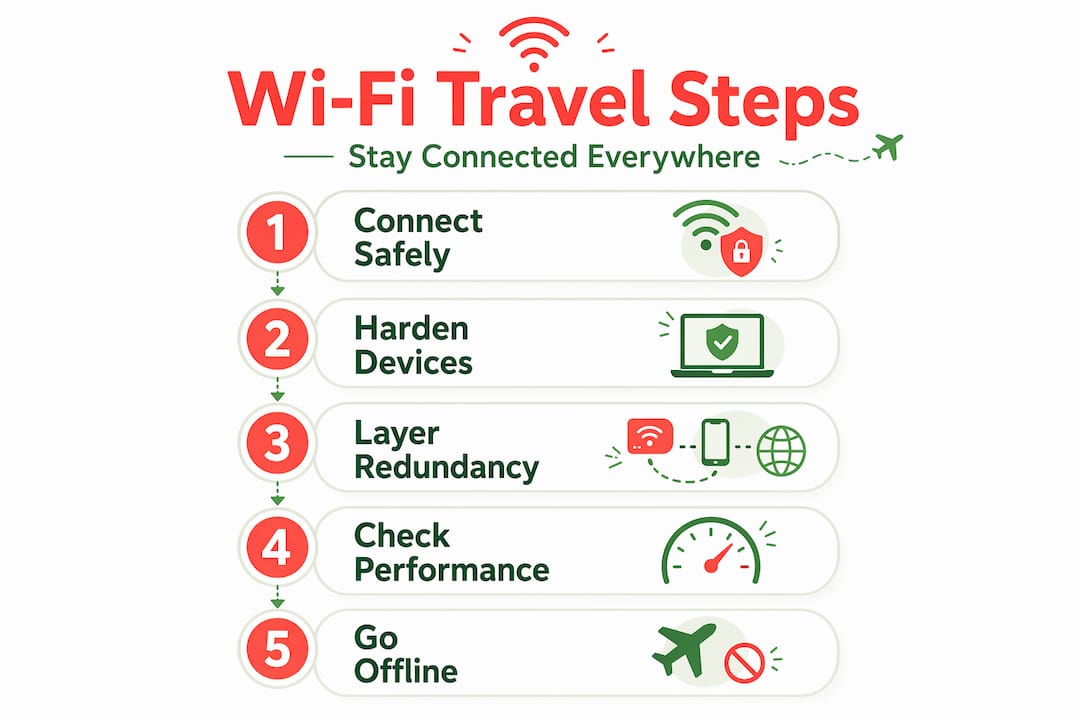
Not all connections are created equal. Here’s how Wi-Fi stacks up against your other options:
| Connectivity type | Best use cases | Key limitations |
|---|---|---|
| Public Wi-Fi | Browsing, messaging, light downloads | Unreliable, security risks, inconsistent speeds |
| Hotel/Venue Wi-Fi | Streaming, video calls (when uncongested) | Shared bandwidth, speed varies by time of day |
| Mobile data (local SIM or eSIM) | Navigation, emergencies, constant movement | Data limits, roaming costs, coverage gaps |
| Portable hotspot | Secure browsing, group connectivity | Battery drain, monthly data caps |
| Offline (downloaded content) | Maps, tickets, guides, entertainment | No real-time updates, preparation required |
Airport Wi-Fi performance can range from under 5 Mbps during congested peak hours to over 50 Mbps at quieter times. Hotel Wi-Fi latency (the delay before data transfer begins) can swing wildly from 10 ms to over 200 ms, making video calls choppy and unusable. Knowing this, you can plan which tasks to handle where.
The gap between what travelers expect from Wi-Fi and what they actually get is real. Some of the most beautifully designed hotels offer notoriously poor wireless service, while a tiny café in a European side street might give you blazing fast speeds. Pairing Wi-Fi with well-chosen smart luggage for connectivity gear can help you stay a step ahead before you even arrive at your destination.
With the basics in mind, let’s look at why security can make or break your Wi-Fi experience abroad.
Public Wi-Fi security: How to protect your data while traveling
Free public Wi-Fi carries genuine risk. Not the vague, theoretical kind you hear about in passing but real, documented threats that target travelers specifically because they are more likely to connect quickly, without scrutiny, while distracted. Understanding those risks and knowing how to counter them is a core part of traveling smart in 2026.
The most common threats on public Wi-Fi include:
- Credential theft: Attackers intercept login data by positioning themselves between you and the network, a technique called a “man-in-the-middle” attack.
- Rogue access points: A bad actor sets up a Wi-Fi hotspot with a convincing name like “Airport_Free_WiFi” and waits for travelers to connect, then captures all traffic.
- Malware injection: On unsecured networks, malware can be silently pushed to your device, especially if your software is outdated.
- Session hijacking: After you log in to a website, an attacker can steal your active session token and impersonate you without needing your password.
These aren’t edge cases. They happen to real travelers every year.
Steps you can take right now
Security best practices consistently emphasize using a VPN and avoiding sensitive logins and financial transactions on shared networks. Here is a numbered approach to staying safe:
- Use a reputable VPN (Virtual Private Network). A VPN encrypts all data traveling between your device and the internet, making it unreadable to anyone lurking on the same network. Install one before your trip, not during.
- Verify the SSID (network name) before connecting. Ask a staff member at the venue what the exact network name is. Attackers often create networks with nearly identical names.
- Disable auto-join for public networks. Your phone should not automatically reconnect to any open Wi-Fi network it has seen before.
- Avoid banking, financial, or sensitive account logins on public Wi-Fi. Use mobile data for these. It’s a small inconvenience with a big payoff.
- Always log out of accounts fully rather than just closing the browser or app tab.
- Keep your device’s operating system and apps updated. Security patches close known vulnerabilities that attackers actively exploit.
- Disable file sharing and Bluetooth discovery when using public connections to reduce your exposure.
Pro Tip: Enable two-factor authentication (2FA) on every important account before you travel. Even if someone captures your password on a public network, 2FA means they still can’t get in without a second verification step, usually a code sent to your phone. This single step dramatically raises the barrier for any attacker.
Practical device-side hardening includes turning off auto-join and auto-connect to public networks and using VPN encryption whenever you’re on untrusted Wi-Fi. These aren’t just good habits for cautious people. They’re the standard recommendation for anyone who uses public internet, full stop.
You can find more detailed guidance on protecting your devices in our computer security tips section. For travelers specifically, the guide on mobile security for travelers offers a sharp breakdown of device-level protections worth reading before any international trip.
Even with good security hygiene, Wi-Fi isn’t always dependable, so redundancy is your next line of defense.
Redundancy and failover: Why Wi-Fi alone isn’t enough for travel
Imagine this: you’ve just landed in a city you’ve never visited before. Your hotel shuttle is waiting somewhere outside, but you need to confirm the pickup point from your booking email. You connect to airport Wi-Fi, but it’s overloaded and won’t load anything. Your roaming data plan wasn’t activated before you left. You’re standing at the exit with your bags, no connection, and no plan B.
This scenario plays out for travelers constantly. It’s entirely avoidable with a layered connectivity approach.
Treating Wi-Fi as a supplement rather than your primary connection, and keeping a cellular or mobile option as a failover for consistency, especially for emergencies and constant movement, is the practical methodology that experienced travelers swear by. Wi-Fi is a gift when it works. But it should never be the only line.

Your practical connectivity workflow
| Situation | Best connection choice | Backup option |
|---|---|---|
| Hotel room for browsing | Hotel Wi-Fi | Mobile data (minimal use) |
| Navigation while walking | Offline maps (downloaded over Wi-Fi) | Mobile data GPS |
| Financial transactions | Mobile data only | Portable hotspot |
| Video call from a café | Café Wi-Fi with VPN | Mobile hotspot |
| Airport transit | Mobile data | Airport Wi-Fi with VPN |
| Flight layover | Downloaded content (offline) | Airport Wi-Fi for light tasks |
Here is a set of offline-first strategies that use Wi-Fi intelligently, to download and prepare, rather than to stay constantly live:
- Download Google Maps or Apple Maps for your entire destination region while connected to reliable Wi-Fi at home or your hotel. Offline maps are a powerful Wi-Fi leverage technique: you download while connected, then navigate without needing real-time internet at all.
- Save all booking confirmation emails, hotel addresses, and transport details as PDFs or screenshots while connected.
- Pre-download entertainment (podcasts, playlists, shows) so you’re not burning through data or relying on unpredictable connections.
- Use your airline’s app to download boarding passes and flight details before you leave reliable Wi-Fi coverage.
- Pre-load language translation packs in offline mode so you’re not stranded trying to communicate without connectivity.
Pairing these habits with the right travel tech upgrades can give you a real edge. For a complete picture of what to pack and prepare, the travel tech checklist is an excellent place to start.
The offline-first mindset also protects you from another underappreciated risk: captive portals. These are the login pages that appear when you connect to hotel or airport Wi-Fi, requiring you to accept terms or enter a room number. Until you complete that process, you have no internet, even though your device shows as “connected.” Downloading critical content in advance means captive portal delays are an inconvenience, not a crisis.
Having a layered approach means you can maximize Wi-Fi’s strengths while sidestepping its downsides, but there’s more nuance, especially around bandwidth, latency, and high-demand activities.
Bandwidth, latency, and real-world performance: What travelers need to know
You’ve probably experienced the frustration of a video call that keeps freezing, or a photo upload that stalls midway through. Those problems aren’t random. They come down to specific performance metrics that most travelers have never thought about.
Let’s break them down simply:
- Bandwidth (measured in Mbps): This is the total capacity of the connection, how much data can flow per second. A connection with 100 Mbps can theoretically handle far more than one with 5 Mbps. Most casual browsing needs only 1 to 5 Mbps, but a high-definition video call needs 3 to 8 Mbps consistently.
- Latency (measured in ms, milliseconds): This is the delay between sending a request and receiving a response. Low latency (under 50 ms) feels snappy. High latency (over 150 ms) makes video calls feel like satellite phone conversations, with awkward pauses and overlapping speech.
- Jitter: This is the variation in latency over time. Even a connection with decent average latency can feel terrible if jitter is high, because the signal arrives unevenly, causing stuttering and freezing.
- Upload speed: Often overlooked, upload speed matters enormously for video calls, sending large files, and posting photos. Many hotel networks have significantly slower upload than download speeds.
Bandwidth and latency matter enormously for real-world travel use, including video calls and uploads, and airport and hotel Wi-Fi performance can be highly variable across venues and times of day.
Pro Tip: Before starting a video call, upload a large file, or run any bandwidth-heavy task on hotel or airport Wi-Fi, run a quick speed test using a free tool on your phone. If download speeds are under 5 Mbps or latency is above 100 ms, switch to your mobile hotspot for that task. Thirty seconds of checking saves you thirty minutes of frustration.
Choosing the right connection for each task
Some tasks are forgiving. Others are not. Here’s how to match your task to your connection type:
- Best handled on strong Wi-Fi: Large file downloads, software updates, streaming video, backing up photos, making video calls when bandwidth is confirmed, and syncing cloud storage.
- Best handled on mobile data: Real-time navigation, quick email checks, banking and financial tasks, messaging when Wi-Fi is crowded, and anything time-sensitive.
- Best handled offline: Map navigation (if pre-downloaded), reading saved articles or guides, watching pre-downloaded content, and reviewing booking documents.
For travelers who love travel photo sharing, this framework is especially useful. Uploading a batch of high-resolution images over a slow café network is a recipe for partial uploads and corrupted files. Waiting until you find a fast, verified connection, or using your mobile hotspot in a pinch, protects your work and your time.
As connectivity technology evolves, 5G is reshaping travel experiences in exciting ways, offering faster, more reliable mobile data that can often outperform hotel Wi-Fi in urban destinations. Keeping an eye on 5G coverage for your destination is a smart pre-trip step.
You now have a solid toolkit for smarter connectivity. Let’s explore what most guides miss and share some actionable wisdom drawn from real travel experience.
A traveler’s lesson: Why the best Wi-Fi strategy is redundancy, not risk
Here’s a perspective worth sitting with: the conventional travel wisdom of “find the free Wi-Fi wherever you go” is not a connectivity strategy. It’s a habit. And habits aren’t plans.
Most travelers treat their phone’s connectivity like they treat electricity on a trip: they assume it will just be there. They connect to networks without verifying them, keep auto-join turned on, and only realize they’ve been overexposed when something goes wrong, a fraudulent charge appears on their card, their email account sends a suspicious message, or their password stops working.
The real best Wi-Fi strategy isn’t maximizing how much free Wi-Fi you use. It’s designing redundancy: downloading what you can over Wi-Fi before you need it, using a VPN for security when you must connect to an unknown network, and keeping cellular or hotspot capability ready for time-critical or sensitive tasks. That’s the framework. Everything else is execution.
What makes this perspective feel counterintuitive is that it asks you to do a little more work upfront: installing a VPN before departure, downloading offline maps the night before, activating an eSIM or travel SIM, and toggling off auto-join. None of this is difficult. All of it pays off.
Consider a real-world scenario. A traveler at a busy international airport connects quickly to a Wi-Fi network named something like “FreeAirportWiFi_2” without verifying it with airport staff. They check their bank account to confirm a hotel payment. That network was a rogue hotspot. Their banking session is hijacked, and they spend the next several hours on the phone with their bank instead of boarding their connection.
Wi-Fi edge cases in travel including captive portals, network auto-join behavior, and rogue hotspots can cause failed logins or expose credentials if you connect too quickly or without verification. The standard mitigation, SSID verification plus VPN plus turning off auto-join, takes about 90 seconds to apply. That’s a remarkable return on investment.
We also believe there’s a mindset shift worth making. Think about how carefully you plan what to pack for a trip. Most travelers spend real time choosing the right gear, right down to adapter plugs and packing cubes. Your digital life deserves that same intentionality. Your connectivity setup is as important as your physical luggage, and smart luggage and travel technology lessons show that the best modern travelers treat both with equal seriousness.
Redundancy isn’t pessimism. It’s the confidence that comes from knowing you’re prepared for whatever the road throws at you.
Explore more travel tips and tech with Lizard’s Lunch
At Lizard’s Lunch, we believe that great travel starts with smart preparation, and connectivity is a big part of that picture. Whether you’re planning your next adventure or looking to level up how you use technology on the road, our site is packed with guides designed to make your life easier and your trips more memorable. Browse our full collection of travel insights for destination tips, packing guides, and real-world advice from seasoned explorers. Dive into our technology for travelers section for the latest on gadgets, apps, and digital tools that genuinely make a difference. And if you want to sharpen your digital security habits, our computer tips section has you covered with practical, jargon-free guidance.
Frequently asked questions
How can I tell if public Wi-Fi is safe to use?
Security best practices recommend checking for verified SSIDs with venue staff, using a VPN, and avoiding sensitive transactions; without these steps, the network may not be secure.
Should I rely on Wi-Fi for trip-critical tasks like navigation or reservations?
Download maps and confirmations before your trip using reliable Wi-Fi, since offline maps allow you to navigate without real-time internet, and always keep a mobile or offline option ready for emergencies.
What’s the best way to secure my device on public Wi-Fi?
Turn off auto-join, use a VPN whenever you connect to an unfamiliar network, and activate two-factor authentication on all important accounts before you leave home.
How do I handle failed logins or captive portals at airports?
Verify the exact network name with airport staff, avoid auto-join connections, and use a VPN once connected; if a captive portal causes issues, rogue hotspots and captive portals can expose credentials, so switching to mobile data for key logins is always the safer move.
Why does my video call quality drop on hotel or airport Wi-Fi?
Variable bandwidth and latency at hotels and airports, combined with congestion from many simultaneous users, degrade video and upload speeds; always run a speed test before attempting heavy tasks on shared networks.


















Leave a Comment
Your email address will not be published. Required fields are marked with *