
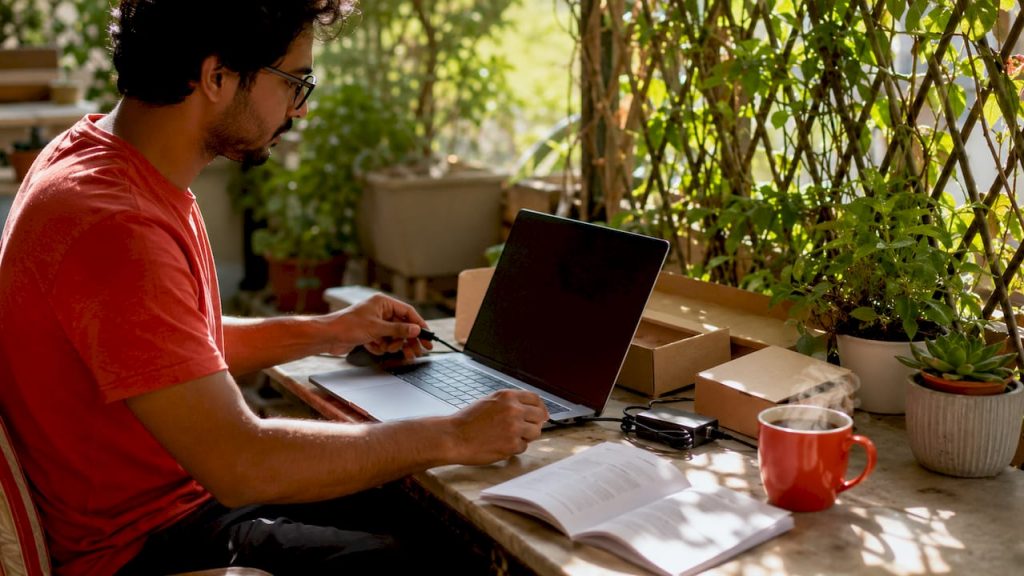
Master your devices with our step by step tech setup guide. Learn to install, configure, and optimize for peak performance!
A step by step tech setup is a structured process for installing, configuring, and optimizing a device or system so it works correctly from day one. Whether you are unboxing a new PC, activating a smartphone, or building a home network, the process follows the same core sequence: prepare, assemble, configure, secure, and test. Skipping any stage creates problems that are much harder to fix later. This guide walks you through every stage of the complete tech setup process, from the tools you need before you start to the ergonomic and security tweaks that keep your system running well for years.
What tools and preparations do you need before starting tech setup?
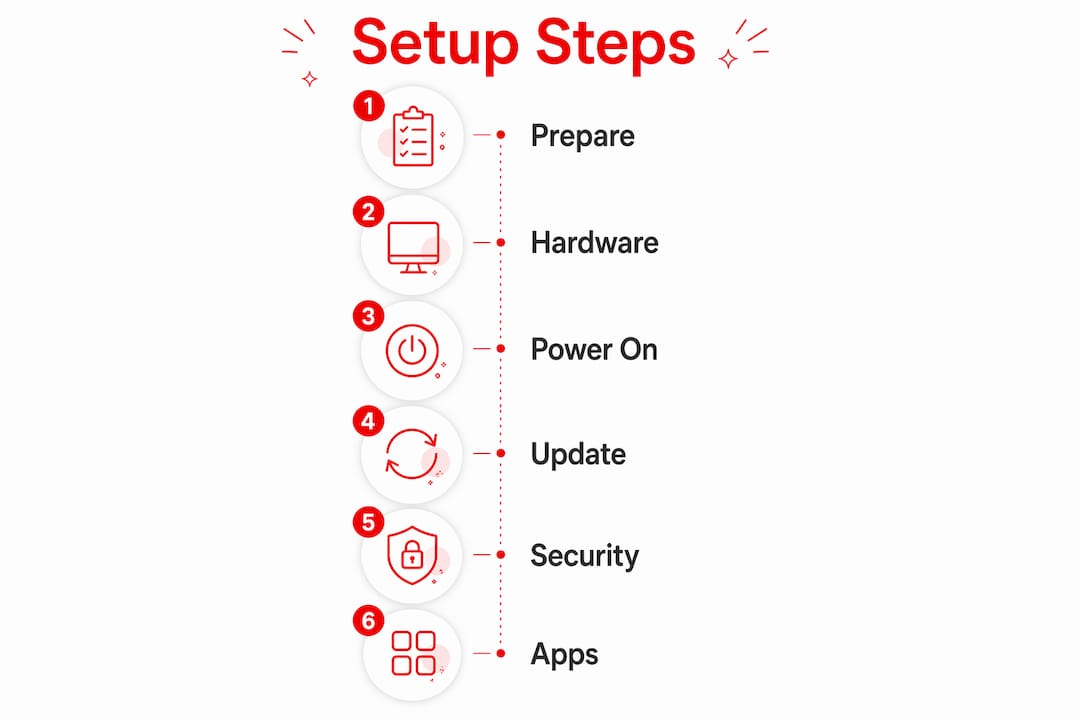
Preparation is the single step that separates a smooth setup from a frustrating one. Arriving at your desk without the right cables, a charged device, or a stable internet connection turns a 30-minute job into a two-hour ordeal. Gather everything before you touch the power button.
Hardware essentials
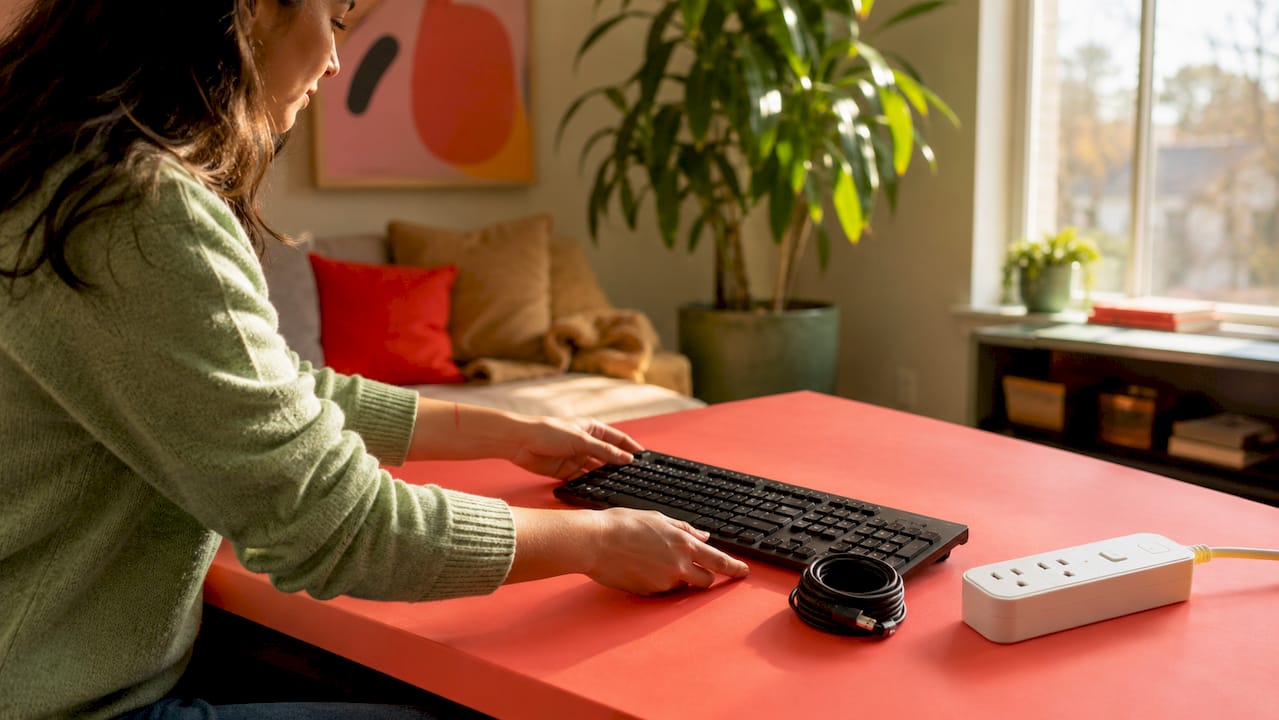
Every tech installation walkthrough starts with the same physical checklist:
- The device itself (laptop, desktop, smartphone, or router)
- Power cable and adapter that match your region’s voltage
- Peripherals you plan to use: monitor, keyboard, mouse, or headset
- A surge protector to guard against power spikes during first boot
- Ethernet cable for a wired connection during initial software updates
Entry-level home office setups cost between $200 and $300, while professional-grade configurations with ergonomic furniture and quality peripherals run $1,000 to $2,500. Knowing your budget before you shop prevents impulse purchases that do not match your actual needs.
Software and account prerequisites
Before powering on, create or locate the accounts you will need. Most operating systems require a Microsoft account, Apple ID, or Google account during initial setup. Write down your credentials or store them in a password manager like Bitwarden or 1Password before you begin. Hunting for a forgotten password mid-setup breaks your focus and wastes time.
Workspace and security basics
Your workspace affects your device’s health from the very first session. Choose a hard, flat surface with good ventilation and natural or overhead lighting. Set up multi-factor authentication (MFA) on your primary account before you install anything else. MFA reduces account takeover risk more than any other single security measure, which is why cybersecurity experts list it first on every IT setup checklist.
Pro Tip: Charge your device to at least 80% before starting setup. A power interruption during an OS update can corrupt system files and force a full reinstall.
How to perform hardware setup step by step: unboxing to powering on
The physical setup stage sets the foundation for everything that follows. Rushing through it causes problems that show up weeks later as overheating, loose connections, or unstable power delivery.
Step 1: Unbox and inventory components
- Open the box on a clean, static-free surface. A wooden desk or anti-static mat works well.
- Remove every item and lay them out. Cross-reference against the included packing list.
- Check for visible damage: cracked screens, bent ports, or torn cables. Report damage to the retailer before you power on.
- Keep the original packaging for at least 30 days in case a return is needed.
Step 2: Position the device correctly
Placement matters more than most beginners expect. Soft surfaces block vents and cause overheating and performance loss from the very first session. Place laptops on a hard desk or a laptop stand that lifts the base for airflow. Position desktops with at least four inches of clearance on all sides. Keep the device away from direct sunlight and heat sources like radiators.
Step 3: Connect peripherals and power safely
Connect your monitor, keyboard, and mouse before plugging in power. Plug the power cable into a surge protector, not directly into the wall. Surge protectors absorb voltage spikes that can damage motherboards and storage drives. If you are setting up a home network device like a Starlink dish or a router, connect the Ethernet cable to your PC now so updates download over a wired connection rather than Wi-Fi.
Step 4: First power-on and firmware check
Press the power button and watch the screen carefully. Most devices display a manufacturer logo, then load the operating system setup wizard. If your device shows a BIOS or UEFI screen, do not change settings unless you have a specific reason. The default firmware settings are correct for most users. For network devices like Starlink, satellite acquisition after boot takes 5–15 minutes on first power-on. Patience here prevents unnecessary troubleshooting.
A note on timing: Standard network and device setups are faster than most people expect. A new smartphone data transfer, for example, completes in 20–30 minutes depending on how much data you are moving. Plan for that window rather than abandoning the process halfway through.
How to complete software setup: configuration, updates, and security
Software configuration is where most beginner tech setups go wrong. People rush through the OS wizard, skip updates, and start installing apps on a system that is not yet secure or stable.
Step 1: Complete the OS setup wizard carefully
- Choose your language, region, and keyboard layout. These affect spell-check, date formats, and app availability.
- Sign in with your Microsoft account, Apple ID, or Google account when prompted.
- Review privacy settings one screen at a time. Windows and macOS both default to sharing diagnostic data. Turn off anything you do not want to share.
- Create a local user account with a strong, unique password as a backup even if you use a cloud account as your primary login.
Step 2: Run multiple update cycles before installing apps
This step surprises most beginners. Windows and macOS require multiple update cycles and reboots to fully secure firmware and drivers. One update run is not enough. After the first reboot, check for updates again. Repeat until the update utility reports that your system is current. Only then should you start installing third-party software. Installing apps on an unpatched system exposes you to vulnerabilities that the updates were designed to close.
Step 3: Set up security tools the right way
Enable MFA on every account that supports it: your OS login, email, and any cloud storage service. Use an authenticator app like Google Authenticator or Microsoft Authenticator rather than SMS codes, which are easier to intercept. For password management, choosing a password manager early in your setup makes every future login faster and more secure.
Pro Tip: Skip the antivirus trial that came pre-installed on your device. Built-in OS tools like Windows Defender provide the primary effective defense. Trial antivirus software is a marketing product, not a security upgrade.
Step 4: Install apps in priority order
Start with your browser, then your productivity tools, then entertainment apps. Installing everything at once makes it impossible to identify which app caused a problem if something goes wrong. Power users on macOS benefit from setting up a package manager like Homebrew early. Early 2FA and package manager setup is significantly harder to add once personal data and apps are already installed across the system.
How do you optimize your tech setup for productivity and longevity?
Once your device is running and secure, the next stage is tuning your environment and system for long-term comfort and reliability. This is where a basic tech installation walkthrough becomes a genuinely great workspace.
Ergonomic positioning
Monitor positioning has more productivity impact than the brand of keyboard or mouse you choose. Place your monitor so the top of the screen sits at or just below eye level. Sit back far enough that your arms form a 90-degree angle at the elbow when your hands rest on the keyboard. Your ergonomic furniture choices directly affect how long you can work without fatigue or strain.
Network and Wi-Fi optimization
- Place your router in a central, elevated location away from walls and appliances.
- Use a 5 GHz Wi-Fi band for devices within 30 feet of the router for faster speeds.
- Use a 2.4 GHz band for devices farther away or through walls for better range.
- Connect your primary work device via Ethernet when possible for the most stable connection.
Cable management and workspace organization
| Area | Best practice |
|---|---|
| Desk surface | Route cables through a cable tray or clips to keep the surface clear |
| Power strip | Label each plug so you can identify and cut power to individual devices quickly |
| Behind monitor | Use Velcro ties, not zip ties, so cables can be adjusted without cutting |
| Floor cables | Use a cable cover strip to prevent tripping and reduce wear on cable jackets |
System health monitoring
Run a performance check after your first full week of use. On Windows, Task Manager shows CPU, memory, and disk usage in real time. On macOS, Activity Monitor does the same job. If your CPU runs above 80% during normal tasks, check for background processes or apps that launched at startup. Removing unnecessary startup items is the fastest way to speed up a slow boot.
What are the most common tech setup mistakes to avoid?
Even careful users make predictable errors during setup. Knowing them in advance saves hours of troubleshooting.
- Skipping update cycles. Running apps on an unpatched OS leaves known security gaps open. Always complete all update rounds before installing software.
- Placing devices on soft surfaces. Beds, couches, and carpet block ventilation. Overheating degrades performance and shortens hardware life.
- Using low-quality power supplies. Cheap power adapters deliver unstable voltage. They damage batteries and, in rare cases, motherboards. Use the manufacturer-supplied adapter or a certified replacement.
- Ignoring MFA setup. Skipping multi-factor authentication during initial setup means adding it later when accounts already hold sensitive data. That is a harder, riskier process.
- Installing too many apps at once. When something breaks, you cannot identify the cause. Install in stages and test after each addition.
“The most overlooked hardware setup step is ensuring proper airflow and stable placement. Most performance problems that appear in the first week trace back to a device sitting on a surface that blocks its vents.”
Treat these mistakes as a checklist, not a warning. Go through each one before you close your setup session and confirm you have addressed every point.
Key Takeaways
A successful tech setup depends on completing preparation, hardware placement, software updates, and security configuration in the correct order before adding apps or personalizing the system.
| Point | Details |
|---|---|
| Prepare before powering on | Gather cables, accounts, and a surge protector before touching the device. |
| Prioritize airflow and placement | Hard, flat surfaces with clearance on all sides prevent overheating from day one. |
| Run multiple update cycles | Complete all OS updates and reboots before installing any third-party software. |
| Enable MFA first | Multi-factor authentication reduces account takeover risk more than any other single step. |
| Position your monitor at eye level | Correct monitor height delivers more productivity benefit than upgrading your keyboard or mouse. |
Why I think most tech setup guides get the order completely wrong
Most tech setup guides start with software. They jump straight to downloading apps, signing into accounts, and personalizing the desktop. That order feels satisfying because you see results fast. But it skips the foundation, and foundations matter enormously.
I have watched people set up new laptops in 20 minutes, feel great about it, and then spend three hours troubleshooting overheating, slow performance, or a compromised account two weeks later. Every one of those problems traced back to a skipped step in the first session. The device was placed on a blanket. Updates were run once, not twice. MFA was “something to do later.”
The honest truth about a beginner tech setup is that patience in the first hour saves you days of frustration later. The update cycles feel tedious. Checking ventilation feels unnecessary. But these are the steps that determine whether your device runs well for three years or starts struggling in three months.
My strongest recommendation is to treat your first setup session as a two-hour commitment, not a 20-minute one. Work through hardware placement, run every update cycle, enable MFA, and only then start making the system feel like yours. The home workspace optimization you do after setup is far more enjoyable when the foundation is solid.
The readers who get the most from their technology are not the ones who know the most. They are the ones who slow down at the start and get each stage right before moving to the next.
Build a workspace that matches your tech
A great tech setup does not stop at the device. The desk, chair, lighting, and room layout around your technology shape how comfortable and productive you feel every single day. Lizardslunch covers the full picture, from home improvement ideas that add character to home upgrades that boost comfort and value. Whether you are building a dedicated home office or carving out a corner of your living room, the right environment makes your technology work harder for you. Explore the guides on Lizardslunch to find practical ideas that turn a functional setup into a space you genuinely enjoy spending time in.
FAQ
What is a step by step tech setup?
A step by step tech setup is a structured sequence for installing and configuring a device, covering hardware placement, software updates, security configuration, and performance testing in a specific order.
How long does a complete tech setup take?
A standard device setup takes 1–2 hours when done correctly, including multiple OS update cycles. Network devices like Starlink require an additional 5–15 minutes for satellite acquisition after first boot.
Do I need antivirus software during setup?
No. Built-in OS tools like Windows Defender provide the primary effective protection. Pre-installed trial antivirus software is a marketing product and can be removed without reducing your security.
When should I enable multi-factor authentication?
Enable MFA before installing any apps or storing personal data. MFA is the single most effective measure for reducing account takeover risk and is significantly harder to configure safely after personal data is already on the device.
What is the biggest hardware mistake during setup?
Placing a laptop or desktop on a soft surface like a bed or carpet. Soft surfaces block ventilation vents and cause overheating and performance loss from the very first session.














Leave a Comment
Your email address will not be published. Required fields are marked with *