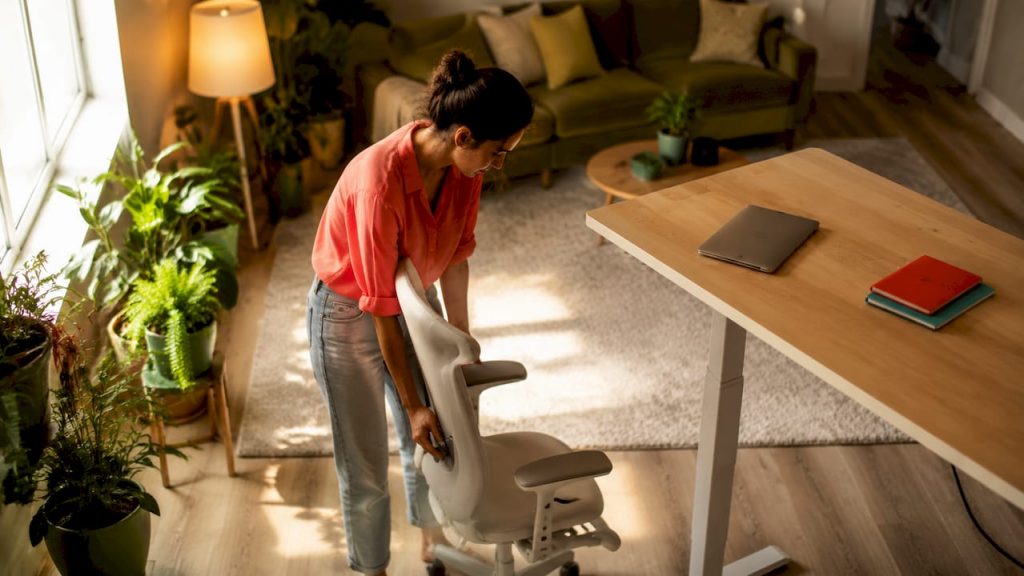
Discover how to optimize your home workspace for peak productivity. Transform your home office with ergonomic setups and smart solutions!
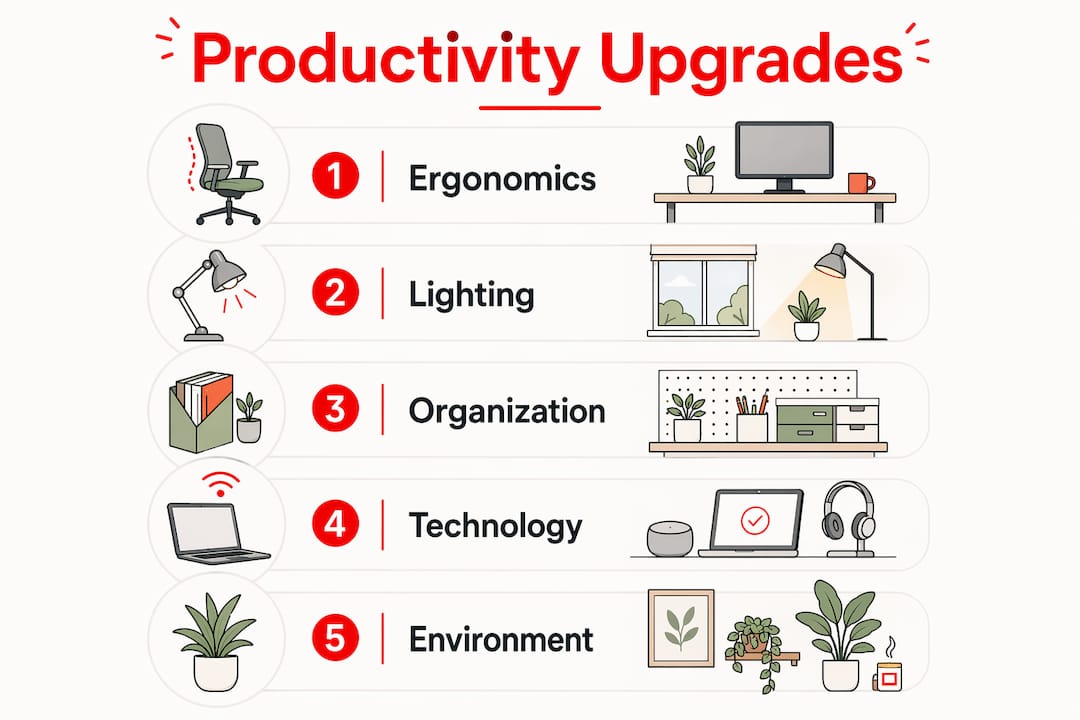
Optimizing your home workspace means configuring your desk, lighting, ergonomics, technology, and environment to maximize both comfort and output. Remote professionals who treat their home office as a deliberate system rather than a convenient corner see measurable gains in focus, physical health, and daily satisfaction. The core components are ergonomic furniture, calibrated lighting, organized surfaces, smart technology choices, and controlled ambient conditions. Get these five factors right, and your home becomes one of the most productive places you can work. This guide walks you through each one with specific, research-backed steps you can act on today.
How to optimize your home workspace with ergonomic setup
Ergonomics is the science of fitting your work environment to your body, and it is the single most impactful place to start when you want to maximize your home office. Poor posture compounds over hours, leading to neck strain, wrist pain, and eye fatigue that quietly drain your focus long before you notice the discomfort.
Getting your desk and chair height right
Your chair and desk work as a system. Adjust desk and chair height so your feet rest flat on the floor, your knees sit at roughly 90 degrees, and your forearms are parallel to the desk surface. If your feet do not reach the floor after adjusting for arm height, a footrest solves the problem immediately. Lumbar support cushions from brands like Everlasting Comfort or Tempur-Pedic fill the gap between your lower back and the chair back, keeping your spine in a neutral curve throughout the day.
Monitor distance and viewing angle
Set monitor distance to 20 to 40 inches and position the top of the screen at or just below eye level. This places your natural viewing line about 15 to 20 degrees below horizontal, which is the angle your eyes prefer for sustained reading. Sitting too close forces your eyes to converge harder; sitting too far makes you lean forward and lose the neutral spine you just set up.
The laptop user’s biggest mistake
Laptop users almost universally make one critical error: they adjust the chair and desk for arm comfort, which drops the screen far below eye level and forces the neck to crane downward for hours. The fix is straightforward. A laptop riser plus external keyboard and mouse raises the screen to eye level while keeping your wrists neutral. Stands from Nexstand, Rain Design, and Twelve South all deliver this at different price points. Pair any of them with a compact mechanical keyboard and a vertical mouse for a complete ergonomic correction.
Here are the core ergonomic checkpoints to run through every time you sit down:
- Feet flat on the floor or on a footrest
- Knees at approximately 90 degrees, not pressed against the desk
- Monitor top at or just below eye level, 20 to 40 inches away
- Elbows at roughly 90 degrees with forearms parallel to the desk
- Wrists straight, not bent up or down while typing
- Lower back supported by chair lumbar or a cushion
Pro Tip: Keep a simple symptom log for two weeks after any ergonomic change. Note where you feel tension at the end of each day. This tells you exactly which adjustment is working and which still needs attention, far more reliably than guessing.
You can explore ergonomic furniture options in depth to find chairs, desks, and accessories that match your specific body type and budget.
What lighting strategies reduce eye strain in a home workspace?
Lighting is the most underestimated variable in an effective workspace setup. Most remote workers either rely entirely on overhead ceiling lights or work in front of a bright window, and both approaches create problems that accumulate across the workday.
The 500 lux target and why it matters
Ideal office lighting sits around 500 lux of horizontal illuminance, combining ambient and task lighting rather than relying on a single bright source. That number gives you enough light to read comfortably without the eye fatigue that comes from high-contrast environments where your screen is much brighter or darker than the surrounding room. Research also shows that illuminance up to 1000 lux reduces psychological fatigue and improves alertness and response speed, though the gains plateau and glare becomes a concern above that level.
Glare is a geometry problem, not a brightness problem
Monitor positioning relative to windows is the most common source of glare, and the fix is physical before it is digital. Place your monitor at a right angle to any window rather than facing it or sitting with the window behind you. Adjustable blinds or sheer curtains give you fine control over natural light intensity throughout the day. Only after repositioning should you consider adjusting screen brightness or adding an anti-glare filter.
Here is a quick reference for building a balanced lighting setup:
| Lighting element | Recommended approach | Why it helps |
|---|---|---|
| Ambient light | 300 to 500 lux, diffused ceiling or wall-bounce | Reduces contrast between screen and room |
| Task lighting | Adjustable desk lamp at 500 to 700 lux | Illuminates documents without screen glare |
| Color temperature | 5000K to 6500K in the morning, 2700K to 3000K after 4 PM | Supports natural alertness and wind-down cycles |
| Natural light | Position monitor at 90 degrees to window | Eliminates direct glare without blocking daylight |
| Full-spectrum LED | Replace standard bulbs with full-spectrum options | Improves mood, alertness, and color accuracy |
Full-spectrum LED bulbs from brands like GE Reveal or Philips Hue replicate the broad wavelength range of natural daylight. They are particularly useful in windowless rooms or during winter months when natural light is limited.
Pro Tip: Download a free lux meter app like Lux Light Meter Pro on your smartphone and measure the light level at your desk surface. Most home offices read between 100 and 200 lux, which is well below the recommended range. One good desk lamp can change that reading dramatically.
For a deeper look at how light shapes your workspace experience, the role of lighting in design covers the principles behind effective illumination choices.
How can organizing your home workspace improve productivity?
A cluttered desk is not just an aesthetic problem. Desk clutter and visual distractions increase cognitive load, pulling mental resources away from the task in front of you. Your brain reads the physical environment as a set of cues, and a surface covered in unrelated objects sends competing signals that make it harder to enter a focused state.
The desk as a contextual cue
Neuroscience research confirms that your desk acts as a mental trigger. A cleared, organized workspace helps your brain shift into work mode the same way a gym bag by the door nudges you toward exercise. This is why home office organization tips that focus purely on storage miss the point. The goal is not just to hide clutter. It is to design a surface that signals one thing: it is time to work.
The 3-P Rule gives you a practical framework for this:
- Plan: Decide what belongs on your desk during work hours and what does not. Only items you use daily earn permanent surface space.
- Protect: Create physical boundaries between work and non-work items. A tray, a monitor riser shelf, or a dedicated drawer keeps the work zone clean.
- Pick: Choose one visual anchor point, such as a plant, a notepad, or a single framed photo, that you associate with focus. Everything else goes away.
Storage and cable management
Vertical storage is your best friend in a small home office. Wall-mounted shelves from IKEA’s KALLAX system or floating shelves from Wayfair move books and supplies off the desk without shrinking the room. Cable management clips from brands like VELCRO or Bluelounge keep power cords routed cleanly along desk edges, which removes one of the most visually noisy elements in a typical home setup.
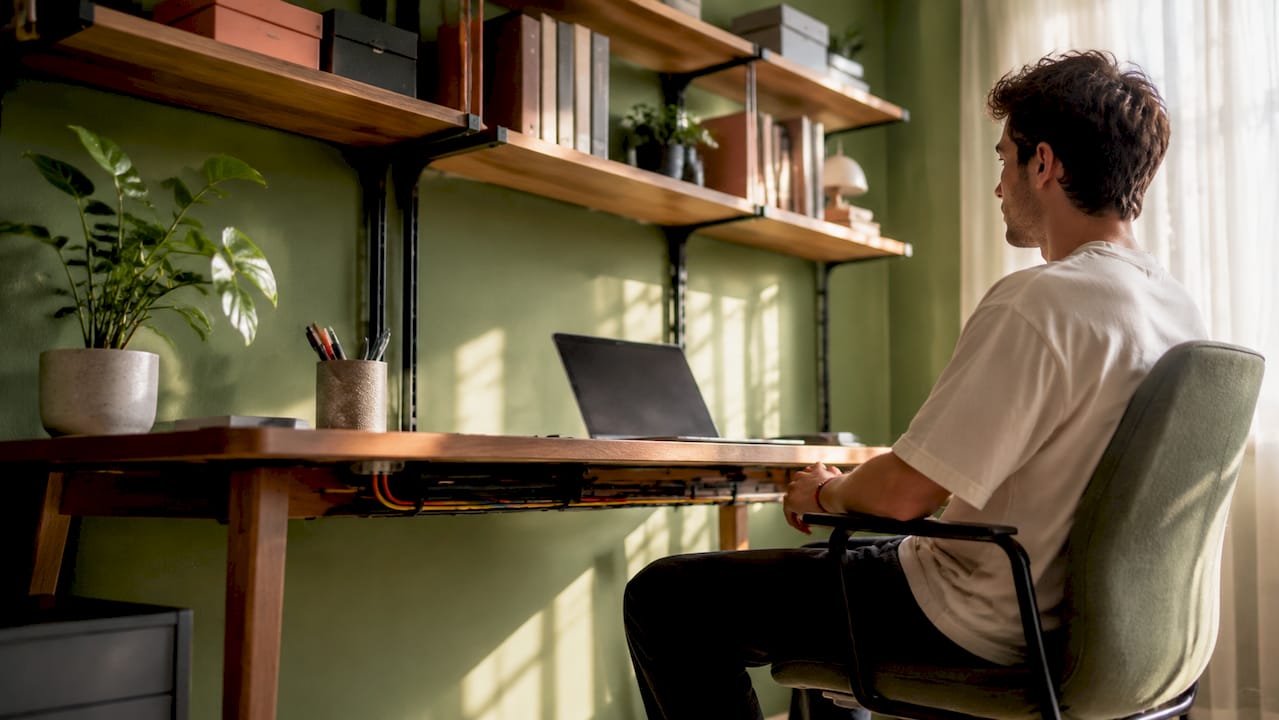
Keep your most-used items within arm’s reach and everything else out of sight. A two-drawer filing cabinet handles paper documents. A small desktop organizer from Poppin or Ugmonk handles pens, sticky notes, and chargers. The less your eye has to process, the more mental energy stays on your work.
If you want to go further with decluttering your entire home environment, the guide on how to declutter your home fast offers behavioral strategies that work beyond the office.
What technology upgrades enhance your home office setup?
Technology choices shape how efficiently you work, but the relationship between hardware and productivity is not always what you expect. A second monitor delivers more measurable gains for most knowledge workers than a faster processor. Noise-canceling headphones often do more for deep work than a premium keyboard. Knowing which upgrades actually move the needle saves you money and frustration.
Hardware that makes a real difference
| Upgrade | Primary benefit | Best for |
|---|---|---|
| Second monitor (24 to 27 inch) | Reduces window switching, improves multitasking | Writers, analysts, developers |
| Noise-canceling headphones | Blocks speech distraction, supports focus | Open-plan or shared home environments |
| Mechanical keyboard | Tactile feedback, reduced typing fatigue | Writers, coders, heavy typists |
| Webcam (1080p or 4K) | Professional video quality for calls | Client-facing professionals |
| Laptop riser plus external peripherals | Corrects neck and wrist posture | All laptop users |
Monitors from LG, Dell UltraSharp, and BenQ consistently rank at the top for color accuracy and eye-care features. Sony WH-1000XM5 and Bose QuietComfort 45 lead the noise-canceling category for remote workers who share their home with others.
Behavioral upgrades that cost nothing
Consistent digital context and physical workspace rituals reduce the cognitive re-orientation time you spend at the start of each session. Using the same browser profile, the same window layout, and the same startup sequence each morning means your brain spends less time remembering where it left off and more time doing actual work. Tools like Notion, Todoist, or a simple text file work as a daily context anchor when you open them first thing.
Managing notifications is equally powerful. Turning off all non-urgent alerts during focused work blocks using Focus Mode on macOS or Focus Assist on Windows removes the constant interruption tax that fragments attention across the day.
Pro Tip: Implement one technology change per week and track your output for that week before adding another. This tells you which upgrade actually helped versus which one just felt exciting to buy.
How do sound, temperature, and air quality affect your workspace?
Environmental distractions function as attention taxes that accumulate quietly across the workday. You may not notice a single interruption, but the compounding effect of noise, thermal discomfort, and stale air adds up to significant lost focus by mid-afternoon.
Designing your soundscape
Soundscape design targets interruptive noise rather than total silence. Complete quiet is actually harder to sustain focus in than a consistent, low-level background sound. Brown noise or pink noise masks the unpredictable sounds, such as traffic, conversations, and appliances, that break concentration. Apps like Brain.fm, Endel, and the free Mynoise.net generator let you dial in exactly the right acoustic texture for your work style.
Speech is the most disruptive sound type for cognitive tasks. If you share your home with others, noise-canceling headphones are the single most effective tool for creating a private acoustic environment without soundproofing your walls.
Temperature, ventilation, and air quality
The thermal comfort range for sustained mental focus sits between 70 and 75 degrees Fahrenheit. Below that range, your body diverts energy to staying warm. Above it, alertness drops and fatigue sets in faster. A programmable thermostat from Nest or Ecobee lets you set your office zone to hold that range automatically during work hours.
Air quality has a direct effect on cognitive performance that most remote workers overlook entirely. Poor ventilation raises CO2 levels, which causes drowsiness and reduces decision-making speed. Opening a window for ten minutes each hour or running a HEPA air purifier from Levoit or Coway in your workspace keeps oxygen levels up and particulates down.
Here are the environmental conditions worth monitoring and adjusting:
- Temperature: 70 to 75 degrees Fahrenheit for peak alertness
- Humidity: 40 to 60 percent to prevent dry eyes and throat irritation
- CO2: Keep below 1000 ppm with regular ventilation
- Noise: Target a consistent background level of 50 to 65 decibels
- Light: Maintain 500 lux at desk level throughout the workday
For multi-use spaces where you cannot dedicate a room entirely to work, portable rituals create the same psychological separation. A specific playlist, a particular scent from a diffuser, or even a dedicated coffee mug used only during work hours trains your brain to shift into focus mode regardless of the physical setting.
Key takeaways
A well-optimized home workspace combines ergonomic alignment, calibrated lighting, organized surfaces, deliberate technology choices, and controlled ambient conditions to produce consistent, high-quality focus throughout the workday.
| Point | Details |
|---|---|
| Ergonomics first | Align chair, desk, and monitor before buying any other upgrade to prevent compounding strain. |
| Light at 500 lux | Combine ambient and task lighting to hit the recommended level and reduce eye fatigue. |
| Declutter for focus | Clear your desk surface to use it as a mental cue that triggers work mode. |
| One tech upgrade at a time | Track output for one week after each change to confirm it actually improves your work. |
| Control your environment | Manage temperature, noise, and air quality to remove the hidden attention taxes that drain focus. |
What I have learned from years of workspace iteration
Here is the uncomfortable truth about home office optimization: most people treat it as a one-time project. They buy a standing desk, rearrange the furniture, and declare the problem solved. Then six months later they are back to slouching, squinting at a bright window, and wondering why they feel drained by 2 PM.
The real discipline is iterative adjustment. Ergonomic adjustments and frequent breaks are ongoing practices, not one-time fixes. Your body changes, your work changes, and your environment changes with the seasons. What worked in summer with long daylight hours needs recalibration in winter. What felt comfortable at a previous job may not suit the longer, uninterrupted sessions that remote work demands.
The most common mistake I see remote workers make is spending heavily on visible upgrades, a beautiful desk, a premium chair, a wide monitor, while ignoring the invisible factors. Temperature, air quality, and notification management cost almost nothing to fix and often deliver more sustained focus than any piece of furniture.
My honest recommendation is to start with a symptom audit. Spend one week noting where you feel discomfort, distraction, or fatigue and at what time of day it hits. That data tells you exactly where to intervene first. Then make one change, give it a week, and measure again. This approach costs less, works faster, and produces a setup that is genuinely tailored to you rather than copied from a productivity influencer’s Instagram feed.
The goal is not a perfect workspace. It is a workspace that gets slightly better every month.
— Alexander
Transform your home office with the right upgrades
Your home workspace has more potential than you might realize, and the right improvements do not have to cost a fortune. Whether you are rethinking your furniture layout, upgrading your lighting, or adding smart home technology, small changes compound into a dramatically better work environment. Lizardslunch has you covered with guides that connect inspiration to real results. Explore home improvement tips that maximize comfort and return on investment, or browse the best home office tech ideas to find the upgrades that will make the biggest difference in your daily routine.
FAQ
What is the most important factor in a home workspace setup?
Ergonomics is the foundation. Correct chair height, monitor distance, and screen angle prevent the physical strain that undermines focus and health over time.
How far should my monitor be from my eyes?
Position your monitor 20 to 40 inches away with the top of the screen at or just below eye level. This keeps your neck in a neutral position and reduces eye convergence strain.
What is the ideal lighting level for a home office?
Aim for approximately 500 lux at your desk surface, combining ambient ceiling light with a dedicated task lamp. Full-spectrum LED bulbs improve alertness compared to standard warm-white options.
Does a cluttered desk actually hurt productivity?
Yes. Visual distractions increase cognitive load and make it harder for your brain to enter a focused state. A cleared desk surface acts as a contextual cue that signals work mode.
What temperature is best for working from home?
The optimal range for mental focus is 70 to 75 degrees Fahrenheit. Temperatures outside this range increase fatigue and reduce alertness, making it harder to sustain concentration through long work sessions.

















Leave a Comment
Your email address will not be published. Required fields are marked with *