
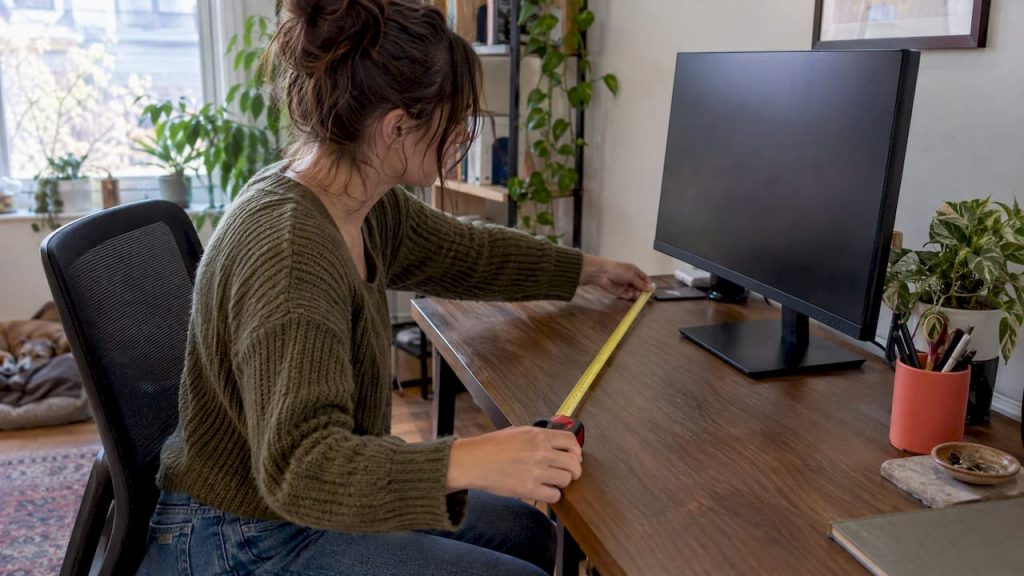
Measure desk depth and viewing distance to choose a monitor that fits. Follow five quick checks, learn why a 27 inch at 65–80 cm suits most, and set it…
For most people, a 27-inch monitor running at 1440p resolution hits the sweet spot between screen space and comfort. The right call still depends on two things you can measure today: how deep your desk is and how far you sit from the screen, plus what you actually do on it. A 24-inch display suits tight desks and simple tasks, a 32-inch or ultrawide model rewards spreadsheet work, creative editing, or immersive gaming, and your seating distance decides which of these will actually feel good to use.
TL;DR:
- Measure desk depth and seating distance first: at 27 inches, a screen needs 65–80 centimeters of viewing distance and a desk about 60–75 centimeters deep.
- Match screen size to daily work: 24 inches at 1080p suits simple tasks, while spreadsheets and editing benefit from 32 inches at 1440p or 4K.
- A screen measuring 32 inches at 4K demands more graphics power than one measuring 27 inches at 1440p, especially for high refresh rate gaming.
- Ultrawides can replace two monitors when you need several windows at once, but their width calls for 80–110 centimeters of viewing distance.
- Choose an adjustable stand, check the seller’s return window, and position screen text at eye level to support posture and allow a sizing correction.
Table of Contents
- What monitor size actually means and how to match it to your work
- Does your desk depth support the monitor size you want?
- Which monitor size fits your actual job?
- Setting up your monitor without wrecking your neck
- How to choose your monitor size in 5 quick checks
- What we keep seeing people get wrong about monitor size
- Advertising opportunities for home office and monitor brands
- FAQ
- Sources
What monitor size actually means and how to match it to your work
Monitor size refers to the diagonal measurement of the viewable screen, corner to corner, and that’s the number printed on every box and spec sheet. It tells you nothing about width or depth on its own, which is why two monitors with the same diagonal can look different depending on their aspect ratio.
Manufacturers group screens into a few common diagonal sizes, and each one tends to pair naturally with a resolution range that keeps text sharp and images crisp, as HP’s monitor sizing guide lays out:
- 24 inches: typically paired with 1080p, suited to email, browsing, and single-app focus.
- 27 inches: typically paired with 1440p, the standard for mixed office work and light multitasking.
- 32 inches: works well at 1440p or 4K, popular for spreadsheets, photo editing, and video work.
- 34 inches and up (ultrawide): usually 3440×1440, built for multi-pane workflows or wraparound gaming.
Ultrawide monitors replace a two-screen setup for a lot of multitaskers, but they ask for a wider desk and change how your eyes and neck move across the screen.
Does your desk depth support the monitor size you want?
Screen size only works if your eyes can sit at a comfortable distance from it, and that distance scales directly with diagonal measurement. According to HP’s home office monitor guide, comfortable viewing distances fall into rough bands by size:
- 24-inch monitors: about 50 to 60 centimeters from your eyes.
- 27-inch monitors: about 65 to 80 centimeters, with a desk depth around 60 to 75 centimeters.
- 32-inch monitors: about 75 to 100 centimeters.
- Ultrawide monitors: about 80 to 110 centimeters, given their extra width.
A simple rule of thumb backs this up: comfortable viewing distance generally runs 1.5 to 2.5 times the monitor’s diagonal measurement. To check your own setup, measure from the front edge of your desk to the wall or back panel, then measure how far back your chair naturally sits when you type. If your desk is shallow or your room is tight, a 32-inch or ultrawide screen will force you to sit closer than recommended, which often means stepping down a size or looking at a wall mount that lets you push the screen back without eating desk space.
Which monitor size fits your actual job?
The best size depends less on what looks impressive in a store and more on what you do for eight hours a day. HP’s working-from-home guide breaks common tasks down by size and resolution, and the pattern holds up well in practice.
| Primary task | Recommended size | Recommended resolution |
|---|---|---|
| Email, writing, browsing | 24 inches | 1080p |
| General office work, mixed multitasking | 27 inches | 1440p |
| Spreadsheets, photo or video editing | 32 inches | 1440p or 4K |
| Wide timelines, multi-pane workflows, immersive gaming | 34+ inches (ultrawide) | 3440×1440 |
Resolution and size need to move together, or you end up with text that’s either too small to read comfortably or soft and blurry at arm’s length. A 32-inch screen at 4K also asks more of your graphics card than a 27-inch screen at 1440p, so check your GPU’s output before assuming you can drive the sharper panel, especially if gaming at high refresh rates is part of the plan. Where possible, look at the monitor in person or set up a cardboard mockup at home: it’s a quick way to catch sizing regret before it costs you a restocking fee, and checking the seller’s return window before buying gives you a safety net either way.
Setting up your monitor without wrecking your neck
Picking the right diagonal size solves half the problem. The other half is placement, and Canada’s occupational guidance on computer workstation ergonomics lays out clear, practical rules for getting it right regardless of screen size.
- Align the top line of text on your screen with your eye line so you’re not tilting your head up or down.
- Position the monitor to prevent glare from windows or overhead lighting.
- Keep the screen at a distance that matches its size, rather than pulling it closer to compensate for small text.
- Use a document holder next to the screen if you reference paper often, to avoid repeated neck twisting.
Pro Tip: If a monitor feels too large for your desk, try dropping to a lower resolution setting or adding a monitor arm before replacing the whole unit, it buys you breathing room without the expense.
A monitor becomes “too large” for a space less because of the diagonal number and more because the desk and seating can’t deliver the matching distance. Monitor arms, wall mounts, or splitting the work across two smaller screens are all reasonable fixes before sizing back down.
How to choose your monitor size in 5 quick checks
Run through these steps before you buy, and you’ll avoid most of the common sizing mistakes.
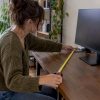
- Measure your desk depth and how far back you naturally sit when working.
- List your daily tasks and count how many windows you need open side by side.
- Match your desk measurements to the resolution sweet spot for each size you’re considering.
- Confirm your graphics card can comfortably drive that resolution, especially for 4K or high-refresh gaming.
- Check that the monitor stand adjusts for height and tilt, and confirm the seller’s return policy before committing.
| Check | What you’re confirming |
|---|---|
| Desk depth and seating distance | Whether the size fits your real viewing distance |
| Daily tasks and window count | Whether you need single-screen simplicity or multi-pane space |
| Resolution match | Whether text and images will stay sharp at your distance |
| GPU compatibility | Whether your hardware can drive the resolution smoothly |
| Stand adjustability and return policy | Whether you can fine-tune posture and undo a wrong purchase |
If your results point toward a deeper desk setup, our guide to standing desks for remote work and our roundup of desks for remote work both cover sizing in more depth.
What we keep seeing people get wrong about monitor size
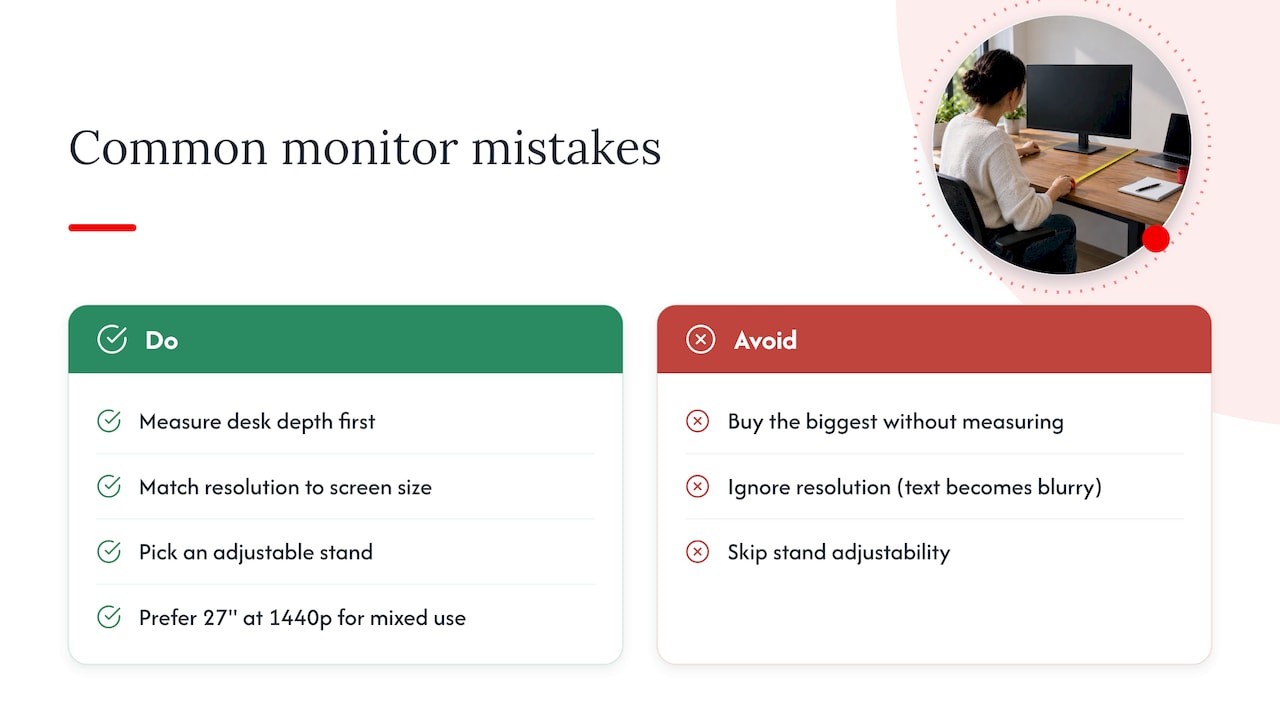
The most common mistake we run into is buying the biggest screen on the shelf without measuring the desk it’s going home to. A close second is ignoring resolution entirely, which leaves people squinting at oversized, blurry text on a 32-inch panel that never got paired with 1440p or 4K. The third is skipping stand adjustability, so the monitor sits too low or too high and never gets corrected.
A practical preference is a 27-inch monitor at 1440p for mixed office use: it’s forgiving of desk depth, sharp enough for detail work, and rarely demands a GPU upgrade. For readers fine-tuning the rest of the setup, our guide on optimizing a home workspace and our piece on lighting and glare control round out the ergonomics picture. Readers hunting for specific 27-inch models can also check PCComparate’s roundup of 27-inch monitors for model-level comparisons once the size decision is made.
— Alexander
Advertising opportunities for home office and monitor brands
We work with brands in the home office and display space through our advertising and partnership page, covering options like banner placements and guest posts for companies that want to reach readers actively researching desk setups, monitors, and workspace gear. If your product fits that audience, it’s worth a look. Readers planning a broader desk or room refresh may also enjoy this office interior design roundup for layout inspiration.
FAQ
Is a 27-inch monitor too large?
A 27-inch monitor is not too large for most desks when paired with the recommended viewing distance of about 65 to 80 centimeters. It only feels oversized when your desk is shallower than roughly 60 centimeters or your seating sits unusually close to the screen.
Is a 24-inch a large monitor?
No, a 24-inch monitor sits at the smaller end of common sizes and works best for email, browsing, and single-app tasks at 1080p resolution. It suits compact desks where a deeper screen would sit too close to your eyes.
Is a 24 or 27-inch monitor better?
Neither size is universally better since the right choice depends on your desk depth and daily tasks. A 24-inch screen fits tight spaces and simple work, while a 27-inch screen at 1440p gives more workspace for mixed office tasks without needing a deeper desk.
What is the ideal size for a computer monitor?
For most home office and general computing needs, a 27-inch monitor at 1440p offers the best balance of screen space, sharpness, and desk fit, according to HP’s sizing guidance. Heavier spreadsheet or creative work may call for a 32-inch screen, while tight desks do better with a 24-inch model.















Leave a Comment
Your email address will not be published. Required fields are marked with *