
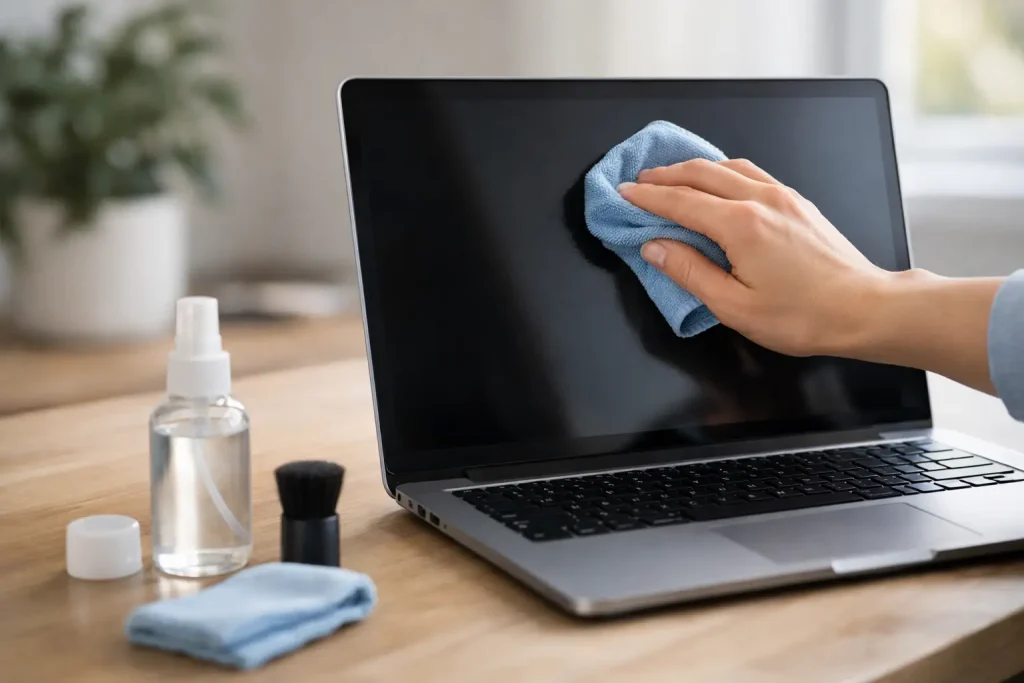
Learn how to clean laptop screen safely with the right cloth, moisture level, and techniques to remove smudges without damaging the display at home, too.
A laptop screen can look surprisingly grimy after a few days of video calls, commuting, snacking, and tapping at a stubborn spot with a fingertip. The fix should be gentle, not aggressive. Knowing how to clean laptop screen safely helps you clear away dust, skin oils, and smudges without leaving scratches, streaks, or moisture damage behind.
The biggest mistake is treating a laptop display like a window or kitchen counter. Modern screens often have delicate anti-glare, matte, or glossy coatings. A cleaner that seems harmless on glass can wear down those layers over time, while too much liquid can seep into the panel or keyboard. A few simple supplies and a light touch are all you need.
What You Need to Clean a Laptop Screen Safely
For most laptops, start with a clean microfiber cloth designed for glasses, camera lenses, or electronics. It should be soft, lint-free, and free of grit. A cloth that has been used for furniture polish, kitchen cleanup, or car detailing may carry residue that transfers to the display.
You will also need distilled water. Tap water can contain minerals that leave faint spots once it dries. If water alone does not cut through oily fingerprints, use a screen-safe cleaning solution or make a mild mixture of equal parts distilled water and 70% isopropyl alcohol. Check the laptop maker’s care instructions first, especially if you own a model with a matte, touch, OLED, or specialty-coated display.
Avoid paper towels, tissues, napkins, rough washcloths, and the corner of your shirt. These materials may feel soft, but their fibers can create tiny scratches or shed lint. Also skip household glass cleaners, bleach, ammonia, acetone, furniture spray, and any abrasive cleaner. They are too harsh for many display coatings.
The Safest Way to Clean Your Laptop Screen
First, shut down the laptop, unplug its charger, and let the screen cool if it has been in use. A dark, powered-off display makes smudges easier to see, and cleaning a cool screen reduces the chance that moisture dries too quickly into streaks.
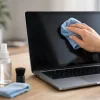
Use a dry microfiber cloth first. With very light pressure, wipe across the screen in one direction or use broad, gentle passes from top to bottom. This removes loose dust that could otherwise drag across the panel when moisture is added. Do not press hard on a dark spot. LCD and OLED panels are not built to withstand heavy pressure, and pushing can cause temporary ripples or permanent damage.
If fingerprints remain, lightly dampen one corner of the microfiber cloth with distilled water or an approved screen-cleaning solution. The key word is dampen. The cloth should not drip, and you should never spray cleaner directly onto the screen. Liquid sprayed on a display can run toward the edges, where it may reach internal components.
Wipe the display with slow, light strokes. Start near the center and work outward, or clean in horizontal passes from one side to the other. For a stubborn smudge, hold the damp section of cloth against the spot for a second or two, then lift and wipe gently. Rubbing faster or harder rarely helps and can make the smudge spread.
Finish with a dry section of the microfiber cloth to pick up remaining moisture and reduce streaking. Let the screen air-dry completely before closing the lid, reconnecting power, or turning the laptop back on.
A Quick Cleaning Routine for Everyday Dust
If your screen only has dust or a couple of light marks, dry cleaning is usually enough. Turn off the laptop, wipe it with a clean microfiber cloth, and stop there. Using liquid every time is unnecessary and increases the odds of applying too much.
For a laptop used daily at a desk, a quick dry wipe once or twice a week is often plenty. Clean more thoroughly when fingerprints become visible, after travel, or before an important presentation or video meeting.
Can You Use Alcohol Wipes on a Laptop Screen?
It depends on the wipe and the display. Many manufacturers permit a soft cloth lightly moistened with 70% isopropyl alcohol for cleaning certain screens, particularly when disinfecting is needed. However, pre-moistened wipes vary widely. Some contain fragrance, oils, strong solvents, or excess liquid, all of which can leave residue or harm sensitive coatings.
A safer approach is to put a small amount of 70% isopropyl alcohol solution on a microfiber cloth rather than applying a wipe directly to the screen. Never use high-concentration rubbing alcohol, hand sanitizer, or disinfecting sprays unless the laptop manufacturer specifically says they are appropriate. Hand sanitizer is especially poor choice because its gel-like ingredients can leave a cloudy film.
Touchscreens need the same care, even though they collect more fingerprints. A screen-safe cleaner and microfiber cloth are still the best combination. Do not scrape dried-on spots with a fingernail, plastic card, or metal tool.
Common Mistakes That Can Damage a Display
The most common screen-cleaning damage comes from using too much moisture. Even a safe cleaning solution becomes a problem if it pools along the bottom bezel or runs into the hinge area. Keep liquid on the cloth, not on the computer.
Another mistake is using a dirty microfiber cloth. Once it picks up skin oil, dust, makeup, or cleaner residue, it can smear rather than clean. Wash microfiber cloths separately in cool or warm water with a small amount of mild detergent. Skip fabric softener and dryer sheets, which coat the fibers and can create streaks the next time you clean.
Be cautious with compressed air, too. It can be useful for clearing crumbs from the keyboard, but it is not necessary for the screen. Blasting air closely at the display may force dust into edges and vents. If you use it around the laptop, keep the can upright and use short bursts away from the screen.
Finally, do not assume every laptop screen is the same. A glossy display shows fingerprints more easily but is often simple to wipe clean. Matte screens hide glare but can be more sensitive to rubbing and residue. OLED panels, privacy filters, and add-on screen protectors may have their own cleaning requirements. When in doubt, follow the instructions for your specific laptop model or protective film.
How to Keep Your Screen Cleaner Between Wipes
Most screen grime comes from hands, food, and contact with the keyboard when the lid is closed. Wash or wipe your hands before using the laptop, especially after eating. Keep drinks a safe distance away, and avoid touching the display when pointing something out on screen.
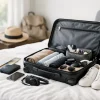
If you travel with your laptop, place a thin microfiber keyboard cover or clean cloth between the keyboard and display before closing the lid. This can reduce the faint keyboard-shaped marks that develop when keys press against the screen in a tightly packed bag. It is a small habit that makes a noticeable difference over time.
A clean screen is not about making your laptop look brand-new every day. It is about using the least aggressive method that gets the job done. Keep a dedicated microfiber cloth nearby, use minimal moisture, and let gentle technique do the work. Your next movie, meeting, or spreadsheet will look sharper for it.













Leave a Comment
Your email address will not be published. Required fields are marked with *