
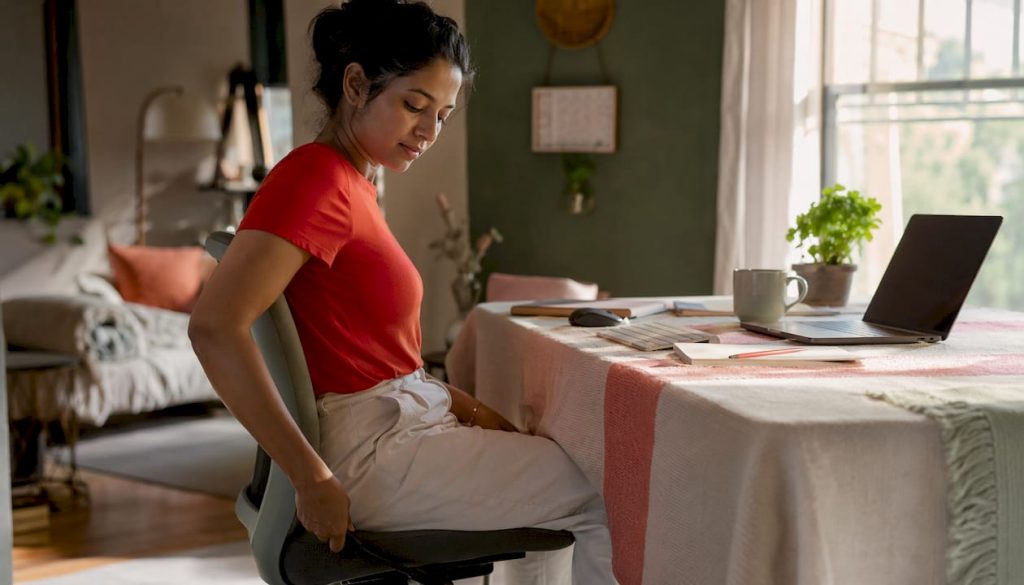
Transform your workspace with our work from home setup guide! Discover essential tips for creating an ergonomic, productive home office.
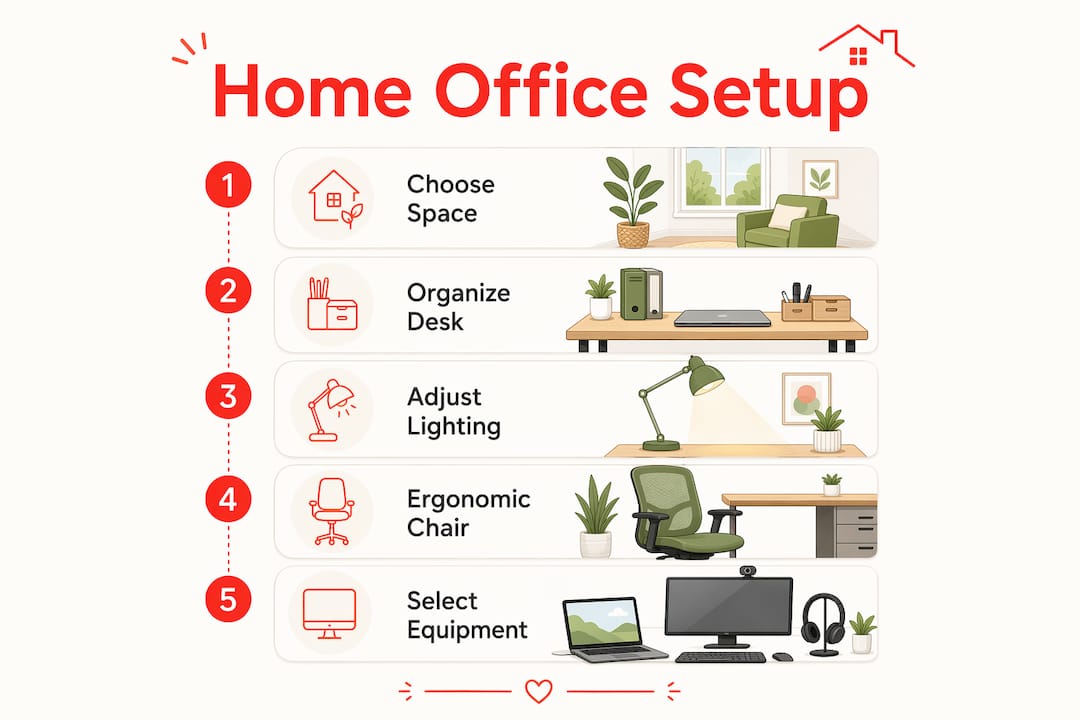
A truly productive home office comes down to five things working together: a dedicated space, ergonomic furniture, proper lighting, the right equipment, and consistent habits. Get all five right, and you will feel the difference within days. Miss even one, and you will likely end up with the neck pain, eye strain, and scattered focus that plague so many remote workers. This work from home setup guide walks you through every layer of that equation, from choosing your chair before your desk to the lighting levels that keep your eyes comfortable through a full workday.
Here is a quick scan of what a complete setup covers:
- Dedicated workspace: A defined area that signals “work mode” and limits household distractions
- Decluttering and organization: Clear surfaces, smart storage, and tidy cable runs
- Lighting: 300–500 lux ambient light, monitor perpendicular to windows, bias lighting behind the screen
- Ergonomic furniture: Adjustable chair, correct desk height, monitor at eye level, neutral wrist positioning
- Equipment: Laptop or desktop, external monitor, webcam, headset, keyboard, and mouse
- Maintenance habits: Regular ergonomic checks, movement breaks, internet optimization, and noise control
Each section below goes deep on one of these pillars, with specific product examples, expert guidance from OSHA and Mayo Clinic, and practical tips you can act on today.
Table of Contents
- 1. How to create a dedicated workspace and stay organized
- 2. How lighting and temperature shape your comfort and focus
- 3. Ergonomic furniture and posture practices that protect your body
- 4. The best equipment and accessories for a fully functional home office
- 5. Final tips for keeping your home office running at its best
- 6. What OSHA and health experts say about home office ergonomics
- Key Takeaways
1. How to create a dedicated workspace and stay organized
The single most powerful thing you can do for remote productivity is claim a specific spot in your home that belongs only to work. It does not need to be a separate room, though that is ideal. A corner of a bedroom or a sectioned-off area of a living room works, as long as it has a consistent boundary. Your brain learns to shift into focus mode when you sit there, and just as importantly, it learns to switch off when you leave.
Choosing and defining your space
Pick the quietest area available. Proximity to a window is a bonus for natural light, but position your monitor so the window is to the side rather than directly behind or in front of the screen. A door you can close, even temporarily, dramatically reduces interruptions during calls. If you share your home, a simple visual cue like a closed door or a small sign can signal to others that you are in a focused work block.

Clearing clutter and organizing your desk
A cluttered desk is a productivity tax. Keep only what you use daily within arm’s reach: your keyboard, mouse, a notepad, and perhaps a single reference item. Everything else goes into drawers, shelves, or storage boxes. Vertical desk organizers from brands like SimpleHouseware or Rolodex keep papers and supplies off the surface without requiring a larger desk footprint.
Cable management and power supply organization
Loose cables are both a visual distraction and a tripping hazard. A few targeted solutions make a big difference:
- Cable raceways (like the J Channel Cable Organizer from Cord Organizer) mount along the desk edge and route cables cleanly to a power strip
- Velcro cable ties bundle cords behind the desk so they do not pool on the floor
- Under-desk cable trays keep your power strip and adapter bricks completely out of sight
- Labeled cable clips at the back of the desk let you identify and swap cables without untangling a nest
A single surge-protected power strip with USB ports handles most home office devices. Position it under the desk or on a rear mounting bracket so the front of your workspace stays clear.
Pro Tip: Zone your desk into three areas: a primary zone directly in front of you for your keyboard and mouse, a secondary zone within easy reach for your phone and notepad, and a reference zone at the desk’s far edge for items you consult occasionally. This spatial habit alone reduces the micro-decisions that drain focus throughout the day.
2. How lighting and temperature shape your comfort and focus
Lighting is one of the most underestimated variables in a home office design. Most people set up their monitor wherever it fits and accept whatever light the room provides. That approach almost always leads to eye strain, headaches, and afternoon fatigue.
Getting ambient light levels right
Optimal ambient light for a home office sits between 300 and 500 lux. That range is bright enough for comfortable reading but soft enough to avoid harsh contrast with your screen. A simple lux meter app on your phone can give you a rough reading. Most standard ceiling fixtures fall short of this range when used alone, which is why a dedicated desk lamp with adjustable brightness is worth adding.
Position your monitor perpendicular to any windows rather than facing them or sitting with your back to them. Both of those arrangements create glare or silhouette problems that force your eyes to constantly readjust. Diffused overhead lighting from behind your seated position works better than a single bright source directly above the monitor.
Bias lighting and screen glare
Bias lighting, a strip of LED lights mounted behind your monitor, reduces the contrast between the bright screen and the darker wall behind it. This is one of the most effective and inexpensive ways to cut eye fatigue during long sessions. Govee and Elgato both make monitor-specific bias lighting kits that are easy to install.
- Avoid overhead fluorescent lights directly above the monitor
- Use warm-white or neutral-white bulbs (2700K–4000K) rather than cool blue-white
- Add blackout or light-filtering blinds to manage afternoon sun without blocking all natural light
Temperature and air quality
The sweet spot for office temperature is a comfortable room temperature around typical indoor levels. Below that range, fine motor control suffers; above it, focus tends to drift. A small programmable thermostat or a portable space heater with a thermostat gives you precise control without heating or cooling the whole house.
Air quality matters more than most people realize. Stale air raises CO2 levels, which directly affects alertness. Opening a window for five minutes at the start of your workday and again during breaks keeps fresh air circulating. A compact air purifier with a HEPA filter, like those from Levoit or Coway, handles dust and allergens that accumulate in a closed room. Plants like pothos or snake plants add a touch of life and contribute modestly to air freshness.
3. Ergonomic furniture and posture practices that protect your body
This is where most home office setups go wrong. People buy a desk and a chair without understanding how the two interact, then spend months wondering why their back hurts. The correct sequence is to adjust your chair first, then set your desk height, and finally position your monitor. Everything flows from the chair up.
Chair setup
Your chair is the foundation of your ergonomic setup. Adjust seat height so your feet rest flat on the floor and your thighs slope very slightly downward, with hips sitting just a little higher than your knees. The backrest should support the natural inward curve of your lower back. A lumbar support cushion can compensate for chairs that lack built-in lumbar adjustment. Mayo Clinic recommends sitting at a torso-to-thigh angle of 115–120 degrees rather than the rigid 90-degree posture many people default to, which actually increases spinal compression.
If your chair has armrests, set them low enough that your shoulders can drop and relax. Armrests set too high push your shoulders upward all day, which is a direct path to neck and upper back tension.
Desk height and under-desk clearance
Standard fixed desks are typically set at 29.5 inches, a measurement historically based on the average height of a 6-foot-tall male. For most people, that is not the right height. Proper desk height aligns with your elbows when your arms hang naturally at your sides, which for many people means somewhere between 26 and 29 inches. If your desk is fixed and too tall, a keyboard tray that mounts below the surface brings your hands to the correct level. If it is too low, monitor risers and a raised chair with a footrest can compensate.
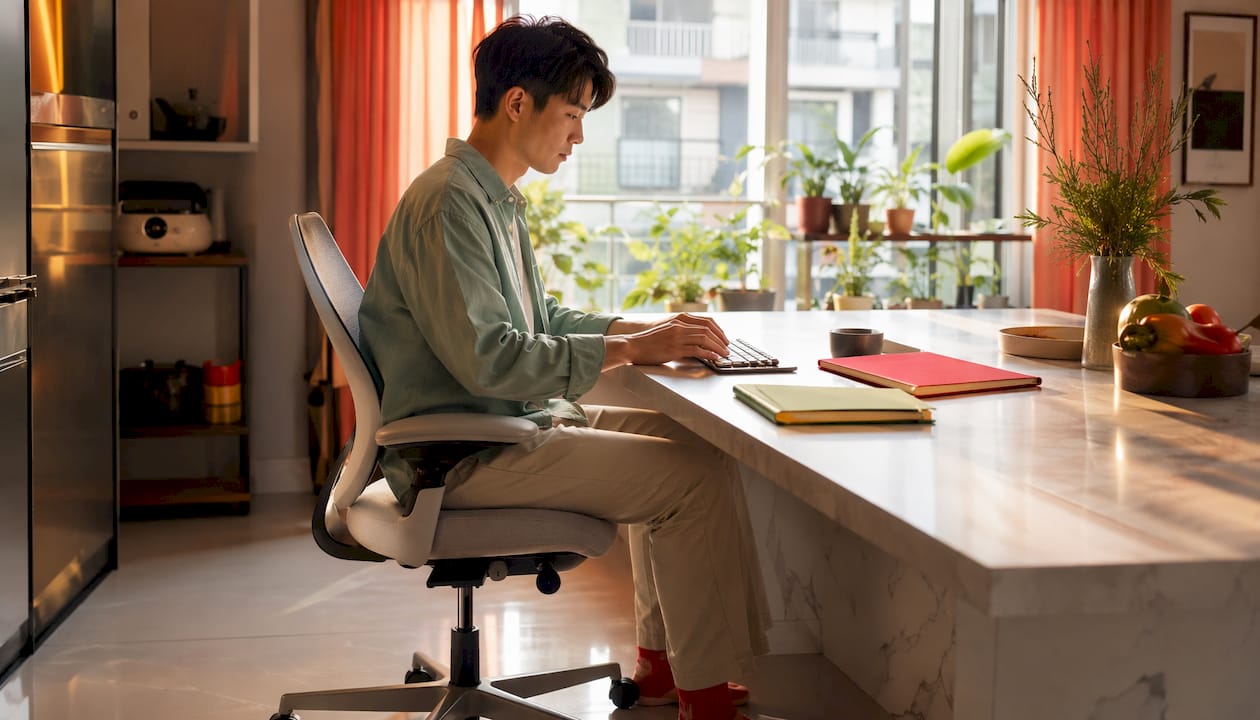
Under-desk clearance is equally important. Maintaining at least 2 inches of space between your thighs and the desk underside prevents cramped posture and allows you to shift positions throughout the day. Keep the area beneath your desk clear of CPU towers, cable bundles, and storage boxes.
Monitor positioning
Place your monitor directly in front of you, centered on your body. Positioning it off to one side, even slightly, causes constant neck rotation that builds into chronic shoulder pain over time. The top of the screen should sit at or just below eye level, with the monitor at arm’s length (roughly 20–28 inches from your eyes). If you wear bifocals, lower the monitor an additional 1–2 inches to avoid tilting your head back to see through the lower lens portion.
Keyboard, mouse, and wrist positioning
Keep your keyboard flat or tilted very slightly downward (negative tilt). Many keyboards have fold-out feet that raise the back edge, which actually increases wrist extension and strain. Flat is almost always better. Place the keyboard about 5–10 cm (2–4 inches) from the desk’s front edge, and position your mouse as close to the keyboard as possible to minimize shoulder reach.
Wrist rests serve a specific purpose: resting your hands between typing bursts, not supporting your wrists while you type. Resting your wrist on a pad during active typing puts direct pressure on the carpal tunnel and increases injury risk over time.
Ergonomic insight: The 20-8-2 movement cycle from University of Waterloo research offers a practical rhythm for spinal health: 20 minutes sitting, 8 minutes standing, 2 minutes walking or stretching. Cycling through these positions throughout the day reduces fatigue and keeps blood flowing far more effectively than long static sitting sessions.
Dynamic sitting and movement breaks
No single posture is healthy for hours on end. Set a timer to get up every 30 minutes. Take a short walk, stand during a phone call, or do a few shoulder rolls and neck stretches at your desk. The goal is variety, not perfection. A sit-stand desk makes this cycling effortless, which is why it is one of the most worthwhile investments in a home office.
4. The best equipment and accessories for a fully functional home office
A well-chosen set of tools transforms a bare desk into a genuinely productive workspace. You do not need to buy everything at once, but knowing which categories matter most helps you prioritize your budget wisely. Our team at Lizard’s Lunch has organized the essentials below, starting with the devices that anchor the setup.
Laptops
Your laptop is the core of the operation. Three options stand out for different needs:
MacBook Pro M2 delivers exceptional performance and battery life in a slim, premium package. The M2 chip handles demanding tasks like video editing, large spreadsheets, and multiple virtual meetings without the fan noise that plagues many Windows laptops. It is the top pick for creative professionals and anyone deep in the Apple ecosystem.
Dell XPS 13 Plus is a Windows alternative that matches the MacBook’s build quality with a sharp 13.4-inch OLED display option. Its compact footprint makes it ideal for smaller desks, and the performance-per-watt efficiency is impressive. The minimalist keyboard layout takes a short adjustment period but rewards touch typists.
The Lenovo ThinkPad E14 sits at a more accessible price point without sacrificing the durability ThinkPad is known for. It is a workhorse for business tasks, video calls, and document-heavy workflows. The keyboard remains one of the best in its class, and the MIL-SPEC build quality means it handles the occasional bump without drama.
Standing desks
A height-adjustable desk is one of the highest-return investments in your home office. Two options worth knowing:
The Ergo Station Standing Desk offers smooth electric height adjustment with programmable memory presets, so switching between sitting and standing takes one button press. Its surface is spacious enough for a dual-monitor setup with room for peripherals.
The Autonomous Smart Desk Pro pairs a sturdy steel frame with a whisper-quiet motor and a companion app that can remind you to change positions throughout the day. For anyone serious about the 20-8-2 movement cycle, the app integration makes the habit almost automatic. You can explore more options in our best standing desks guide.
Monitors, webcams, and headsets
An external monitor is arguably the single biggest productivity upgrade for laptop users. A 24–27-inch display at 1080p or 1440p resolution gives you the screen real estate to keep reference material and your working document visible simultaneously. LG’s UltraWide and Dell’s UltraSharp lines are reliable choices with good color accuracy.
A quality webcam matters more than most people expect. The built-in cameras on most laptops produce grainy, poorly lit video that undermines your professional presence on calls. The Logitech C920 and Logitech Brio are the two most widely recommended options, offering sharp 1080p and 4K video respectively with built-in autofocus.
For calls, a headset prevents the neck strain that comes from cradling a phone between your shoulder and ear, a habit that causes chronic upper back pain in frequent callers. The Jabra Evolve2 55 and Sony WH-1000XM5 both offer excellent noise cancellation for focused work and clear call quality.
Equipment overview
| Category | Examples | Key benefit |
|---|---|---|
| Laptops | MacBook Pro M2, Dell XPS 13 Plus, Lenovo ThinkPad E14 | Portable computing power for any workflow |
| Standing desks | Ergo Station Standing Desk, Autonomous Smart Desk Pro | Supports dynamic sitting and standing cycles |
| External monitors | LG UltraWide, Dell UltraSharp | Expands screen real estate for multitasking |
| Webcams | Logitech C920, Logitech Brio | Sharp, professional video for calls |
| Headsets | Jabra Evolve2 55, Sony WH-1000XM5 | Noise cancellation and hands-free calling |
| Keyboards | Keychron K2, Logitech MX Keys | Comfortable typing with ergonomic options |
| Mice | Logitech MX Master 3, Anker vertical mouse | Reduces wrist strain during long sessions |
| Desk accessories | Laptop stand, cable tray, desk organizer | Keeps surface clear and posture correct |
Pro Tip: If you use a laptop as your primary machine, pair it with a laptop stand and an external keyboard and mouse. This combination lets you raise the screen to eye level without forcing your wrists into an awkward upward angle, solving two ergonomic problems with one simple addition.
5. Final tips for keeping your home office running at its best
Setting up your workspace is the beginning, not the finish line. The setups that stay comfortable and productive over months and years are the ones that get regular attention. A few focused habits make that maintenance feel natural rather than burdensome.
Routine ergonomic checks
Every few weeks, take a fresh look at your setup. Sit down at your desk and notice: are your shoulders relaxed or creeping upward? Are your wrists neutral or bent? Has your monitor drifted out of position? Periodic workspace evaluation and responsiveness to early discomfort signals are the habits that prevent minor aches from becoming chronic problems. If something feels off, adjust it immediately rather than adapting your posture to fit a misaligned setup.
Decluttering and cable refresh
A monthly declutter keeps the workspace from slowly filling with items that do not belong there. Remove anything that has accumulated on the desk surface and is not part of your daily workflow. Check cable management while you are at it: ties loosen, new devices get added, and what was once a tidy run of cables can quietly become a tangle again.
Movement, breaks, and fatigue management
- Get up every 30 minutes, even briefly
- Follow the 20-20-20 rule: every 20 minutes, look at something at least 20 feet away for 20 seconds to reduce eye strain
- Use your lunch break for a short walk rather than scrolling at your desk
- Stand during phone calls whenever possible
- Stretch your neck, shoulders, and wrists at least twice during the workday
Internet connectivity
A wired Ethernet connection is more reliable than Wi-Fi for video calls and large file transfers. If running a cable is not practical, position your router as close to your workspace as possible, or add a Wi-Fi extender or mesh node (like those from Eero or Google Nest) to strengthen the signal in your work area. For critical calls, keep your phone’s hotspot as a backup.
Noise control
Background noise is one of the most disruptive elements of a home office. Beyond a noise-canceling headset, a few physical adjustments help significantly:
- Close the door to your workspace during calls and focused work blocks
- Add a door draft stopper or weatherstripping to reduce sound bleed from adjacent rooms
- A white noise machine or app (like Krisp for digital noise suppression) can mask unpredictable household sounds
- Heavy curtains, rugs, and bookshelves absorb sound and reduce echo in hard-floored rooms
Work-life balance within the home office
The physical boundary of a dedicated workspace helps, but you also need a temporal boundary. Set consistent start and end times and stick to them. When the workday ends, close your laptop, turn off your desk lamp, and physically leave the workspace. These small rituals signal to your brain that work is over, which is the most effective way to prevent the “always on” feeling that erodes wellbeing for remote workers. For more on building sustainable remote habits, our remote productivity guide covers the mindset side in depth.
6. What OSHA and health experts say about home office ergonomics
The ergonomic standards that apply to corporate offices do not disappear when you work from home. Understanding the regulatory and expert landscape helps you advocate for the right equipment and habits, whether you are an employee or self-employed.
OSHA’s responsibilities and the General Duty Clause
OSHA holds employers responsible under the General Duty Clause to maintain safe remote workplaces, including ergonomic hazard controls and worker training, even though OSHA does not physically inspect home offices. This means your employer has a legal obligation to provide ergonomic guidance, conduct hazard assessments, and offer training on safe remote work practices. If you are experiencing pain or discomfort related to your home setup, that is a conversation worth having with your employer, not just a personal problem to manage.
OSHA’s framework for remote ergonomics includes:
- Management commitment to ergonomic safety for remote workers
- Worker involvement in identifying and reporting hazards
- Hazard assessments that cover home-based workstations
- Ergonomic training on proper setup and posture
- Evaluation processes to measure and improve outcomes
Employers are specifically responsible for hazards caused by materials, equipment, or work processes they provide or require employees to use at home. If your company issued you a laptop and a docking station, they have a responsibility to ensure those tools are set up safely.
Mayo Clinic and health system guidance
Mayo Clinic’s ergonomic recommendations align closely with OSHA’s framework and add practical clinical detail. Their guidance emphasizes that most desk-related pain, including headaches, lower back pain, and neck strain, stems from people adapting their bodies to poorly arranged technology rather than adjusting the technology to fit their bodies. The fix is almost always a series of small adjustments rather than expensive equipment purchases.
Key recommendations from Mayo Clinic’s health system guidance include:
- Adjust chair height before anything else, then set desk and monitor to match
- Use a headset for frequent calls to eliminate shoulder-neck strain from phone cradling
- Keep frequently used items within close reach to minimize repetitive reaching
- Follow the 20-20-20 rule consistently to protect eye health
- Report discomfort early rather than waiting for it to become a persistent problem
Trust signal: OSHA’s computer workstation purchasing guidelines specify that under-desk clearance should provide at least 17.6 inches of knee depth and 24 inches of foot depth, with a minimum width of 20.8 inches. These are the measurements to check before buying any fixed-height desk for your home office.
Training, hazard awareness, and early reporting
One of the most consistent findings across ergonomic research is that awareness prevents injury. Workers who understand what neutral posture looks like, what early warning signs of strain feel like, and how to adjust their setup are far less likely to develop musculoskeletal disorders. If your employer offers ergonomic training, take it. If they do not, the OSHA and Mayo Clinic resources linked throughout this guide provide a solid foundation.
Early symptom reporting matters too. A twinge in your wrist or a recurring tension headache is your body flagging a setup problem. Address it at that stage, and the fix is usually a simple adjustment. Ignore it for months, and you may be looking at a more significant recovery.
If you are thinking about broader upgrades to your home environment that support your workspace, our team at Lizard’s Lunch has put together some inspiring ideas in our home renovation ideas guide that can complement a dedicated office space beautifully.
Key Takeaways
A well-built home office requires ergonomic furniture, proper lighting, organized space, the right equipment, and consistent maintenance habits working together to protect your health and sustain your productivity.
| Point | Details |
|---|---|
| Chair before desk | Adjust your chair height first, then set desk and monitor height to match for correct posture alignment. |
| Light at 300–500 lux | Keep ambient light in the 300–500 lux range and position your monitor perpendicular to windows to avoid glare. |
| Move on the 20-8-2 cycle | Alternate 20 minutes sitting, 8 minutes standing, and 2 minutes walking to reduce fatigue and support spinal health. |
| OSHA covers remote work | Employers are responsible under the General Duty Clause for ergonomic safety and training, even for home-based workers. |
| Maintain regularly | Periodic ergonomic checks and early discomfort reporting prevent minor aches from becoming chronic problems. |
















Leave a Comment
Your email address will not be published. Required fields are marked with *