
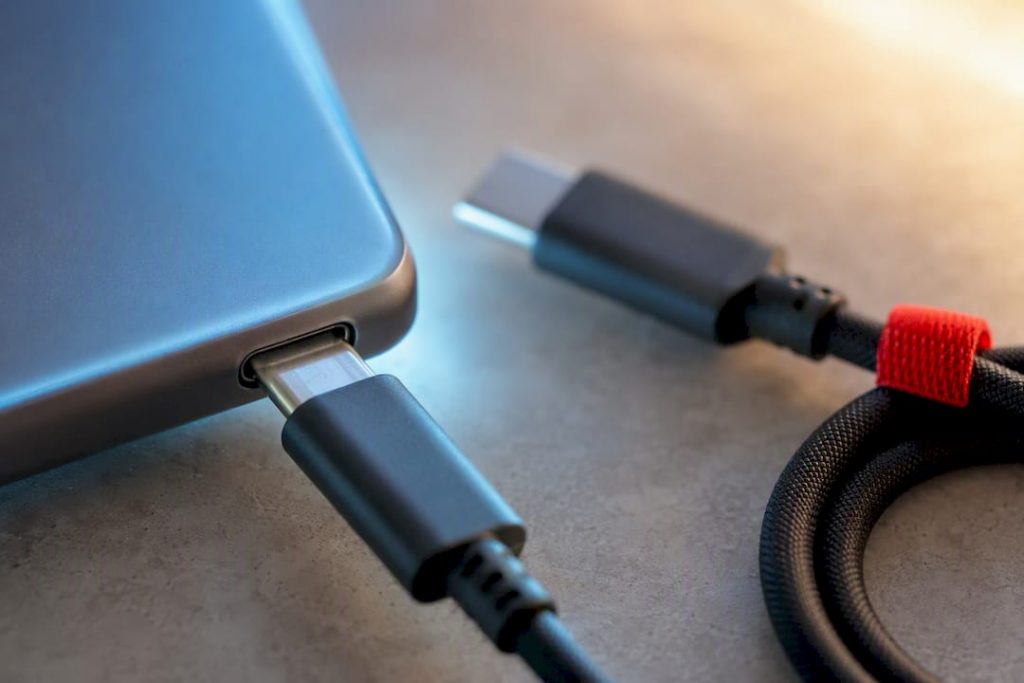
Understand USB-C as connector plus power protocol, how PD 3.1 and 240W affect charging, and how cables, chargers, or ports can limit real speed.
USB-C is the connector shape; USB Power Delivery (PD) is the protocol that actually controls how much power flows through it. They are not the same thing, and confusing them is why so many people plug in a cable and get confused when nothing charges fast. Modern PD supports power delivery up to a high wattage level when the charger, cable, and device all agree to it. The simple rule: check the wattage your device needs, then buy a charger and cable both rated to deliver it.
TL;DR:
- Using a USB-C port does not guarantee fast charging; verify port capabilities with icons or technical specs rather than shape alone.
- Matching the device’s wattage needs with a charger and cable rated for that power level is critical to ensure safe and efficient charging.
- The cable’s ability to handle high wattage relies on embedded e-marker chips; using unmarked or low-rated cables can limit charging speed or cause safety issues.
- Modern USB Power Delivery supports up to 240W with fixed voltages and PPS, but real-world device needs typically fall below 100W, so choose chargers accordingly.
- Troubleshooting slow or intermittent charging should start with verifying cables, ports, and chargers, and avoid relying solely on port shape or marketing claims.
Table of Contents
- What Is USB-C Charging and How Does It Actually Work?
- Power Levels and PD 3.1: What 100W vs 240W Actually Means
- Cables, E-Marker Chips, and Ratings: Why the Cable Can Be the Weak Link
- How to Tell What a Port or Charger Will Actually Do
- Choosing a Charger and Cable Without Overspending
- Fixing Slow, Intermittent, or Dead Charging
- Safety and Habits That Protect Your Devices
- Our Team’s Perspective on Chargers and Cables
- Sources
What Is USB-C Charging and How Does It Actually Work?
A USB-C port is just a shape. It’s the small, reversible oval connector that replaced USB-A and micro-USB on nearly every phone, laptop, and accessory sold today. USB Power Delivery is the separate specification that rides on top of that connector and decides how many volts and amps actually get sent through it. You can have a USB-C port with no PD support at all, capped at a slow trickle charge, sitting right next to a USB-C port capable of pushing 100 watts. The connector tells you nothing about the capability underneath.
That distinction matters because charging over USB-C isn’t a dumb, one-way flow of electricity the way old barrel-plug chargers worked. It’s a negotiation. Before any real power moves, the charger and the device have a conversation over two small pins buried in the connector called CC1 and CC2 (configuration channel pins). These pins handle two jobs: figuring out which device is the power source and which is the power sink, and then carrying the actual PD messages that set voltage and current.
Here’s roughly how that handshake plays out:
- The charger detects a device is plugged in through pull-up and pull-down resistors on the CC pins (called Rp/Rd detection), which also determines cable orientation since USB-C is reversible.
- The charger sends a message with every voltage and current combination it can offer.
- The device reads that and requests the specific power profile it wants, based on its battery and charging circuitry.
- The charger confirms readiness, and only then does full power flow.
This entire exchange happens in a fraction of a second, invisible to anyone watching. But it’s the reason USB-C charging is inherently safer than older charging standards. A device physically cannot be forced to accept more power than it asks for, because it’s the device making the request. According to Cable Matters’ explanation of PD, this negotiation is what allows a 100W laptop charger to safely charge a phone that only wants 20W without frying it.
The underlying signaling is a bit more involved than a simple back-and-forth. TI’s engineering documentation describes the messages traveling over what’s called BMC (biphase mark coding) on dedicated SOP’ and SOP” communication channels, and notes that power-role and data-role swaps are explicit, defined sequences in the USB Type-C specification. That’s how a USB-C dock can act as a power source to your laptop one moment and then, if you plug in a second charger, swap roles and become a pass-through instead. It’s also why a single USB-C cable can carry power, data, and video simultaneously without those signals fighting each other. The CC pins are doing traffic control the entire time your device is plugged in, not just during the first second of connection.
Understanding this negotiation is the key to understanding everything else in this guide. Every quirk you’ll run into, slow charging, a laptop that only trickle-charges from a phone charger, a dock that seems to randomly cut power, traces back to this handshake succeeding, failing, or settling on a lower power tier than the devices negotiate.
Power Levels and PD 3.1: What 100W vs 240W Actually Means
USB-C charging has gone through a fast evolution. The original USB port maxed out around 5 watts, barely enough to trickle-charge a phone overnight. PD’s first major milestone pushed that ceiling to 100W, enough for most laptops. Then USB PD Revision 3.1 raised the ceiling again, this time to 240W, by introducing new fixed voltage steps beyond the original lineup.
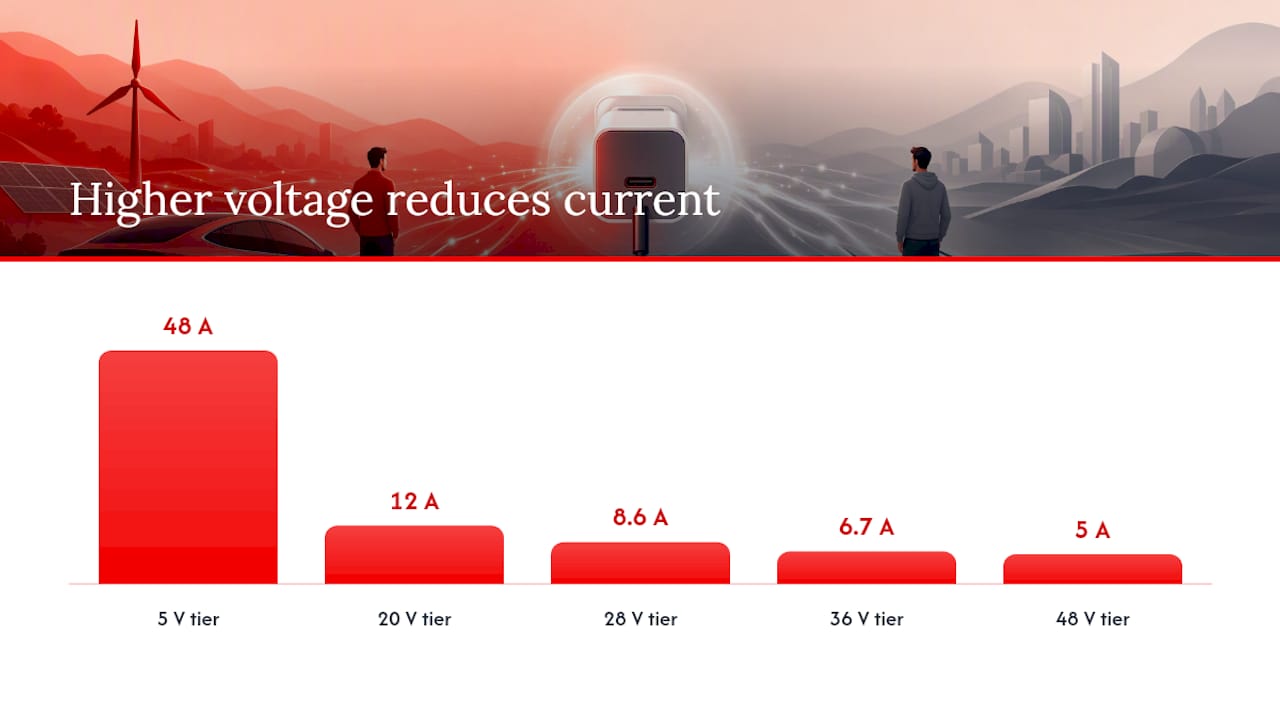
Here’s the number that matters most: PD 3.1 increased the previous power ceiling by adding 28V, 36V, and 48V as standard fixed voltages, on top of the familiar 5V, 9V, 15V, and 20V tiers, according to USB-IF’s own specification summary.
Those fixed voltages exist because wattage is just voltage multiplied by current, and there’s a practical ceiling on how much current a cable can carry before it generates dangerous heat. Rather than push current higher and higher, PD 3.1 pushes voltage higher instead, which is a much safer way to scale up wattage. A device pulling 240W at 48V draws only 5 amps, a manageable number for a well-built cable. Pulling that same 240W at 5V would require 48 amps, which is not realistic for a cable you’d hold in your hand.
Alongside fixed voltages, many phones and some laptops use something called PPS, or Programmable Power Supply. Instead of picking from a fixed menu of voltages, PPS lets the device request very specific, adjustable voltage and current combinations in small increments. The practical benefit is twofold: charging speed improves because the device can dial in exactly what its battery wants moment to moment, and the battery experiences less thermal stress because it’s never overshooting or undershooting the ideal charge rate. If you’ve ever noticed your phone charges fastest for the first 20 minutes and then tapers off, PPS is often the mechanism managing that curve in real time.
So what does this mean for the device sitting on your desk? Everyday devices break down fairly predictably by wattage tier:
- 18 to 30 watts: most smartphones, even ones marketed with “fast charging,” rarely need more than this.
- 45 to 65 watts: ultrabooks, tablets, and most mainstream laptops.
- 65 to 100 watts: gaming laptops, larger productivity laptops, and multi-device charging hubs.
- 140 to 240 watts: high-performance workstations and laptops with large batteries or discrete graphics, a category TI’s engineering guide notes is only practical under the newer PD 3.1 framework.
The takeaway isn’t that you need a 240W charger sitting on your nightstand. It’s that matching the tier to the device matters more than chasing the biggest number on the box.
Cables, E-Marker Chips, and Ratings: Why the Cable Can Be the Weak Link
A charger rated for 100W is worthless if the cable connecting it to your device can only handle 60W. This trips up more people than any other part of USB-C charging, because most cables look identical from the outside regardless of what they can actually carry.
The mechanism behind this is a small chip embedded in higher-capability cables called an e-marker (electronic marking chip). It sits inside the connector housing and reports the cable’s actual current rating, supported voltage range, and sometimes data speed to whatever it’s plugged into during the initial negotiation. Basic cables without an e-marker are capped at 3A, which limits them to 60W at 20V regardless of what your charger is capable of delivering. Full-featured 5A e-marked cables, which are required for anything above 100W, actively report their higher rating so the charger knows it’s safe to push more current through, a requirement laid out directly in the USB-IF specification for PD.
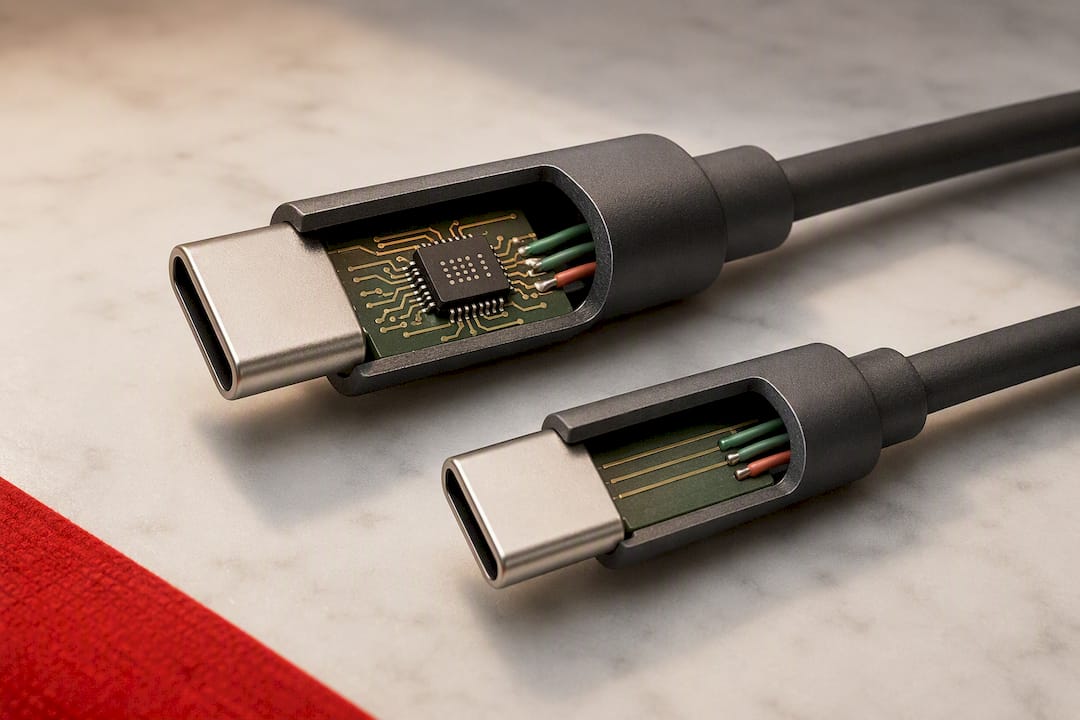
That means the cable isn’t just a passive wire. It’s an active participant in the negotiation described earlier, and a bad or cheap one can silently cap your charging speed without any error message telling you why.
A few practical things to keep in mind when picking a cable:
- Cable length and gauge affect heat buildup: longer, thinner cables run hotter under sustained high current and are more likely to throttle or fail over time.
- Braided or reinforced cables tend to handle repeated bending and higher sustained current better than the thin rubber cables often bundled free with budget electronics.
- Packaging should state both wattage and amperage (look for “100W” or “5A” printed on the box or cable tag itself), not just “fast charging” marketing language.
- If a cable doesn’t list a wattage or amperage rating anywhere, assume it’s a basic 60W, 3A cable at best.
Pro Tip: Keep one clearly labeled 100W+, 5A e-marked cable in your bag for laptops and high-power devices, and treat every unlabeled cable you own as a 60W cable until proven otherwise. It’s a cheap habit that saves a lot of confused troubleshooting later.
How to Tell What a Port or Charger Will Actually Do
The single biggest misconception about USB-C is that the connector shape guarantees a specific capability. It doesn’t. A USB-C port on a monitor might carry video and data but zero power. A USB-C port on a budget power bank might only support basic charging with no data at all. As How-To Geek points out, the shape tells you almost nothing on its own, you have to check.
Here’s a practical order of operations for figuring out what you’re actually working with:
- Look for icons near the port. A battery or lightning-bolt icon usually signals PD charging support. A lightning-bolt-inside-a-circle icon typically means Thunderbolt, which carries far more bandwidth than standard USB-C data. An “SS” with a trident often marks SuperSpeed USB data, unrelated to charging power.
- Check the spec sheet, not the marketing page. Manufacturers bury the real numbers, per-port wattage, whether PPS is supported, and whether power is shared across multiple ports, in a technical spec PDF rather than the glossy product description.
- Watch for “shared” or “combined” wattage language. A charger advertised as “100W” might mean 100W total split across four ports, not 100W available to each port simultaneously.
- Use a USB-C port tester for real answers. These small inline devices display the actual negotiated voltage and current in real time, showing you exactly what a charger and cable are delivering rather than what the packaging claims.
Port testers are worth the modest cost if you’re troubleshooting a charging issue or buying gear secondhand, since they show ground truth rather than advertising copy. Just know their limits: a tester confirms what’s happening at that moment with that specific cable and load, not every possible combination a port supports.
Choosing a Charger and Cable Without Overspending
Buying the right charger comes down to matching three numbers: what your device needs, what the charger outputs, and what the cable can carry. Get any one of those three wrong and you end up with a charger that looks powerful on paper but underdelivers in practice.
Start with the device. Most smartphones sold in the past few years top out their charging benefit somewhere between 20 and 30 watts, meaning a 65W charger charges them no faster than a 30W one would. Tablets generally land in that same range or slightly above. Laptops are where the spread gets wide: a thin ultrabook might be happy with 45W, while a gaming laptop or a workstation-class machine can genuinely use 100W or more, and under PD 3.1’s higher tiers, some now push toward 140W or beyond.
PPS matters specifically if you own a modern flagship phone or a laptop that advertises adjustable fast charging. If your device doesn’t support PPS, buying a charger that emphasizes it is a wasted feature. It won’t hurt anything, but you’re paying for a capability your device can’t use. A standard fixed-voltage PD charger charges non-PPS devices at their max supported speed just fine.
Multi-port GaN (gallium nitride) chargers deserve a specific mention because they’ve become the default choice for anyone charging more than one device. GaN chargers run cooler and smaller than older silicon-based chargers at the same wattage, which is why a compact 100W charger the size of a deck of cards is common today. But multi-port charging comes with a catch worth understanding before you buy: many of these chargers advertise a headline wattage that only applies when a single port is in use. Plug in a second device, and the charger often redistributes power dynamically, sometimes dropping the first port’s output noticeably to accommodate the second.
That’s not a defect. It’s the charger’s internal controller renegotiating with each connected device in real time, the same PD handshake described earlier happening continuously rather than just once at plug-in. The practical lesson is to check a charger’s per-port wattage table specifically, not just its total advertised number, especially if you plan to charge a laptop and a phone from the same brick simultaneously.
A short buying checklist before you commit to a charger or cable:
- Confirm the charger’s per-port wattage, not just its combined total, especially for multi-port models.
- Check whether your device benefits from PPS, and only pay extra for it if the answer is yes.
- Match the cable rating (3A vs 5A, e-marked or not) to the wattage you actually want to hit.
- Look for safety certification marks (UL, CE) rather than relying on brand name alone.
- Stick with recognizable, established electronics brands for anything above 65W, since the margin for a poorly built high-wattage charger to overheat is real.
Pro Tip: If you regularly travel with a laptop, camera, and phone, a single 100W+ multi-port GaN charger with clearly listed per-port wattage will usually replace three separate bricks without a meaningful speed penalty on any one device. It’s worth checking our travel tech gadget picks if you’re building out a bag for a trip.
One more thing worth knowing: you generally can use a laptop charger for your phone, and it’s safe to do so thanks to the negotiation process covered earlier. Your phone will simply request the lower wattage it needs and ignore the rest of what the charger can offer. What you can’t safely assume is the reverse working at full speed, plugging a laptop into a small 20W phone charger will charge it, just very slowly, since the laptop can’t request more power than the charger is built to supply.
Fixing Slow, Intermittent, or Dead Charging
Most USB-C charging complaints trace back to one of four culprits: the device, the cable, the charger, or the port itself. Isolating which one is broken saves you from replacing parts that were never the problem.
- Swap the cable first. It’s the cheapest, fastest variable to rule out, and given how often 3A cables get mistaken for 5A ones, it’s the most common actual cause of unexpectedly slow charging.
- Try a different, known-good charger. If the device charges normally on a different charger with the same cable, the original charger is likely the fault, possibly from internal wear or a firmware issue in its PD controller.
- Test a different port on the same charger. Multi-port chargers sometimes have one port that’s degraded while others work fine, especially after physical damage or age.
- Watch for momentary drops when other devices are plugged in. If charging briefly interrupts or slows the instant you connect a second device to the same multi-port charger, that’s expected power renegotiation, not a malfunction, as PCWorld’s breakdown of USB-C charging behavior confirms is common on shared-output chargers.
- Rule out the port itself if nothing else charges from it. A phone port that fails to charge from multiple known-good cables and chargers points to internal damage, often from debris, moisture, or a bent connector pin.
Dead-battery recovery deserves its own note. A phone or laptop that shows zero response when plugged in isn’t necessarily broken. Deeply drained lithium batteries sometimes need several minutes on a low, steady charge before they’ll even power on enough to display a charging icon. Give it 10 to 15 minutes on a known-good charger and cable before assuming the worst.
Pro Tip: If a device won’t charge on three different combinations of charger and cable you know work on other devices, stop troubleshooting accessories. That pattern points to a hardware issue inside the device itself, and it’s a repair conversation, not a shopping one.
Chronic overheating during charging is a related but separate issue worth flagging early, since it can look like a charging problem when it’s really a battery health one. If your phone consistently runs hot while plugged in, it’s worth reading through how to fix phone overheating issues before assuming your charger is at fault.
Safety and Habits That Protect Your Devices
PD negotiation removes most of the danger from mismatched charger wattage, but it doesn’t eliminate risk entirely. The protocol assumes both sides are being honest about their capabilities, and counterfeit or poorly manufactured chargers sometimes misreport what they can safely deliver.
That’s why certified parts still matter even in a system designed to negotiate safely. Cable Matters’ overview of PD notes that the safety benefit of negotiation only holds when both the charger and cable are built to spec in the first place, since a corner-cut counterfeit can lie about its e-marker data. A handful of habits go a long way toward avoiding trouble:
- Buy chargers and cables with visible safety certification marks rather than unbranded listings with no traceable manufacturer.
- Avoid charging a device under heavy load (gaming, video export, intensive apps) if you notice it running unusually hot, since sustained high current plus high processor load compounds heat.
- Give chargers and power strips airflow, tucking a charger under a pillow or blanket traps heat that would otherwise dissipate harmlessly.
- Avoid letting batteries sit at 100% on a hot charger for extended periods, which accelerates long-term battery wear more than the charging speed itself does.
- Treat unusually cheap multi-port chargers with skepticism, since GaN components and proper e-marker cables cost real money to manufacture correctly.
None of this requires paranoia. It just means treating a $15 charger from an unfamiliar seller with more scrutiny than one from an established brand.
Our Team’s Perspective on Chargers and Cables
We prioritize the boring stuff over the flashy stuff: certified parts, clear per-port wattage disclosure, and cables that state their actual amperage rating. A charger that hides its shared-output limits in fine print tells us more about a brand’s priorities than any wattage number on the box.
What surprises us most is how much emphasis gets placed on peak wattage while PPS support quietly determines whether a phone actually charges fast in the real world. A 65W charger with proper PPS often outperforms a poorly implemented 100W charger for phone charging specifically, and most buyers never see that distinction on a retail shelf.
The real tradeoff we keep running into is compact multi-port GaN chargers versus single high-watt bricks. Multi-port units win on convenience and bag space, but the shared-output behavior described earlier means power-hungry setups, laptop plus phone plus tablet, can quietly bottleneck each other. If you’re only ever charging one demanding device at a time, a single dedicated charger rated for that device is still the more predictable choice. For broader thinking on how gadgets fit into daily routines without adding friction, our piece on the role of gadgets in daily life digs into that balance further.
— Alexander
Sources
For readers who want the technical source material behind everything covered here:
- USB Charger (USB Power Delivery) | USB-IF
- An Engineer’s Guide to USB Type-C®
- What is USB-C power delivery? | Cable Matters
- USB-C isn’t just a charging port—here’s everything it can actually do | How-To Geek
Device spec sheets and cable certification details are typically listed on the manufacturer’s own product pages rather than retail listings, so check there first when in doubt.

















Leave a Comment
Your email address will not be published. Required fields are marked with *