

Canada aware laptop buying advice: choose 16GB RAM and a 512GB NVMe SSD, prioritize upgradeable memory and ignore spec sheet noise.
Most buyers should aim for a 14 or 15 inch laptop matched to their actual workload, with at least 16GB of RAM and storage capacity around 512GB as a practical baseline for 2026. Students and casual users can stretch that budget toward a lighter ultraportable; creators and gamers need to spend up on the processor, GPU, and storage instead. Skip anything under 8GB of RAM entirely, and treat the checklist further down as your final gut check before checkout.
TL;DR:
- Most buyers should prioritize a 14 or 15 inch laptop with at least 16GB of RAM and 512GB NVMe SSD, unless they are heavy creators or gamers.
- A 14-inch model is typically the best balance between portability and usable screen space, while larger sizes add weight and reduce battery life.
- Windows remains the most versatile operating system for software compatibility, but macOS offers better integration with Apple devices, and ChromeOS is ideal for light, browser-based tasks.
- For most users, mid-tier processors and 16GB of RAM suffice, while high-end CPUs and 32GB RAM are necessary only for demanding creative or gaming workloads.
- Buyers should verify upgradeability (SODIMM slots, replaceable M.2 SSD), real-world battery performance, and build quality details—such as chassis material and hinge robustness—before purchase.
Table of Contents
- How Do You Choose a Laptop by Use Case and Budget?
- What Screen Size and Form Factor Should You Choose?
- Windows, macOS, or ChromeOS: Which Fits Your Workflow?
- What CPU Tier Do You Actually Need?
- How Much RAM Do You Actually Need?
- How Much Storage Do You Need, and What Type?
- Do You Need a Discrete GPU?
- What Display Specs Actually Matter?
- How Long Should a Laptop’s Battery Actually Last?
- What Ports and Build Quality Should You Check?
- A Step-by-Step Checklist for Comparing Laptop Models
- Where Should You Buy, and What Warranty Protects You?
- Our Team’s Hands-On Checks Before Recommending Any Laptop
- A Quick Perspective From Our Team at Lizard’s Lunch
- Sources
- FAQ
How Do You Choose a Laptop by Use Case and Budget?
The fastest way to shop for a laptop is to stop comparing specs in a vacuum and start asking what you actually do with the machine every day. Microsoft’s own laptop buying guidance takes this same approach, organizing recommendations around personas like students, multitaskers, and creators rather than raw benchmark numbers. That framework holds up well, and it is the fastest filter for narrowing hundreds of models down to a handful worth comparing.
Here is how the main categories break down in practice:
- Light user or student: Web browsing, note taking, streaming, and word processing. A $600 to $900 CAD laptop with 16GB of RAM and a 512GB SSD handles this comfortably for years. Our guide to laptops for college students breaks down specific configurations that hold up through a full degree.
- Office worker or multitasker: Video calls, spreadsheets, dozens of browser tabs, and cloud apps running simultaneously. Budget $900 to $1,400 CAD and prioritize a strong CPU and 16GB RAM minimum over flashy design.
- Creator or professional: Photo editing, video work, or 3D rendering. Expect to spend $1,500 CAD and up for a laptop with a discrete GPU, 32GB RAM, and 1TB storage.
- Gamer: Discrete graphics are not optional here. Budget $1,300 to $2,500 CAD depending on target frame rates and resolution.
- Ultraportable traveler: Weight and battery life matter more than raw power. A 13 or 14 inch machine under 3 pounds, running 10+ hours per charge, usually costs a premium over a bulkier equivalent with the same internals.
A useful rule of thumb: if your budget forces a trade-off, spend on the CPU and RAM before you spend on the screen or chassis material. Cosmetics fade in importance fast once you’re three deep in spreadsheets.
What Screen Size and Form Factor Should You Choose?
Screen size dictates far more than how big your videos look. It drives weight, battery capacity, keyboard size, and even how hot the machine runs under load, since larger chassis have more room for cooling.
- 11 to 13 inches: The lightest, most travel-friendly tier, but often paired with smaller keyboards and shorter battery runtime relative to their size due to compact batteries.
- 14 inches: Widely considered the sweet spot. Many buying guides, including WIRED’s step-by-step laptop guide, point to 14-inch models as the strongest compromise between portability and usable screen real estate.
- 15 to 16 inches: The standard for anyone who wants a bigger display for multitasking or creative work, at the cost of extra weight, often 4 to 5 pounds.
- 17 to 18 inches: Largely the domain of gaming and workstation laptops. Expect desktop-replacement bulk and battery life that rarely clears four hours under load.
A 2-in-1 or detachable is worth the premium if you genuinely use tablet mode for sketching, note taking, or presentations. What you give up: 2-in-1 hinges add weight and cost, and many convertible designs run warmer under sustained load because the thinner chassis limits airflow. If you’re deciding between a tablet and a laptop specifically for notes, our comparison of tablets versus laptops for note taking walks through the trade-offs in more depth.
When you can’t test a laptop in person, check listed weight in kilograms or pounds and cross-reference chassis material. Aluminum or magnesium alloy bodies resist flex better than plastic, and that difference shows up after a year of being tossed in a bag.
Windows, macOS, or ChromeOS: Which Fits Your Workflow?
The operating system decision often matters more than any individual spec, because it locks you into a software ecosystem you’ll live in daily.
Windows remains the default choice for the widest software compatibility, from industry-specific business tools to the full range of PC games. It runs on hardware from dozens of manufacturers, which means more price points and configurations to choose from than any other platform.
macOS trades that flexibility for tight integration with iPhones and iPads, strong battery efficiency on Apple silicon, and a smoother experience for video and audio editing thanks to optimized creative software. The limitation: fewer PC-only games run natively, and some specialized Windows business applications have no direct Mac equivalent.
ChromeOS is the budget and simplicity play. It runs fast on modest hardware, updates quietly in the background, and works well for students or light users who live inside a browser and Google’s app suite. It struggles the moment your workflow needs desktop-grade software like professional photo editors or niche accounting tools.
If your phone is an iPhone, macOS syncing (AirDrop, Handoff, iMessage) removes a lot of daily friction. If you’re on Android, Windows laptops now offer comparable phone link features, though the integration feels less seamless than Apple’s closed ecosystem.
What CPU Tier Do You Actually Need?
Processors break down into three practical tiers, and matching the right one to your workload avoids both overspending and future frustration.
Entry tier processors handle browsing, streaming, and document editing without complaint. These chips prioritize battery efficiency and low heat output over raw speed, which is exactly what a student or light user needs.
Mid tier processors, found in most mainstream Windows laptops and Apple’s standard silicon chips, handle multitasking, moderate photo editing, and light coding comfortably. This is where most buyers should land unless they have a specific reason to spend more.
High tier processors target video editing, software development, 3D work, and gaming. These chips run hotter and draw more power, which means shorter battery life unless the laptop has an unusually large battery or efficient cooling design.
CPU choice and thermal design are inseparable. A powerful chip crammed into a thin chassis with poor cooling will throttle down under sustained load, meaning you pay for performance you never actually get. This is one reason PCWorld’s current buying guidance urges shoppers to prioritize the components that affect their actual workflow rather than chasing benchmark scores on a spec sheet.
Integrated graphics baked into modern CPUs are genuinely capable now, handling video playback, light photo editing, and even casual gaming at lower settings. Unless you have a specific reason to need a discrete GPU, covered below, a good mid-tier CPU with integrated graphics covers the vast majority of daily computing needs.
How Much RAM Do You Actually Need?
Sixteen gigabytes is the recommended baseline for most Windows users heading into 2026, and eight gigabytes should be treated as a floor reserved for the lightest browsing and streaming tasks, according to HP’s RAM guidance. Anything less and you’ll feel it the moment you have a video call, fifteen browser tabs, and a spreadsheet open at once.
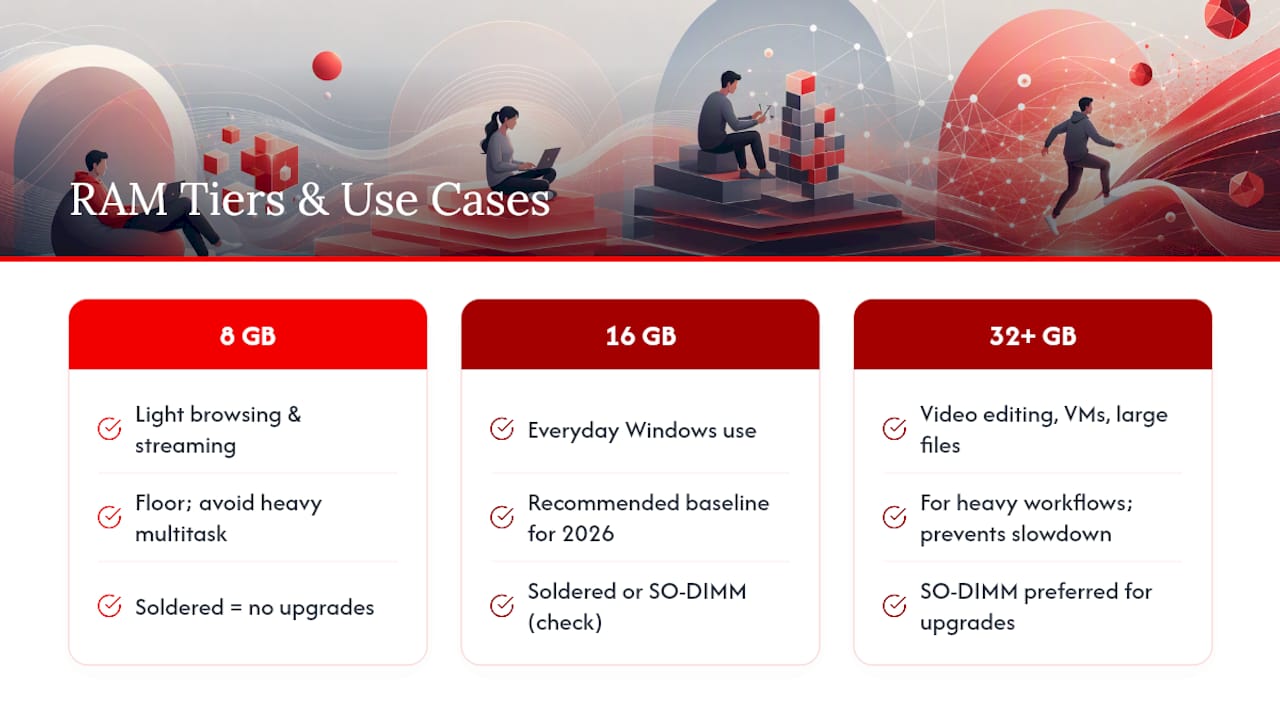
Heavier workflows change the math. Video editors, software developers running virtual machines, and anyone juggling large creative files should look at 32GB or more. Going below that on demanding work invites the kind of slowdown that makes a $1,800 laptop feel sluggish within a year.
Before you buy, check whether the laptop uses SO-DIMM memory slots or soldered RAM. Soldered memory means whatever you buy is what you’re stuck with for the life of the machine. A laptop with accessible SO-DIMM slots gives you a real upgrade path later, which matters more than it sounds.
Pro Tip: With memory prices fluctuating, buying a base configuration with open RAM slots and upgrading yourself later is often significantly cheaper than paying the manufacturer’s markup for a factory-configured high-memory model, according to Tom’s Guide’s 2026 buying advice. If you’re unsure whether a self-upgrade is worth the risk, guidance on when a RAM upgrade makes sense versus calling a professional is worth a read before you open the case.
How Much Storage Do You Need, and What Type?
Storage capacity guidance is fairly settled: 256GB is the bare minimum for anyone leaning heavily on cloud storage, 512GB is the ideal middle ground for most buyers, and 1TB or more suits creators and gamers working with large local files, according to Newegg’s 2026 storage guidance.
The type of storage matters as much as the capacity. NVMe solid-state drives read and write data dramatically faster than older SATA SSDs, and both leave traditional hard drives in the dust for boot times and app loading. One configuration to actively avoid: eMMC storage in a Windows laptop. It’s slower than proper SSD storage and shows up almost exclusively in budget machines trying to hit an aggressive price point.
If a model you like only comes with 256GB and the price jump to 512GB feels steep, check whether it has a user-accessible M.2 slot. PCWorld’s guidance on current laptop shopping notes that verifying an M.2 slot, or planning for an external high-speed SSD, keeps your upfront cost down without locking you into a cramped drive. A quick way to sanity-check a drive before committing to a purchase, especially open-box or refurbished units, is reviewing how to check SSD health before the return window closes.
Do You Need a Discrete GPU?
Integrated graphics, now built directly into most modern CPUs, handle video streaming, everyday photo editing, and casual or older games without issue. If your laptop spends its life in browser tabs and office software, a discrete GPU is money spent on capability you’ll never touch.
A discrete GPU becomes necessary for three groups: gamers targeting modern titles at high settings, video editors working with 4K footage or heavy color grading, and anyone doing 3D rendering or machine learning work locally. The trade-off is real. Discrete graphics chips draw significantly more power, run hotter, and typically require a thicker chassis with more aggressive cooling, which adds weight and shortens battery life under load.
One newer wrinkle worth knowing about: many 2026 laptops market “AI acceleration” through dedicated neural processing hardware. For most buyers this affects background tasks like camera effects and voice processing rather than gaming or creative rendering performance, so don’t let it override your GPU decision.
What Display Specs Actually Matter?
Resolution guidance depends entirely on what you do on screen. For general productivity and browsing, a 1080p (Full HD) panel is sharp enough and easier on battery life than higher resolutions. Creators working with photo or video benefit from a higher-resolution panel where fine detail and cropping room matter more.
Panel technology is the bigger fork in the road. IPS panels deliver good color accuracy and wide viewing angles at a reasonable price and battery cost. OLED panels go further, with true blacks and richer contrast, but they cost more, can draw more power at high brightness, and carry a small long-term risk of burn-in with static images displayed for extended periods.
Refresh rate, measured in Hertz, only matters meaningfully for gaming and fast-motion content. A 60Hz panel is fine for everything else; 120Hz or higher noticeably smooths out competitive gaming but adds negligible value if your heaviest on-screen action is a spreadsheet scrolling.
How Long Should a Laptop’s Battery Actually Last?
Real-world expectations matter more than the number printed on the box. Efficient modern laptops commonly deliver 8 to 10 hours of actual use, covering browsing, streaming, and document work, according to HP’s battery guidance. Manufacturer claims often assume idle conditions or minimum brightness, so treat advertised numbers as a ceiling, not a promise.
Discrete GPUs, high-resolution displays, and OLED panels all pull that number down, sometimes significantly under sustained load. If all-day battery life matters more to you than raw performance, that trade-off needs to factor into your CPU and GPU decisions upstream.
Charging standards have converged nicely around USB-C and USB-C Power Delivery, which means many laptops now share chargers with phones and tablets. Check the wattage rating before assuming a spare charger will work. A laptop rated for 65 watts will charge slowly, or not at all under load, on a 20 watt phone charger.
For battery longevity, keep three habits in mind: avoid leaving the laptop plugged in at 100% for extended stretches, avoid letting it repeatedly drain to zero, and keep it out of direct heat, like a hot car dashboard, which degrades battery chemistry faster than normal use.
What Ports and Build Quality Should You Check?
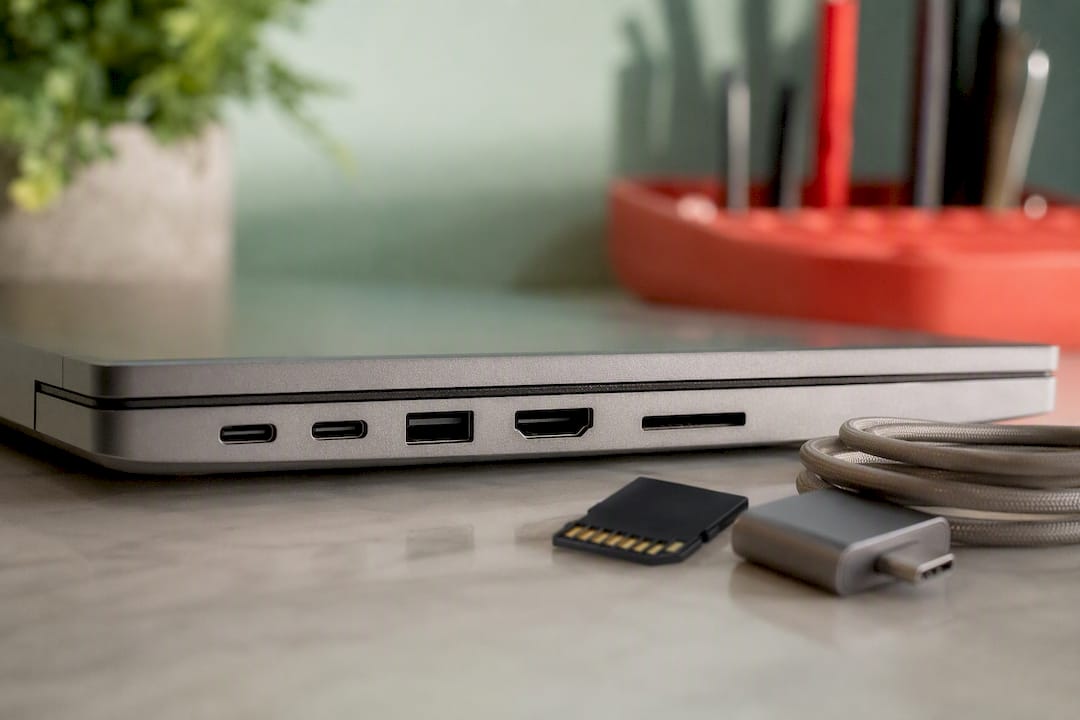
At minimum, look for two or more USB-C ports (ideally with Thunderbolt or USB4 support for fast data transfer and external displays), one full-size USB-A port for older peripherals, an HDMI output, and an SD card slot if you shoot photos or video.
Wireless standards matter more than most buyers realize. Wi-Fi 6E or Wi-Fi 7 support future-proofs your connection speed as routers catch up, and Bluetooth 5.0 or newer ensures reliable pairing with headphones and accessories.
Webcam and microphone quality deserve real attention now that video calls are routine. A 1080p webcam with basic noise-canceling microphones avoids the grainy, muffled calls that plagued cheap laptops for years.
For build quality, aluminum or magnesium chassis resist flex and dents better than plastic. Check whether the manufacturer publishes repairability details or MIL-SPEC durability testing, both signal a company that expects the laptop to survive daily bag life.
A Step-by-Step Checklist for Comparing Laptop Models
Once you’ve narrowed your search to two or three models, run each one through the same checklist before deciding.
- Confirm the exact configuration. Retailers sometimes list a base model’s specs while pricing a lower-spec version. Verify RAM, storage, and CPU model number match what you expect to receive.
- Check for upgrade paths. Look up whether RAM is soldered or slot-based, and whether storage uses a replaceable M.2 SSD.
- Compare real-world battery reviews, not marketing claims. Independent reviews using a standardized web-browsing or video-loop test tell you far more than a manufacturer’s “up to 15 hours” figure.
- Type on it if you can. Keyboard feel and key travel vary wildly between brands, and this is nearly impossible to judge from a photo or spec sheet.
- Check the hinge. Gently wiggle the screen at an angle in-store; a wobbly hinge often signals cheaper build quality that worsens over time.
- Read for thermal throttling reports. Reviews mentioning sustained CPU or GPU testing will flag whether a laptop slows down under extended load, a common issue in thin, high-performance designs.
- Verify the warranty length and coverage type. A one-year limited warranty is standard; anything shorter is a red flag.
- Decide if now is the right time to buy. PCWorld’s current guidance suggests prioritizing the CPU, RAM, and storage that fit your workflow today rather than waiting indefinitely for a theoretical price drop, since component costs shift unpredictably.
Spec sheets can mislead in subtle ways. “Up to” battery life figures, base clock speeds listed instead of boost speeds, and RAM figures that don’t specify whether slots are open or soldered are the three most common places marketing language creates false impressions. Cross-reference any standout claim against an independent review before trusting it.
Where Should You Buy, and What Warranty Protects You?
Buying direct from the manufacturer usually gets you the most configuration flexibility and sometimes education or student pricing, but return windows can be shorter than big-box retailers offer. Large retailers often carry more competitive pricing and simpler return policies, though configuration options are more limited to what’s in stock.
Refurbished and open-box units can be excellent value, often saving 15 to 30% off retail, but the coverage varies enormously. Always confirm whether a refurbished unit carries a manufacturer warranty or only a shorter retailer-specific return window before buying.
Before finalizing any purchase, verify three things: the warranty length and what it actually covers (accidental damage plans are usually a separate add-on), the return window in days, and whether local stock matches the exact configuration you’re ordering online. A model number that looks identical online sometimes ships with a different screen panel or RAM configuration depending on region, so double-check the full spec listing rather than assuming the photo tells the whole story.
Our Team’s Hands-On Checks Before Recommending Any Laptop
Our team at Lizard’s Lunch treats spec sheets as a starting point, not the final word. A few checks consistently reveal more than the marketing copy: typing on the keyboard for a few minutes to catch mushy or shallow key travel, gently testing the hinge for wobble, and looking for thermal throttling mentioned in independent reviews rather than trusting a manufacturer’s cooling claims.
We also flag upgradeability early. A laptop with accessible SO-DIMM RAM slots and a replaceable M.2 SSD holds its value longer, because you can extend its useful life instead of replacing the whole machine when storage runs tight. If your current laptop is already showing its age, our breakdown of signs your laptop needs replacing can help you figure out whether an upgrade or a fresh purchase makes more sense.
Pro Tip: A simple real-world battery check, streaming video or browsing continuously until the battery hits 20%, tells you more about actual runtime than any number printed on a retail box.
A Quick Perspective From Our Team at Lizard’s Lunch
We’ve spent enough time comparing laptop configurations to know the spec sheet rarely tells the whole story, and the gap between “16GB RAM” printed on a box and how that RAM performs under real multitasking is where most buyer’s remorse comes from. Our recommendations lean on published testing standards and manufacturer guidance rather than marketing language, and some links in this guide are affiliate links, which means we may earn a small commission if you make a purchase, at no extra cost to you. That relationship never changes which laptop we’d tell a friend to buy.
— Alexander
Sources
- Laptop screen sizes and battery guidance | HP Tech Takes
- Buying a laptop in 2026 is complicated — here’s a survival guide | Tom’s Guide
- Buying a laptop right now: here’s what actually matters | PCWorld
- PC and Laptop Buying Guide: Find the Right Computer | Microsoft
FAQ
How Do I Choose a Laptop Before Buying It?
Start by matching your daily tasks to a use case category (student, office, creator, gamer, or traveler), then set a 16GB RAM and 512GB SSD baseline before comparing prices, following the use-case approach Microsoft outlines.
What Laptops Should You Stay Away From?
Avoid any Windows laptop with 8GB of RAM if you multitask regularly, and steer clear of models using eMMC storage instead of an SSD, since both create noticeable slowdowns within the first year of use.
What Specs Should You Look for When Buying a Laptop?
Prioritize 16GB of RAM, a 512GB SSD (NVMe, not eMMC), a mid-tier or better CPU for your workload, and 8 to 10 hours of realistic battery life, based on HP’s current buying guidance.
What Makes a Laptop Faster: RAM or the Processor?
The processor sets your ceiling for raw computing speed, but insufficient RAM causes far more noticeable everyday slowdown through stuttering and app crashes during multitasking. Most users feel a bigger difference upgrading from 8GB to 16GB RAM than from a mid-tier to a slightly faster CPU.


















Leave a Comment
Your email address will not be published. Required fields are marked with *